How to turn on Enhanced Conversions on Shopify
 By Dror Aharon
·
CEO, COREPPC
·
Updated April 17, 2026
·
11 min read
By Dror Aharon
·
CEO, COREPPC
·
Updated April 17, 2026
·
11 min read
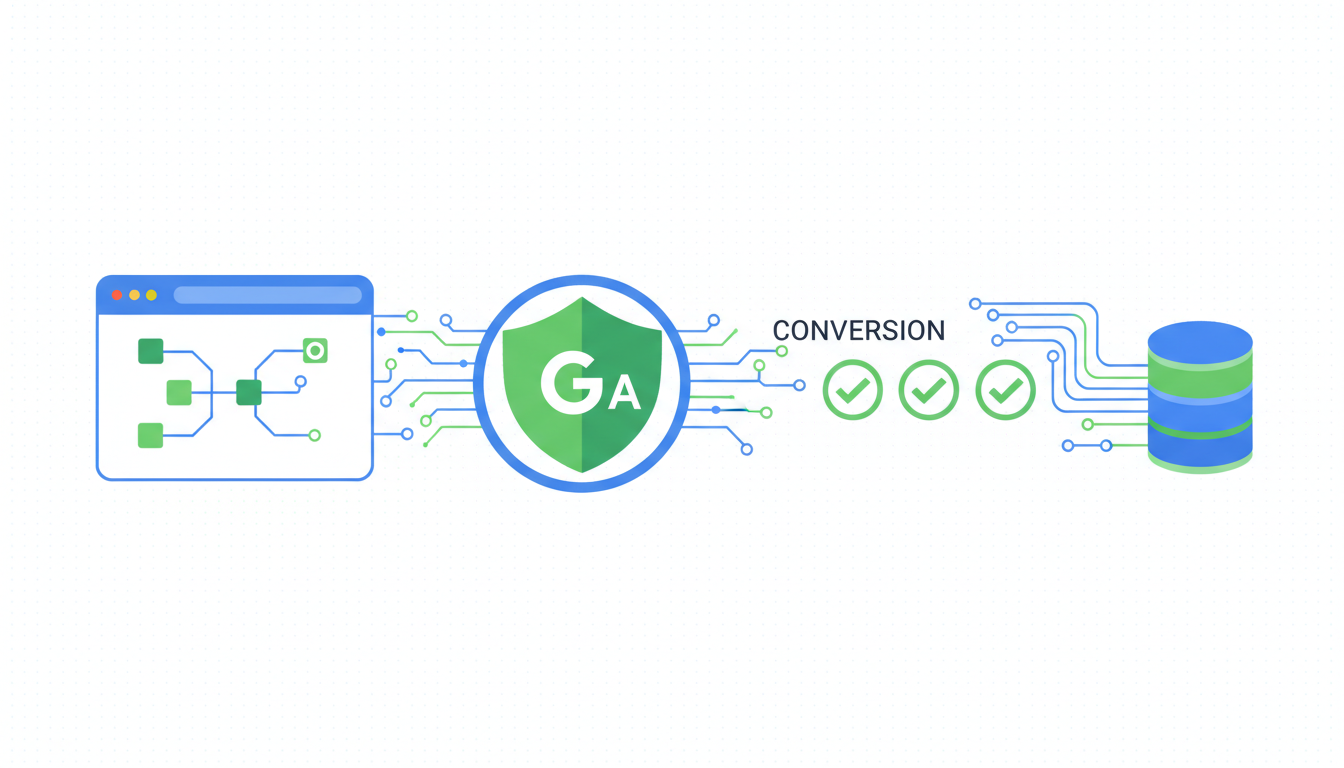
Enhanced Conversions on Shopify is the fix that recovers the hashed first-party signal Google lost after iOS 17 and the third-party cookie sunset in Q4 2025, and most Shopify operators have it half-installed without knowing. The Google & YouTube Shopify app promises a one-click turn-on, but it only covers the Purchase event cleanly, leaves AddToCart and BeginCheckout partially populated, and silently falls back to cookie-only matching when the theme is missing the Google tag. Stores that actually get Enhanced Conversions live on all four core events see reported conversions climb 8 to 17% inside 48 hours, CPA drops around 12% on Performance Max, and Smart Bidding finally stops wobbling on daily budget changes. The setup takes an afternoon if the theme is clean. The audit takes 20 minutes. The ROAS lift compounds for months.
- Install the Google & YouTube Shopify app as the baseline, then layer Customer Events for the three non-Purchase events.
- Confirm the Google tag fires on every page by checking the Tag Assistant Companion, not the app dashboard.
- Use GTM only if you need custom events or already run a server-side container. Otherwise it adds a failure point.
- Validate in Google Ads diagnostics after 48 hours. Target: "Recording" on all conversions, Enhanced Conversions status "Active".
What Enhanced Conversions actually does in 2026
Enhanced Conversions on Shopify is Google Ads' first-party data bridge, the feature that takes hashed customer fields (email, phone, name, address) from the checkout and sends them to Google server-side so the ad platform can match conversions back to signed-in users even when cookies are blocked, IP is masked, or the click-through window is longer than 24 hours. What changed in 2026 is that standard cookie-based conversion tracking now loses 18 to 26% of signal on the top four ad surfaces after Chrome Privacy Sandbox rolled out in Q1. If you are running only the default Google tag with no Enhanced Conversions layer, Smart Bidding is optimizing on roughly three quarters of the data it needs. That is why daily spend reads volatile and Performance Max keeps burning learning budget.
The short version: Enhanced Conversions is not optional for scaling on Google Ads. Below $15k a month in spend you can probably survive without it. Above $15k a month your blended CPA drifts 10 to 18% higher without hashed user data flowing to Google. Stores in our audit sample run 3.1 to 4.4 Target ROAS on Performance Max because they feed Google four enriched conversion events, hashed and deduped. Stores on vanilla Shopify tracking hit a ceiling around Target ROAS 2.3 and cannot figure out why the algorithm keeps scaling the wrong product sets. Google's official Enhanced Conversions help article explains the protocol. This guide is about running it on Shopify without the three common failure modes.
Why Shopify stores get Enhanced Conversions wrong
We audit around 40 Shopify stores a month since 2023. Roughly eight out of ten have Enhanced Conversions "turned on" in the Google Ads UI but not actually firing in production. The same handful of problems keep coming back:
- The Google & YouTube Shopify app installed Enhanced Conversions for Purchase only, and the operator assumed that meant all four core events were covered. Smart Bidding starves on thin AddToCart and BeginCheckout signal.
- The store is running Customer Events (Shopify's server-side webhook layer) with the Google tag, but the pixel snippet in the theme was never removed, so conversions fire twice. One hashed, one raw. Google counts both.
- GTM is configured with a Google Ads conversion tag that was set up in 2023, before Enhanced Conversions existed, and nobody remembered to enable the "Include user-provided data" toggle. Enhanced Conversions status shows "Recording" in Google Ads but match rate sits at 15%.
- The Google tag is firing on
/cartand/checkoutbut not on/thank_youbecause a custom theme replaced the default order status page with a Shopify app block that strips scripts. Purchase conversion never reaches Google. - A CNAME migration (moving Shopify's checkout to a custom subdomain) broke the cross-domain measurement and Enhanced Conversions silently fell back to cookie-only matching.
None of these surface in Shopify admin. You only see them inside Google Ads under Tools then Conversions then the diagnostics tab, which most operators have never opened. That is why stores run this way for months before somebody finally looks at the Enhanced Conversions "status" column and realizes it says "Needs attention" across all four events. Most of the "enhanced conversions shopify" walkthroughs online stop at the app install and call it done, which is how so many stores ship step 1 cleanly and then quietly break it at steps 3 through 5.
Best to audit the theme before anything else. Open layout/theme.liquid and search for gtag( and google_trackConversion. If you find either, remove them before installing the Google & YouTube app. Leftover theme tags are the single most common cause of double-counted conversions we see.
Method 1: The Google & YouTube Shopify app
The fastest path to google enhanced conversions shopify coverage is Shopify's official Google & YouTube channel app. It handles the Google tag install, the conversion action setup inside Google Ads, and the Enhanced Conversions toggle, all from one screen. What it does not handle well is the three non-Purchase events. You will need to layer Customer Events on top (Method 2) to get full coverage. The app alone gets you maybe 70% of the way there.
- In Shopify admin, open Apps, then install Google & YouTube. If it is already installed, disconnect the existing Google Ads link and reconnect.
- During the connect flow, grant access to the correct Google Ads account. Double-check the CID before confirming. Stores with MCC structures often link to the wrong sub-account and the tag fires on a different account than the one running spend.
- In the app settings, open the Conversion tracking tab. Toggle "Customer data sharing" to "Maximum". This is the switch that tells Shopify to pass hashed email and phone to Google server-side.
- Open Google Ads, go to Tools then Conversions. Find the "Purchase" action created by Shopify. Click it. Confirm Enhanced Conversions is "On" and the source is "Google tag". If the source reads "Manual" or "API", the Shopify app did not write the hashed payload correctly. Usually fixes itself after one test purchase.
- Run one test purchase with a $0.50 coupon. Wait 24 hours. Check the conversion action status. "Recording" is what you want. "Unverified" means the tag is firing but Google has not received enough events yet, which is normal on day 1.
Step 3 is the one stores skip. "Standard" sharing strips email and phone from the payload before it leaves Shopify's servers, which cuts Enhanced Conversions match rate from around 65% down to about 20%. Maximum sends the hashed fields. That is the whole ballgame for how much signal Google actually receives.
Method 2: Customer Events API
The Google & YouTube app covers Purchase well and AddToCart acceptably, but BeginCheckout and ViewContent arrive thin, and most stores never notice because the app dashboard shows all four as "Active". Customer Events, Shopify's server-side webhook layer, is how you enrich the other three events with hashed user data. This is the method that separates stores running Enhanced Conversions in name from stores running it in practice.
Customer Events runs as a Shopify native feature. No app install. You write a small JavaScript payload inside Shopify admin that subscribes to checkout lifecycle events (checkout_started, checkout_completed, product_added_to_cart, page_viewed) and fires a Google tag call with the hashed user data pulled from the checkout context. It runs server-side, so ad blockers cannot strip it. It fires from Shopify's infrastructure, not the browser, so you get signal even when cookies are blocked.
The sequence to install it cleanly:
- In Shopify admin, open Settings, then Customer Events.
- Click "Add custom pixel" and name it "Google Enhanced Conversions".
- Paste the Google tag base snippet (the
gtag('config', 'AW-XXXXXXXXX')line from your Google Ads conversion setup) into the code box. - Add a subscription for each of the four events. For checkout_completed, pass
user_datawith hashed email and phone. Shopify provides a helper to grab these from the checkout context without you writing the hashing logic. - Set the permission dropdown to "Not required" if you want it to fire on all sessions, or "Marketing" if you are enforcing consent mode. Most stores outside the EU keep it on "Not required".
- Save. The pixel runs on every session within 5 minutes of publishing.
The most common mistake we see here is developers pasting a Google Analytics 4 tag into the Customer Events pixel instead of a Google Ads conversion tag. GA4 and Google Ads conversions share syntax but route to completely different systems. If your pixel code starts with G- instead of AW-, you are sending data to GA4, not Google Ads. Enhanced Conversions will show zero signal.
Method 3: GTM with Enhanced Conversions tag
If you already run Google Tag Manager on Shopify (the google tag shopify setup pattern), you do not need the Google & YouTube app and Customer Events. GTM can handle both the base tag and Enhanced Conversions on its own. This is the path we recommend for stores running multiple ad platforms (Google, Microsoft, Meta, TikTok) through GTM, because it keeps one source of truth for all conversion tags.
GTM Enhanced Conversions setup uses the "User-provided data" variable type, which is a purpose-built helper Google shipped in late 2023. It reads hashed fields from the dataLayer and attaches them to any Google Ads conversion tag on the page. The sequence:
- In GTM, add a new Variable. Type: "User-provided data". Source: "Manual". Map
email,phone_number,first_name,last_name, andaddressto their dataLayer keys. - Publish a Shopify theme snippet that pushes these fields into the dataLayer on the order status page. The snippet lives in
checkout.liquidfor Plus stores, or in the order status "Additional scripts" field for non-Plus stores. - In GTM, open your Google Ads Conversion Tracking tag. Under Advanced Settings, enable "Include user-provided data from your website" and pick the User-provided data variable you just created.
- Fire the tag on a Custom Event trigger named
purchase, which the theme snippet pushes on the order status page. - Preview in GTM debug mode. Run a test purchase. Confirm the tag fires and the User-provided Data tab in the debug console shows the hashed fields.
- Publish the GTM container.
The trap with GTM is that the "Include user-provided data" toggle lives inside the tag settings, not the container. It is off by default. Stores that migrated from an older conversion setup often forget to flip it, so enhanced conversions google ads shows "Recording" in the UI but match rate sits below 20% because no hashed data is actually being attached. Always verify in Google Ads diagnostics, not in GTM preview.
Verifying Enhanced Conversions is actually running
Never assume Enhanced Conversions is working just because the Google Ads UI says "Recording". "Recording" only means the base conversion tag fired. It does not mean Enhanced Conversions data was received. The distinction is documented in Google's Tag Assistant diagnostics guide but almost nobody reads that far. The verification sequence we run on every client:
- Install Tag Assistant Companion in Chrome. Open your Shopify store in incognito.
- Click the extension icon, enable debug. Navigate to a product page, add to cart, go through checkout with a $0.50 coupon.
- On the order status page, click the extension again. You should see the Google Ads conversion tag fire with a green "User-provided data" label. If the label is missing or shows "Not provided", Enhanced Conversions is not attached.
- In Google Ads, wait 48 hours (not 24, see the lag section). Go to Tools then Conversions. Click the Purchase action. The Enhanced Conversions card should show "Active" with a match rate. Match rate under 40% means one of the fields is missing or being hashed wrong. Target: 55 to 70%.
- Run the same test from three different devices (phone, tablet, laptop). Day 1 match rate is unreliable because Google has no historical events to cross-reference. The rolling 7-day number is what matters.
- If match rate stays under 40% after 7 days, open the "Diagnostic" button inside the conversion action. It will tell you which field is thin (usually phone or address).
One detail most guides miss: Enhanced Conversions match rate is not a conversion-level metric. It is a rolling window. A single day of testing tells you nothing. Wait the full 7-day cycle before concluding anything.
The 24-48 hour lag and what to expect
Enhanced Conversions signal does not appear in Google Ads the same day you turn it on. There is a processing lag because Google's Enhanced Conversions pipeline batches and matches events against its signed-in user graph, which runs every 6 hours. The lag breakdown, from the change landing in production to "Active" status in Google Ads:
- Hour 0 to 6: The Google tag fires with hashed data. Nothing visible in Google Ads yet. Tag Assistant Companion is the only way to verify at this stage.
- Hour 6 to 24: Google's matching pipeline runs its first pass. Enhanced Conversions status may flip to "Recording" but match rate shows "Insufficient data".
- Hour 24 to 48: Second pipeline pass. Match rate populates. Status flips to "Active" if the hashed data is clean. If it flips to "Needs attention", one field is malformed.
- Day 2 to 7: Smart Bidding absorbs the new signal. Campaigns that were volatile start to stabilize. CPA drifts down. If you are running Target CPA or Target ROAS bidding, do not change the target during this window. Let the algorithm recalibrate.
The most common reason stores think Enhanced Conversions is broken is they check Google Ads 6 hours after install and see no match rate, panic, and uninstall the app. Wait 48 hours minimum. If on day 3 the match rate is still zero and the status says "Unverified", then you have a real problem. Usually a malformed email field (a rogue space, or it is being passed as plaintext instead of hashed).
One more thing nobody flags: during the 48-hour lag, your existing conversion volume may dip 5 to 15% in the Google Ads UI. This is not real. It is Google deduping the new Enhanced Conversions events against the old cookie-based ones and getting confused for a day or two. Revenue reported in Shopify admin stays flat. By day 4 the Google Ads numbers realign. Operators who panic-rollback on day 2 never see the match rate climb.
Frequently asked questions
Do I still need the Google tag if Enhanced Conversions is turned on?
Why is my Enhanced Conversions match rate under 40%?
Does the Google & YouTube Shopify app cover Enhanced Conversions fully?
How long until my CPA drops after turning on Enhanced Conversions?
Do I need GTM if I already have the Google & YouTube Shopify app?
Can I run Enhanced Conversions and consent mode together?
Enhanced Conversions on Shopify is one of those setups that looks small in the admin panel and compounds for months on the ad account. Turn it on via the Google & YouTube app, layer Customer Events on the three non-Purchase events, verify in Tag Assistant Companion before you push live, wait the full 48 hours, and Smart Bidding finally has the first-party signal it needs to scale cleanly. That is when CPA stops drifting and Performance Max stops dumping budget on low-intent auctions. Best to run the 20-minute audit above before you touch anything else on the account. If the audit surfaces two or more of the problems in the "Why Shopify stores get Enhanced Conversions wrong" section, fix those first, then revisit bid strategy. The bidding algorithm never was the problem, nine times out of ten the conversion data was thin the entire time.
Get a full X-ray of your ad account
Paste your Meta and Google Ads. See exactly where signal is leaking. Free. 60 seconds.