Google Merchant Center for Shopify: feed that actually approves
 By Dror Aharon
·
CEO, COREPPC
·
Updated April 17, 2026
·
11 min read
By Dror Aharon
·
CEO, COREPPC
·
Updated April 17, 2026
·
11 min read
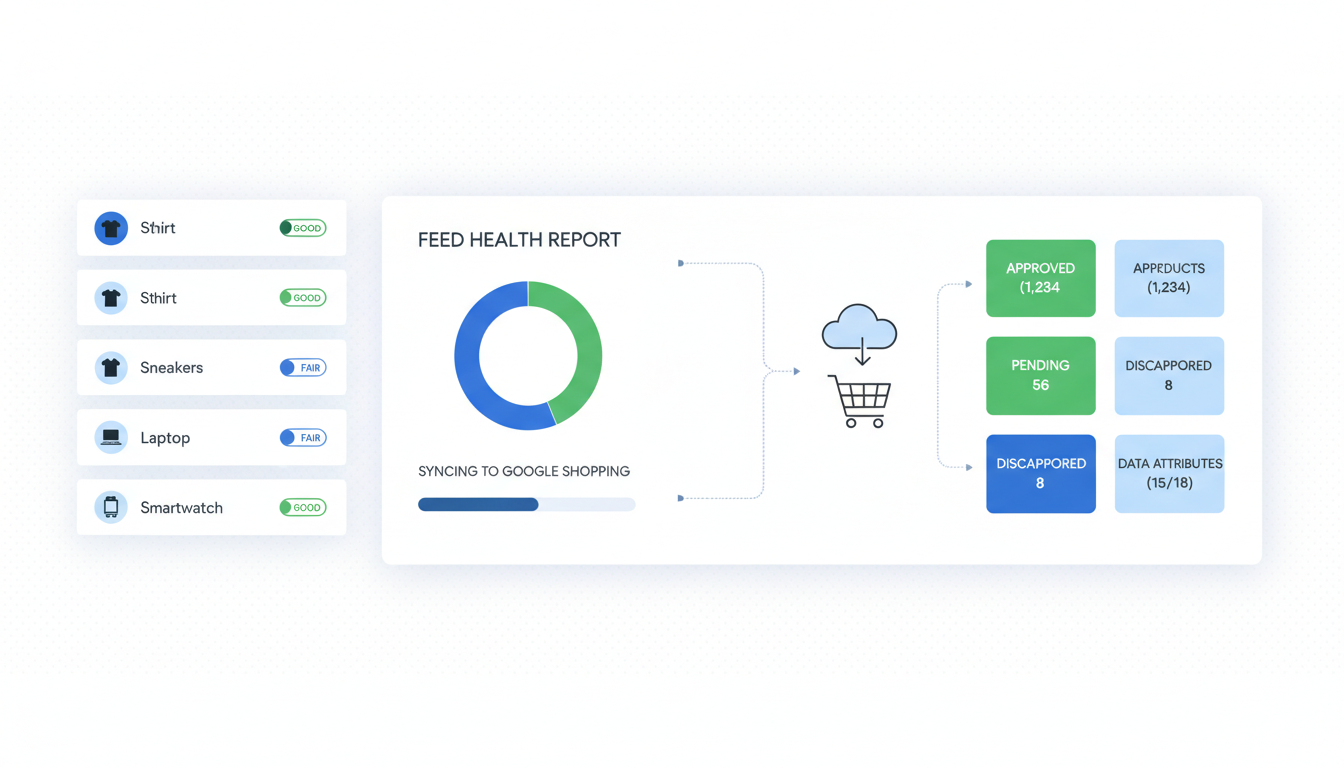
Shopify Google Merchant Center is the foundation of every paid Google account for a product brand, and about 80% of disapprovals trace back to the same 12 feed errors, most of which Shopify merchants never see because nobody checks GMC diagnostics until spend drops. The Google Sales Channel gets you a feed in 15 minutes, but it also ships with default title mappings, missing GTINs, and identifier_exists toggles set wrong for half of stores. So the feed technically exists, Performance Max technically runs, and between 20 and 40% of your SKUs are silently suppressed every week. Fix the 12 errors in order, rewrite titles for search intent instead of brand-name-first, and add two custom labels that actually segment inventory, and the approved SKU count climbs from 60% to 95%+ inside a week. The audit takes 20 minutes. Most of the fixes are two-click toggles.
- Use Shopify's Google Sales Channel, not a third-party feed app, unless you need complex rules.
- Fix the 12 most common disapprovals in order (GTIN, title, image, shipping, tax first).
- Rewrite titles for search intent, not brand-name-first, especially for PMax.
- Add two custom labels: margin tier and stock status. Skip the other three.
Why GMC is the foundation of every Google Ads Shopify account
Google Merchant Center for Shopify is where every product image, title, price, and availability signal lives before Google Ads can show a Shopping ad or a Performance Max listing. No feed, no Shopping surfaces. A bad feed, and Shopping surfaces still run but on 60% of your catalog instead of 100%, which Google never tells you unless you open the diagnostics tab. Shopify's Google Sales Channel handles the sync pipe for most stores, but it also ships with defaults that are wrong for about half of the catalogs we audit. So the feed exists, PMax runs, and nobody notices the approved count has been sitting at 2,400 of 4,000 SKUs for six months.
The short version: Shopify google merchant center is not a one-time setup. It is a live system that needs weekly attention, and the gap between "connected" and "approved" is where most stores leave money on the table. Brands running clean feeds hit 2.8 to 3.6 ROAS on PMax because Google has 100% of the catalog to optimize across. Brands with 60% approval rates cap at 1.6 to 2.0 ROAS and assume the problem is creative or audience. It almost never is. Google's Merchant Center product data specification is the source of truth for what approves and what does not. This guide is about running it on Shopify without letting 40% of your catalog quietly die.
The 12 most common feed disapprovals and how to fix each
We audit around 30 Shopify gmc setup flows a month since 2023, and 80% of disapprovals stack inside these 12 error codes. The fix order matters. Fix GTIN and title first, because those two alone account for about 45% of the suppression we see. Then images, shipping, tax, and the custom attributes after.
-
Missing or invalid GTIN. Google wants a real 8/12/13/14-digit number for branded products. Shopify stores the field under
variants.barcode. If it is blank and the product is a known brand, GMC suppresses it. Fix: fillbarcodeon every variant for branded goods. For private label, setidentifier_exists: falseinstead (see Section 4). -
Title too short or brand-name-first for search intent. "Acme" as a title gets rejected for "insufficient information." Titles need the pattern
[Brand] [Product Type] [Key Attribute] [Size/Color]. Most Shopify themes pull the raw product title, which is often written for the PDP, not the feed. Fix: rewrite in bulk via a feed rule or a third-party title-rewrite app (see Section 5). -
Image too small or watermarked. Google wants 250x250 minimum, 800x800+ recommended, and zero overlay text or promotional banners. The single most common cause of image disapproval is a "Sale" sticker burned into the hero image by a theme app. Fix: remove promo overlays from product images, use clean studio shots, and confirm the Shopify image URL resolves to 800x800+.
-
No shipping configured in GMC. Shopify passes shipping if the Google Sales Channel is set up correctly, but about 30% of stores we audit have shipping set at the Shopify level but missing from the GMC account settings. Fix: in GMC, go to Tools > Shipping and returns, set a flat rate or import Shopify's shipping table.
-
Tax not configured for the US. Same as above. GMC requires tax rates for US-shipping accounts or it suppresses every product. Shopify stores often have tax-inclusive pricing set at the Shopify level but no entry in GMC. Fix: Tools > Tax, pick "Don't tax" if your prices include tax, or enter US state rates.
-
Price mismatch between feed and landing page. GMC crawls the landing page and compares the price against what the feed says. If your theme shows "$39.99" and the feed says "$40.00" because of a currency-rounding setting, the product gets disapproved for "Price mismatch." Fix: turn off price rounding in Shopify, confirm the feed and PDP show identical strings.
-
Availability mismatch. Similar pattern. Feed says "in stock," crawler hits a PDP showing "Sold out." Happens when inventory syncs lag or when a variant is out of stock but the parent product is still marked in stock. Fix: sync cadence set to hourly in the Google Sales Channel settings, not daily.
-
Landing page does not match product. Usually caused by redirects or by a PDP that showcases a collection instead of a single product. Fix: every item's
linkfield in the feed points to a PDP, not a collection page. Shopify handles this correctly by default but breaks when you install certain landing-page builders. -
Missing or incorrect product category. Google's taxonomy (
google_product_category) is a huge tree. Picking "Apparel & Accessories" when the correct path is "Apparel & Accessories > Clothing > Activewear > Sports Bras" means your product does not show on the right Shopping surfaces. Fix: map every SKU to the deepest correct category. Shopify Google Sales Channel has a bulk-mapper under Channels > Google. -
Adult or restricted-content misclassification. Swimwear, lingerie, CBD, and supplements regularly get flagged as adult or restricted even when they are not. Fix: if a product is clean, appeal through Manufacturer Center or file a policy review from GMC. If it actually is adult content, set the
adultattribute to TRUE explicitly so Google routes it correctly instead of disapproving. -
MPN missing when GTIN is absent. If a product has no GTIN and no MPN, GMC treats it as an unidentified product and suppresses or caps it. Fix: add MPN for every non-GTIN SKU. Most private-label brands skip this because they do not know what MPN means (see Section 4).
-
Variant grouping broken. Sizes and colors of the same product should be grouped under
item_group_id. Without it, each variant competes as a separate product and Google treats them as duplicates. Shopify's Google Sales Channel sets this automatically for variants of a single product, but gets it wrong if you use "color" as a product-type split instead of a variant. Fix: keep colors and sizes as variants of one product, not separate products.
Fix these in order. GTIN and title first (errors 1 and 2) usually clear 40 to 45% of the suppressed SKUs alone, inside 24 hours after Google re-crawls. Errors 3 through 7 clear another 25 to 30%. The rest are long-tail cleanup.
Best to check the GMC diagnostics tab before anything else. Open Merchant Center, click Products, then Diagnostics. The "Item issues" tab shows every error code with the affected SKU count. That list, in descending order, is the fix queue. Do not guess. Work the diagnostics queue top-down.
Connecting Shopify to GMC: Google Sales Channel vs manual feed
A clean gmc shopify setup starts with the Google Sales Channel for about 85% of stores. It is native, handles the OAuth handshake, syncs inventory hourly, and auto-maps most Shopify fields to GMC attributes. For most catalogs under 10,000 SKUs with standard variants (size, color), this is the right pipe. You install the app, connect the GMC account, pick the target country and language, and the feed exists 15 minutes later.
The exceptions where you want a manual or rule-based feed:
- Multi-country feeds with different pricing or language per country. The Google Sales Channel supports multi-country as of 2024 but gets finicky with currency conversion and tax rules. Cleaner to run country-specific feeds via a rule-based tool like DataFeedWatch or Feedonomics when you cross three or more countries.
- Complex title rewrites. If your titles need different patterns by category (apparel vs electronics vs supplements), the Sales Channel's title mapping is a single global rule. Feed rule tools give you category-level logic. Most catalogs under 500 SKUs can hand-edit titles in Shopify directly and skip the rule engine.
- Custom label logic beyond price/margin tiers. The Sales Channel gives you basic custom labels. If you want labels for seasonality, return rate tier, or new-product launches, you need the feed rule engine (see Section 6).
- Catalogs over 25,000 SKUs. The Sales Channel starts lagging on sync performance at scale. Feedonomics or a custom feed built from Shopify's Storefront API is more reliable above that threshold.
The path most stores pick: Google Sales Channel as the default, switch to a rule-based tool only when one of the four exceptions above actually applies. Do not default to Feedonomics because "it is more powerful." It is also $500 to $2,000 a month, and for a store under 10,000 SKUs that is pure overhead. See Shopify's Google Sales Channel guide for the install walkthrough.
One more thing. If you have an old, orphaned GMC account from a previous setup (common after store migrations or agency switches), disconnect it before installing the Sales Channel fresh. Two channels pushing to the same GMC account causes duplicate feed errors that take a week to diagnose.
GTIN, MPN, and identifier_exists: when to use each
This is the single section most shopify gmc errors trace back to, and also the one most guides get wrong. Google uses three identifier fields to decide how much trust to put in a product listing:
-
GTIN (Global Trade Item Number). The barcode. 8, 12, 13, or 14 digits. If a product has one, use it. Shopify stores this under
variants.barcode. Branded products almost always have GTINs printed on the packaging. If it does not, the manufacturer is usually willing to share them. -
MPN (Manufacturer Part Number). The model number. A string like "AC-500-BLK" that the manufacturer uses internally. Required when GTIN is absent but the product is still from an identifiable brand.
-
Brand. A text field. Required unless the product is a true unbranded generic (handmade, private label with no brand name, custom goods).
-
identifier_exists. A boolean: TRUE or FALSE. Default is TRUE. Set to FALSE only if the product has no GTIN, no MPN, and no brand, like handmade jewelry or custom-printed shirts where none of those apply. Setting it to FALSE when the product does have identifiers tells Google "trust me, this is untrackable," and Google responds by reducing visibility.
The rule in one line: fill GTIN if you have it, MPN + brand if you do not, and only set identifier_exists: false for true one-of-a-kind products. Shopify's Google Sales Channel sets identifier_exists: true by default, which is correct for about 90% of catalogs, but it never prompts you to fill the GTIN field, so most stores ship with identifier_exists: true and blank barcodes. That combination gets every branded product suppressed. Fix the barcode field at the variant level in Shopify, re-sync, and approvals climb inside a day.
One trap: private-label brands often leave GTIN blank assuming they have no barcodes. But if you sell on Amazon, you already paid for GTIN-12s (UPC codes) to list there. Pull those UPCs from your Amazon catalog and paste them into Shopify's barcode field. Same identifier, two channels, zero extra cost.
Product title rewriting for PMax and Shopping
Titles are the second-highest-impact fix after GTINs. Google uses the title as the primary matching signal for queries on Shopping surfaces, and PMax listing groups scale with the keyword coverage in your titles. Most Shopify product titles are written for the PDP, where brand name comes first because that is what the shopper recognizes. On Shopping, brand-name-first kills reach.
The pattern that works:
[Brand] [Product Type] [Primary Attribute] [Size/Color/Gender]
Example:
- PDP title (bad for feed): "Acme Performance"
- Feed title (good): "Acme Running Shoes Waterproof Trail Mens Size 10 Black"
The feed version carries every search term someone might type when they want a waterproof running shoe. The PDP version ranks for "Acme" and nothing else. Google Merchant Center for Shopify accepts up to 150 characters in the title field, and the first 70 are what shows in the ad, so front-load the important attributes in the first 70 characters.
Category-specific patterns that work:
- Apparel: Brand + Gender + Product Type + Key Attribute + Color + Size. "Acme Mens Running Shoes Waterproof Trail Black Size 10."
- Electronics: Brand + Product Type + Model/Key Spec + Storage/Size + Color. "Acme Bluetooth Speaker Portable Waterproof 20W Black."
- Beauty/Supplements: Brand + Product Type + Key Benefit + Size/Count. "Acme Vitamin D3 High Potency 5000 IU 120 Capsules."
- Home goods: Brand + Product Type + Material + Dimensions + Color. "Acme Cotton Throw Blanket 50x60 Inches Charcoal."
Implementation on Shopify: if your catalog is under 500 SKUs, hand-edit the titles in the product admin. If over 500, use a feed rule tool to append attributes from product tags, vendor, and variant options into the feed title, without changing the PDP title. Matrixify and Feed for Google Shopping are two common apps for this.
The test that tells you titles are working: open the "Search terms" report in Google Ads for your Shopping or PMax campaigns. If the terms are dominated by brand-name-only queries, your titles are not ranking for attribute queries. If the terms mix brand + attribute + product type, titles are doing their job.
Custom labels that actually segment your feed usefully
GMC gives you five custom label slots (custom_label_0 through custom_label_4) to segment your feed for bidding. Most guides tell you to fill all five. That is wrong. Two of them carry 80% of the bidding leverage, and the other three are noise that slows down PMax learning and clutters reporting.
The two labels worth setting:
-
Margin tier. Tag every SKU as High / Medium / Low margin. This is the single most useful label for PMax because it lets you bid aggressively on high-margin products and conservatively on low-margin inventory, inside a single campaign. Implementation: pull cost-of-goods from Shopify (if you track it) or from your back-office tool, compute margin, and assign tier via a feed rule.
-
Stock status / age. Tag as New (launched under 30 days) / Core / Clearance. PMax needs this because new products have no history and Google burns budget trying to learn them. Clearance products need aggressive bids to move inventory. Core products run on steady-state bids. Without this label, PMax treats a brand-new SKU the same as a six-year-old bestseller, which means the new SKU never gets enough impressions to find traction.
Labels not worth setting (in our experience):
- Seasonality: use start/end dates on campaigns instead.
- Top seller rank: PMax figures this out from conversion data faster than you can update a label.
- Brand for multi-brand retailers: use the
brandattribute, which is already structured and segmentable in the Google Ads UI.
The reason to keep it to two labels: every label adds a dimension PMax has to learn across, and with more than two dimensions the learning gets fragmented. Two labels is the sweet spot between useful segmentation and enough volume per segment for the algorithm to optimize.
Implementation note. Custom labels are case-sensitive. "High" and "high" are treated as different segments. Pick a casing convention (we use capital-first) and enforce it in the feed rule.
Feed monitoring: the weekly 10-minute check
Most stores set up google merchant feed shopify correctly on day one and never look at it again. Six months later they wonder why ROAS is tanking. The feed does not stay clean on its own. Products go out of stock, prices change, images get updated, and every one of those changes is a chance for a new disapproval.
The 10-minute weekly check we run on every client:
- GMC diagnostics. Open Merchant Center, Products, Diagnostics. Check the "Item issues" count. If it climbed more than 10% week-over-week, something broke. Common culprits: a bulk price update that tripped price mismatches, a new theme app that watermarked images, or a shipping-rule change in Shopify that did not propagate to GMC.
- Approved SKU count. Same tab, top of page. "Active" should be 95% or higher of "Submitted." If it dips below 90%, work the diagnostics queue that same day.
- Landing page issues. Diagnostics > Landing page. This catches PDP breakage (404s, redirect loops, slow-loading pages) that the feed itself cannot detect. A broken PDP kills the ad for that SKU even if the feed is perfect.
- PMax listing group performance. In Google Ads, open your PMax campaign, go to Asset Groups, and check the product-group level report. Products with zero impressions for 7+ days are either suppressed in GMC (cross-check) or the listing group is filtering them out.
- Price drop indicator. GMC shows a blue "price drop" badge on products whose price fell by 5%+ in the last 30 days. If your prices dropped but the badges are not showing, the price history is not syncing. Recheck Sales Channel settings.
Put the 10-minute check on a recurring calendar invite for Monday morning. The brands in our audit sample that do this catch issues inside a week and maintain 95%+ approval rates. The ones that do not run in the 60 to 75% approval band and assume their creative or targeting is the problem.
Do not skip step 1. The diagnostics tab is the highest-signal dashboard in Google Merchant Center and the one most Shopify operators have never opened.
Frequently asked questions
How long does it take for a new product to appear in Google Shopping after I add it to Shopify?
Why are my Shopify products showing as "disapproved" even though everything looks fine?
Do I need a GTIN for every product?
identifier_exists: false and skip it, but your visibility drops by 10 to 20% because Google treats unidentified products with less trust. If you sell on Amazon, you already have UPC codes that qualify as GTINs, pull them in. For handmade or truly custom products, identifier_exists: false is the correct setting.Can I run Google Merchant Center for Shopify without Google Ads?
What is the difference between Shopify's Google Sales Channel and a third-party feed app like DataFeedWatch?
Why does my GMC account keep getting suspended?
Google Merchant Center for Shopify is one of those systems that looks boring on the dashboard and compounds for months underneath. Fix the 12 feed errors in order, rewrite titles for search intent, add margin and stock-status labels, and run the 10-minute monitoring check weekly, and the approved SKU count climbs from 60 or 70% to 95%+ inside a week. That is when PMax stops learning on half your catalog and starts scaling cleanly on the full inventory. Best to open the GMC diagnostics tab before you touch anything else on the account. If the diagnostics queue surfaces more than three of the top 12 errors in this guide, fix those first, then revisit creative and bidding. The creative is rarely the bottleneck, nine times out of ten the feed was the problem the whole time.
Get a full X-ray of your ad account
Paste your Meta and Google Ads. See exactly where signal is leaking. Free. 60 seconds.