Shopify purchase event not firing: the 9-step fix
 By Dror Aharon
·
CEO, COREPPC
·
Updated April 17, 2026
·
11 min read
By Dror Aharon
·
CEO, COREPPC
·
Updated April 17, 2026
·
11 min read
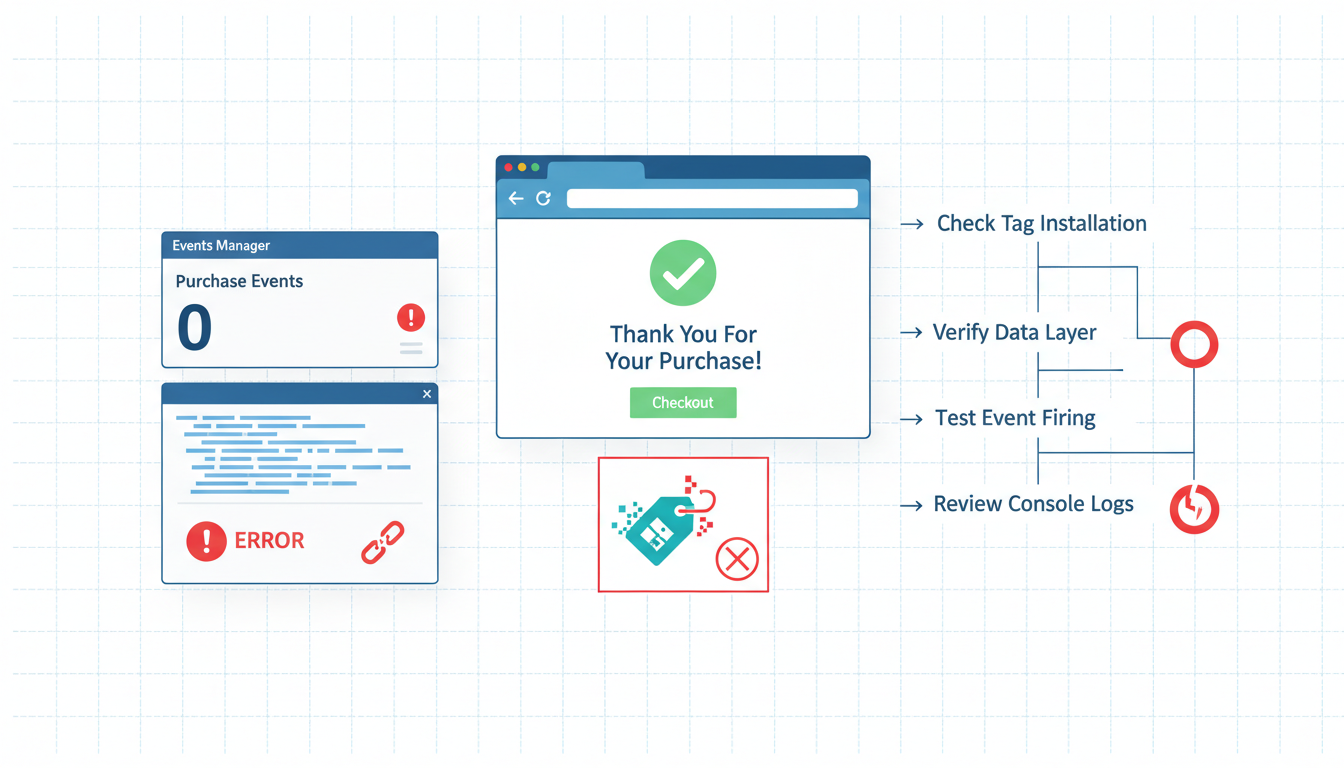
Shopify purchase event not firing is the single most expensive tracking bug a store can run with, and the fix almost always lives inside one of nine specific places. When the Purchase event stops reaching Meta or GA4, every campaign downstream starts lying: reported ROAS drops below 1, budget optimizer panics, creative tests look broken even when the creative is fine. Most operators go straight to the Meta pixel and stop there, which is step 1 of 9 and catches maybe 30% of cases. The real diagnosis runs in order: Events Manager diagnostics, test events, Shopify's F&I app status, Additional Scripts, theme.liquid, checkout.liquid, GTM orphan tags, GA4 enhanced ecommerce, and a $0.50 test purchase. Run the full sequence and you find the break every time, usually inside 20 minutes.
- Start with Events Manager diagnostics, not with the theme code.
- Shopify Facebook and Instagram app is the single source of truth for server events.
- Theme-level `fbq` snippets and orphan GTM tags cause 60% of duplicate-event cases.
- Validate the fix with a live $0.50 purchase before you trust it.
Why the purchase event is the one that matters most
The Purchase event is the one Meta's algorithm optimizes against. Every other event (ViewContent, AddToCart, InitiateCheckout) feeds the funnel, but Purchase is the signal that tells Advantage+ Shopping which audiences actually convert. When a Shopify purchase event is not firing, the algorithm keeps spending but learns from half the data or none at all. That is why stores with a broken Purchase event see CPA spike 40 to 60% inside a week, and why fixing it is the highest-leverage tracking job on the account.
The pain shows up in three places at once. Reported ROAS in Ads Manager collapses (often to 0.0 if the event is fully dead, or 1.1 to 1.4 if it is firing intermittently). Shopify's native orders keep landing so revenue is fine, which is the confusing part. Then Meta's Events Manager shows a flat purchase line or a partial one, and nobody knows if it is a pixel issue, a CAPI issue, a theme issue, or a GTM issue. Most operators guess, poke at one thing, and move on. The fix ends up landing a week later by accident, after a $3,000 budget has been wasted on a learning phase that never had a chance.
We audit around 40 Shopify stores a month. When a store comes to us with "shopify purchase event not tracking" in the intake form, the cause falls inside one of these nine buckets, every single time. The 9-step sequence below is the order we run it in, because the earlier steps fix the most common causes, and the later steps only matter if the earlier ones came up clean. That is why order matters.
The 9-step diagnosis, in order
Here is the full sequence. Do not skip. Do not reorder. Each step feeds the next, and each step rules out a whole family of causes if it comes up clean.
- Open Meta Events Manager diagnostics. If the Purchase event is flagged there, the diagnostic message tells you half the answer already.
- Run Meta Test Events. If a test purchase fires cleanly in Test Events, your live issue is dedup-related. If it doesn't fire at all, the pipe itself is broken.
- Check Shopify's Facebook and Instagram (F&I) app status. Disconnected, stale permissions, or wrong pixel ID is the single most common root cause.
- Check Additional Scripts in Shopify checkout settings. Legacy pixel code in the order status page is a top-3 cause of duplicate or missing events.
- Inspect
layout/theme.liquid. Look forfbq(snippets that should have been removed when the F&I app was installed. - Inspect
templates/checkout.liquid(Shopify Plus only). Custom checkout code can override or silence the F&I app. - Audit GTM for orphan Meta pixel tags. A paused tag counts as dead, a live duplicate tag counts as double-firing.
- Check GA4 enhanced ecommerce. A broken purchase event here usually shares a root cause with the Meta one, because both read the same Shopify data layer.
- Run a $0.50 live test purchase. The final proof. If it lands clean in both Events Manager and GA4, the fix held.
That's the map. Now the detail on each step.
For the manual walkthrough below, a full one-off audit takes 20 minutes and catches 9 out of 10 of the problems we see in production.
Step 1 and 2: Meta Events Manager diagnostics + test events
The first two steps rule out 40% of cases without touching any code. Open Meta Events Manager, pick your pixel, and look at three places.
Step 1: Diagnostics tab. Click Diagnostics. Any Purchase event problem Meta has detected in the last 7 days shows up here with a plain-English reason. Common ones you will see:
- "Event Setup Tool code detected on your site" (legacy setup, needs removal).
- "Duplicate events detected" (browser and server both firing without dedup).
- "Event deduplication not working" (missing or mismatched
event_id). - "Missing required parameters" (usually
valueorcurrencynot passed).
If Diagnostics shows anything, that is your first fix. Do not proceed to step 3 until the diagnostic is clear or acknowledged. Most operators skip this tab entirely because it is buried under a small "Diagnostics" link in the sidebar, and then they spend two days hunting for a problem Meta already flagged.
Step 2: Test Events. Still inside Events Manager, click Test Events. Grab the test code (it starts with TEST). Then run a test purchase on your live store using a coupon that drops the total to $0.50. Watch the Test Events feed.
What you want to see: two rows for Purchase, one labeled "Browser", one labeled "Server", same event_id, deduped note visible. What you actually see when purchase tracking is broken on Shopify usually falls into one of four patterns:
- Zero rows appear: the pipe is fully broken (theme error, F&I app disconnected, network block).
- One row appears (Browser only): CAPI is dead, go to step 3.
- One row appears (Server only): browser pixel is missing, check theme and GTM.
- Two rows appear but no dedup note:
event_idis missing or mismatched between browser and server.
The pattern you see here narrows the next step dramatically. Write it down. You will refer back to this in step 9 to verify the fix.
Meta's official Events Manager reference explains each diagnostic message in more depth, though the fixes below are what actually move the needle on Shopify specifically.
Step 3 and 4: Shopify F&I app status + Additional Scripts
Steps 3 and 4 catch the Shopify-specific causes. These are where 50% of our audit cases end up resolving.
Step 3: F&I app. In Shopify admin, open Apps, then Facebook and Instagram. Three things to confirm:
- Connection status: Green "Connected" badge. If it says "Reconnect" or shows a warning triangle, the OAuth token expired. This happens every 60 days if nobody logs in. Reconnect, confirm it picks up the right pixel, save.
- Pixel ID matches: The Pixel ID listed in the F&I app must match the one you are actually watching in Events Manager. Most common mistake: store owner connected a personal ad account pixel two years ago, then the agency connected a business pixel, and Shopify is still sending to the personal one. Events Manager shows nothing on the business pixel because no events are coming in.
- Customer data sharing is Maximum. Settings in the F&I app, under Data sharing preferences. If it says Standard, events fire but strip the email and phone, which cuts match quality. Set to Maximum.
If any of these three is off, fix it, then re-run step 2 (Test Events) before moving on.
Step 4: Additional Scripts. In Shopify admin, go to Settings, Checkout, scroll to "Order status page". Paste area at the bottom is "Additional Scripts". Open it.
This is the single most-forgotten place on a Shopify store. Whatever was pasted here in 2021 is still there. Common offenders:
- A hardcoded
fbq('track', 'Purchase', {...})block from before the F&I app existed. - A Google Ads conversion snippet that also re-fires Meta Purchase.
- A custom app's post-purchase script that was supposed to be removed when the app was uninstalled.
- A sloppy Liquid template with
{{ checkout.total_price }}that returns null on subscription orders, so the event fires with value 0 and Meta drops it.
Read every line. If you can't identify what a block does, comment it out, not delete it, so you can put it back if something breaks. Save, then re-run Test Events. The old script firing alongside the F&I app is the textbook cause of the "duplicate events detected" diagnostic from step 1.
Step 5 and 6: theme.liquid and checkout.liquid inspection
Now into the theme code. Steps 5 and 6 catch another 20% of cases, the ones where old pixel code is buried in a file nobody has opened in two years.
Step 5: theme.liquid. Open layout/theme.liquid in the theme editor. Use Find to search for fbq(. If it returns a match, you have leftover theme-level pixel code. This is the #1 cause of duplicate events we see, because the F&I app already fires a pixel, and the theme fires a second one on top.
What a leftover looks like:
<script>
  !function(f,b,e,v,n,t,s){...}(window, document,'script',...);
  fbq('init', '1234567890');
  fbq('track', 'PageView');
</script>
Remove the entire block. Save the theme to a new copy first, commit the change there, test on the preview, then publish. Never edit a live theme directly on a production store, because if you typo something, checkout breaks and orders stop.
While you are in theme.liquid, also check for:
- Google Tag Manager container snippet (should be present once, not twice).
- Any
<script>tag that referencesfacebook.net/tr(that is the pixel). - A
data-pixel-idattribute that contradicts the F&I app's pixel ID.
Step 6: checkout.liquid (Shopify Plus only). If the store is on Shopify Plus, there is a separate file called checkout.liquid that controls the checkout flow. Open it, search for fbq( again, and search for gtag( while you're there. Any pixel call here runs on top of the F&I app's server-side CAPI event, which creates a double-fire scenario that Events Manager flags as "duplicate events" or silently counts twice.
Non-Plus stores do not have checkout.liquid and Shopify's native checkout cannot be edited at the code level, which means this step is a no-op. Skip to step 7.
If you don't have theme code access, ask the store owner to add a "Staff" user with "Themes" permission. Do not ask for full admin access, that is too much privilege for a tracking audit, and most store owners will not approve it.
Step 7 and 8: GTM orphan tags + GA4 enhanced ecommerce
Steps 7 and 8 catch the "I thought we disconnected GTM three months ago" cases, which show up more often than they should.
Step 7: GTM orphan tags. Open the GTM container for the store. Filter tags by "Meta" or "Facebook" or "fbq". Look for:
- Any Meta Pixel tag that is not paused. If it fires on the thank-you page, it double-counts with the F&I app.
- A Conversion Linker tag pointing to a Meta pixel ID (vestigial, usually harmless, but can mask other tags).
- A custom HTML tag containing
fbq('track', 'Purchase', ...)that fires on a DOM event like "Checkout Completed" or a URL trigger.
Pause (don't delete yet) any tag that fires a Purchase event. Publish the container. Re-run Test Events. If the duplicate stops, you found it. Once confirmed for 48 hours, delete the paused tag so it doesn't accidentally get un-paused by someone cleaning up the workspace later.
The official Google Tag Manager documentation has a full reference on tag firing conditions if you need to debug the trigger logic. For our purposes, just pause anything Meta-related in GTM unless you have a specific reason it needs to live there.
Step 8: GA4 enhanced ecommerce. Even if the primary complaint is Meta, GA4 should always be checked in parallel because both systems read from the same Shopify data layer. If GA4's purchase event is also broken, the fix is usually upstream (the data layer itself is wrong), which would affect Meta too.
Open GA4, go to Reports, Realtime. Run the same $0.50 test purchase. Watch the event stream. You want to see purchase fire with value, currency, transaction_id, and an items array. Missing transaction_id is the #1 GA4 purchase issue on Shopify. It usually means the Google Channel (Shopify's Google sales channel app) is either disconnected or configured to send to a different property ID.
Fix path for GA4:
- Shopify admin, Apps, Google and YouTube, confirm connection and property ID.
- If events still don't fire, install the GA4 tag manually through GTM with the
purchaseevent mapped to theevent_iddata layer variable. - Use GA4's DebugView (separate from Realtime) to confirm parameter payloads.
Step 9: verifying the fix with a $0.50 test purchase
Never trust a tracking fix until you have run a live purchase through it. We have seen too many "it's fixed" moments turn into "actually it's still broken" three days later when real orders start rolling in. The $0.50 test purchase is the final proof.
The sequence:
- Create a 99%-off coupon code in Shopify admin, Discounts. Set usage limit to 5, expiry 24 hours.
- In Events Manager, open Test Events, copy the test code.
- Add the test code to the F&I app's CAPI payload (Settings, Data sharing, advanced) OR append
?test_event_code=TEST12345to your store URL as a query string. The F&I app picks it up. - Place a real order on your store, paying the $0.50 using a test card or a real card you will refund later. Use a fresh incognito window so cookies don't mask anything.
- Watch Test Events. Confirm two rows for Purchase: Browser and Server, same
event_id, dedup note visible, value0.50, currency correct. - Also check GA4 Realtime. Confirm
purchasefired withvalue: 0.50, a validtransaction_id, and the items array populated. - Refund the order in Shopify. Remove the
test_event_codefrom the F&I app settings or the URL.
If all of the above lands clean, the Shopify purchase event is firing correctly and the fix is real. Watch it for the next 48 hours in Events Manager's rolling 7-day window. The diagnostic message from step 1 should clear inside 72 hours.
If step 9 fails, go back to step 1 and restart. You missed something. This almost never happens when steps 1 through 8 were followed in order, which is why running them in order matters more than most operators think. Running step 5 before step 1 is why so many stores "fix" the theme code and then discover three days later that the F&I app was disconnected the whole time.
One thing to remember about leaving the test_event_code active. If it stays in the F&I app settings after the test, every live purchase gets routed to the test queue forever, which means none of them count for optimization. We have seen stores lose two weeks of Advantage+ learning because nobody removed the test code. Add a calendar reminder for the same afternoon.
Frequently asked questions
Why is my Shopify purchase event not firing even though the F&I app says Connected?
Can a Shopify theme update break the purchase event?
layout/theme.liquid for any fbq snippets that reappeared. Also check templates/product.liquid and templates/cart.liquid, which some themes edit on update. If you find one, remove it, then push a fresh theme version. Best to make theme updates on a duplicate copy, test with a $0.50 purchase, then publish.Why does Shopify purchase tracking show in GA4 but not Meta?
How long should I wait after fixing the Purchase event before trusting the data?
Does the Shopify Facebook and Instagram app handle all purchase events automatically?
What's the fastest way to tell if the problem is browser-side or server-side?
event_id is missing or mismatched. If neither appears, the whole connection is dead (F&I app disconnected, Pixel ID wrong, or network-level block). This single diagnostic in Test Events cuts diagnosis time in half. Meta pixel purchase not tracking on Shopify almost always resolves to one of these four patterns.Shopify purchase event not firing is one of those bugs that looks mysterious until you run the sequence, and then the cause is obvious inside 20 minutes. Nine steps, in order, no skipping. The first two (Events Manager diagnostics + Test Events) rule out 40% of cases without touching code. Steps 3 and 4 catch another 30% inside Shopify's own admin. Steps 5 through 8 handle the theme, GTM, and GA4 causes. Step 9 is the proof. Most operators run step 5 first, find nothing, then give up. That is why so many stores live with broken Purchase tracking for weeks. Best to run the full sequence the first time. The algorithm cannot optimize on data it is not receiving, and Shopify purchase tracking broken for 7 days costs more in wasted ad spend than a full audit does.
Get a full X-ray of your ad account
Paste your Meta and Google Ads. See exactly where signal is leaking. Free. 60 seconds.