Fix duplicate Meta Pixel events on Shopify
 By Dror Aharon
·
CEO, COREPPC
·
Updated April 17, 2026
·
11 min read
By Dror Aharon
·
CEO, COREPPC
·
Updated April 17, 2026
·
11 min read
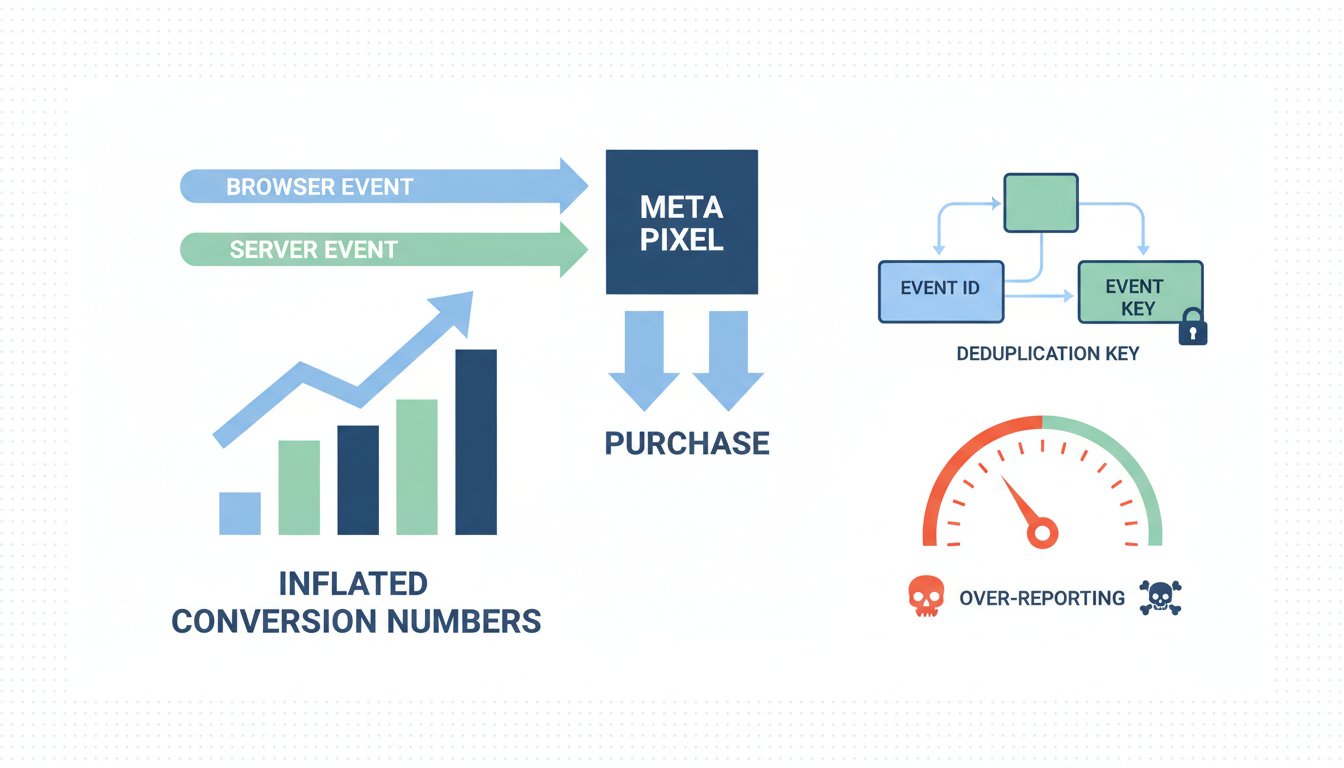
Shopify Meta Pixel duplicate events are the single most common tracking defect we find in paid-media audits, and the fix takes an afternoon once you know where to look. The problem is almost always a second pixel nobody remembered to remove, firing alongside Shopify's Facebook and Instagram app, so every Purchase and AddToCart lands in Events Manager twice. Reported ROAS reads 50 to 80% higher than reality, budget flows to the wrong audiences, and the algorithm quietly trains on ghost conversions for weeks. Five-step diagnosis, no guesswork: count every pixel firing, audit theme.liquid and the checkout Additional Scripts, audit GTM, audit installed apps, verify event_id matches across browser and CAPI. Most stores find the duplicate in step 2 or step 4. Real ROAS recovers inside 7 to 14 days after the fix.
- Count pixels first. One store, one pixel ID. Two IDs firing means 100% duplication.
- Check `theme.liquid` and `checkout.liquid` for leftover `fbq` snippets.
- Audit GTM for orphan Meta tags that pre-date the F&I app install.
- Verify every app is off or using the same shared pixel through Shopify's API.
- Match `event_id` on both browser and server. No match, no dedup.
What duplicate Meta Pixel events actually cost you
Shopify Meta Pixel duplicate events look harmless on the dashboard. Reported ROAS climbs. Events Manager shows more volume than last month. The ad account looks healthier than it has in months, so nobody opens the hood. The damage shows up three weeks later, when the algorithm has optimized toward the audiences that duplicate the loudest and ROAS on real revenue craters. That is the pattern we see in roughly 7 out of every 10 Shopify audits we run.
The math is brutal once you look at it. Say you ship 100 real Purchases in a week at a true ROAS of 2.5. If a second pixel is firing, Meta counts 200 Purchases. Reported ROAS reads 5.0. The algorithm shifts budget toward whatever ad set "converted" best, which is really just whatever ad set triggered the duplicate fire path most often. Two or three weeks in, you are paying $40 CPAs on an ad set that was never actually converting in the first place, and the ad sets that were working get starved because reporting says they are weaker. Most operators blame creative fatigue. The creative was fine. The tracking was lying the whole time.
The second cost is less obvious. Meta's Event Match Quality score drops when it sees the same user firing the same event twice from uncorrelated paths. EMQ below 7 and Advantage+ Shopping stops scaling cleanly. Below 6 it wobbles week to week. So double purchase events on Shopify do not just inflate reporting, they actively degrade the signal Meta uses to optimize. Both problems compound the longer the duplicate runs. The longer you wait, the more the algorithm has to unlearn after the fix.
The 4 most common causes
We audit around 40 Shopify stores a month since 2023. Duplicate Meta Pixel events show up in 70% of them. Four root causes account for almost every case:
- Two browser pixels firing at once. Shopify's Facebook and Instagram app was installed in 2024. Someone added the pixel ID to
theme.liquidduring a 2023 redesign. Both still fire. Every event counts twice. - GTM running parallel to the F&I app. A browser-side Meta Pixel tag in GTM never got paused when the F&I app took over. Browser side fires from two sources, server side from one, dedup fails because event IDs do not match.
- An app install bundled a second pixel. Some upsell, reviews, or analytics apps ship with their own Meta Pixel firing logic. You installed the app 8 months ago, forgot it does tracking, and now it is adding a second AddToCart on every cart click.
- Event_id missing or mismatched. Browser pixel fires with one ID format (
1001), CAPI fires with another (order_1001). Meta treats them as separate events, so instead of deduping it counts them both.
None of these show up in Shopify's native reporting. They only show up in Events Manager under Diagnostics, which most operators have never clicked. That is why stores run this way for a year before somebody finally notices reported ROAS does not match the bank account. Meta Pixel deduplication on Shopify is not hard once you know the rule, but the five-step diagnosis below is how you actually find the pixel that should not be there.
Best to start with the pixel count before touching anything else. If you have two pixel IDs firing, the cause is obvious and the fix is subtraction. If you have one pixel ID firing twice, the cause is either a duplicate tag or a missing event_id, and diagnosis gets more interesting. Either way, count first.
Step 1: Count every Meta Pixel firing on the store
Install the Meta Pixel Helper Chrome extension if you have not already. It is free, official, and the single fastest way to spot Shopify Meta Pixel duplicate events in the wild. Open your homepage in an incognito window, click the extension icon, and look at what it reports.
- Open the store homepage in incognito with the extension active.
- Check the pixel count. One pixel ID, firing PageView once, is the target state.
- Open a product page. Pixel Helper should show one ViewContent, not two.
- Add to cart. Look for exactly one AddToCart fire.
- Start checkout. Look for exactly one InitiateCheckout.
- Complete a test purchase (use a coupon that drops the total to $0.50). Look for exactly one Purchase.
What you are actually counting is two things. First, how many distinct pixel IDs fire on each page (target: one). Second, how many times each event fires per action (target: one). If the Pixel Helper shows PixelID 123... and PixelID 456... both firing PageView, you have two pixels installed, which is the most common cause. If it shows PixelID 123... firing PageView twice in a row, you have one pixel installed in two places, which is the second most common cause. Both look almost identical in Events Manager, but the fix path is different.
Screenshot every stage. Dealing with this blind is how stores end up fixing the wrong thing. If Pixel Helper shows clean fires on the storefront but Events Manager still reports duplicate purchases, the duplicate is happening on the thank-you page (post-checkout) which Pixel Helper cannot see unless you actually complete a purchase in the same session. That is why step 1 includes the $0.50 coupon test. Skip it and you will miss the most expensive duplicate: Purchase events.
One more thing. If the extension icon shows a warning triangle and the message "Multiple Pixel IDs detected on this domain," you can stop here. The cause is two pixels, the fix is to kill one. Jump to step 2.
Step 2: Audit theme.liquid and Additional Scripts
This is where the duplicate lives in about half the cases we diagnose. The Shopify Facebook and Instagram app installs the pixel correctly at the platform level. Then six months later someone adds a manual pixel to the theme, usually because a freelance developer copy-pasted Meta's "standard pixel install" code into theme.liquid without realizing Shopify was already handling it.
Where to look, in order:
layout/theme.liquid. Top of<head>. Search forfbq(. Any match is a problem.templates/product.liquid. Search forfbq('track', 'ViewContent'. Shopify 2.0 sections fire independently, so a misplaced ViewContent here triggers every time the section re-renders.templates/cart.liquid. Same drill withAddToCart.- Shopify admin > Settings > Checkout > Additional scripts (for non-Plus stores). Any
fbqcode here fires on every thank-you page load. Non-Plus stores still have this box, and it is the single most overlooked place. - Shopify Plus: checkout.liquid. Same as Additional Scripts. Plus stores have a full checkout.liquid file, and any Purchase pixel code there fires alongside the F&I app's CAPI call.
The fix is deletion, not modification. Copy the entire block you want to remove to a scratch file first so you can roll back. Commit the change on a theme copy, test on that copy, then publish. Never edit the live theme directly. Seen a store lose 48 hours of Purchase events because a developer deleted a fbq block and accidentally broke the Order Status page template. Test on a copy.
One edge case. Some older "Facebook pixel" Shopify apps (not the official F&I app, but third-party reproductions from 2021-2022) install the pixel by injecting code into theme.liquid directly rather than through Shopify's platform hooks. If you uninstall the app, the injected code stays behind. Search the theme for <!-- Facebook Pixel comments and remove any matching block, then uninstall the app. Two-step fix.
Step 3: Audit GTM and every active tag
Google Tag Manager is the second most common duplicate source. Not because GTM is bad, but because GTM containers accumulate over the years. A tag that was set up for a 2023 campaign never got paused, the F&I app was installed in 2024, and now the browser pixel is firing from both paths.
Open your GTM container in the admin view, click into Tags, and filter by "Meta" or "Facebook" or "fbq". Look for:
- Any tag with "Meta Pixel" or "Facebook Pixel" in the name. Pause every one.
- Any Custom HTML tag that contains
fbq(in the code. Pause. - Any "CAPI" or "Conversion API" tag firing from GTM server-side. Pause, unless you have a specific reason to run GTM server-side CAPI in parallel with the F&I app (rare, usually only custom events).
- Preview the container after pausing. Run through the full checkout flow. Confirm no Meta tags fire at all from GTM.
- Save a new container version with a clear note: "Paused all Meta tags, migrated to F&I app CAPI."
The trap here is the "Paused" status. A paused tag does not fire. Good. But if the tag was set up with a trigger that runs before the pause (like "All Pages" with no exception), and somebody republishes an old container version later, it comes back. Do not just pause, delete the tags outright once you have confirmed the F&I app handles everything. Cleaner state, no zombie tags to worry about.
If you run GTM server-side through a tool like Stape or a self-hosted sGTM, the audit is the same but one step deeper. Open the server container, look for any Meta or CAPI tag, and confirm either it is paused or it is sending with a matching event_id shared with the client-side source. Running server-side GTM CAPI alongside the F&I app CAPI is technically possible but introduces a second server-to-server pipe sending the same events. Unless you have a reason (custom events, enrichment), disable one side.
Step 4: Check installed apps for orphan pixels
This is the cause people miss most often, because apps are treated like black boxes. An upsell app, a reviews app, a subscription app, or a landing page builder can ship with its own Meta Pixel firing logic. Some disclose this, most do not, and the pixel fires silently alongside everything else.
The apps that most commonly introduce a duplicate pixel:
- Upsell apps that add a post-purchase upsell page. The upsell page often has its own Purchase pixel fire baked in.
- Reviews apps that render product review widgets. Some fire ViewContent when the widget loads, even though Shopify already fires one.
- Analytics apps that claim to offer "better Meta attribution." Usually they install a second pixel with their own IDs and rules.
- Landing page builders (PageFly, Shogun, GemPages). The pages built with these tools can have their own pixel logic that operates outside Shopify's native tracking.
- Subscription apps (Recharge, Bold, Skio). These handle checkout for subscription orders, and some fire their own Purchase events on subscription conversion.
How to audit without spending a week on each app. Open Shopify admin, go to Settings > Customer Events, and look at what sources are listed. This shows every pixel source registered with Shopify's Customer Events API. Ideally you see one source: "Facebook & Instagram." Any other source is worth investigating. Two caveats. First, Customer Events only shows pixels registered through the proper API, so apps that inject pixel code directly into the page (the wrong way) will not appear here. For those, use Pixel Helper on pages that render app content. Second, this admin page is only available on certain plans and regions, so if you do not see it, audit apps one at a time by searching each app's help docs for "Meta Pixel" or "Facebook Pixel."
Once you find the orphan, the fix is usually a toggle in the app's settings. "Enable Meta Pixel tracking" = off. If the app does not have a toggle, uninstall the app, clean the theme (see step 2), and consider whether you need the app at all. Most stores we audit have 5 to 10 apps they forgot they installed, each one a potential pixel source.
Step 5: Verify event_id is matching on browser and CAPI
Even after steps 1 through 4 are clean, you can still have Shopify Meta Pixel duplicate events if the event_id is missing or mismatched. The F&I app handles this automatically for the four core events (Purchase, AddToCart, ViewContent, InitiateCheckout). For anything custom, you own the match.
How to verify event_id matching correctly:
- Go to Events Manager, pick your pixel, open Test Events. Grab the test code.
- Add the test code to your CAPI payload (the
test_event_codefield). - Run a test purchase on the live store with a $0.50 coupon.
- Watch Test Events. For every event, you should see two rows: one labeled "Browser", one labeled "Server". The two rows should have the same
event_idand show a "Deduplicated" tag in the diagnostics column. - If the Deduplicated tag is missing, the event_id is either missing on one side or formatted differently. Fix whichever side is inconsistent and rerun.
- Remove the test_event_code before going live. Leaving it in sends all events to the test queue, which means none of them count for Meta's optimization.
The format trap: browser and server must use the exact same string. If browser sends event_id: "1001" and CAPI sends event_id: "order_1001", Meta treats these as different events and counts them both. Same string, same case, same data type. Best to pick a format and enforce it at the template level. Most F&I-app setups use the Shopify order ID as-is (1001). Most custom CAPI setups prepend order_ for clarity. Pick one, enforce across both paths. Meta's deduplication documentation spells out the matching rules.
Custom events (Lead, StartTrial, post-purchase upsell events) are where event_id mismatches happen most. The developer writes the server call first, ships it, and the browser-side pixel call never gets the matching ID. Result: browser fires a Lead with no event_id, CAPI fires a Lead with its own event_id, and Meta counts them as two separate Leads. Double the reported volume, half the real match quality. If you run any custom events, test each one separately in the Test Events tool and confirm the Deduplicated tag appears.
One last check. The rolling 7-day "Deduplication rate" in Events Manager (under Diagnostics) should sit above 75%. Below that and either a pixel is firing without a matching CAPI call, or event_ids are mismatched. Above 90% and dedup is working cleanly. The Events Manager diagnostics reference explains the score breakdown. Pull this number weekly for the first month after the fix, then monthly. If it starts dropping, something new got installed.
Frequently asked questions
How do I know if my Shopify Meta Pixel is firing duplicate events?
Will fixing duplicate events lower my reported ROAS?
Can I run the Shopify F&I app and GTM for Meta at the same time?
How long before duplicate events stop hurting my campaigns after I fix them?
Why do I see duplicate events only for Purchase and not for AddToCart?
checkout.liquid, non-Plus stores have Additional Scripts under Settings > Checkout). So the Purchase pixel gets duplicated by a code block that does not affect any other page. Check both locations. On non-Plus, Settings > Checkout > Additional Scripts is the single most common place we find duplicate Purchase pixels. On Plus, open checkout.liquid and search for fbq(. The F&I app fires Purchase through CAPI server-side, so any fbq('track', 'Purchase') in these locations is a second fire.Does Shopify Customer Events API fix this automatically?
Shopify Meta Pixel duplicate events are one of those problems that does more damage the longer you wait. Every week the duplicate runs is another week the algorithm trains on inflated data, which means another week of budget landing on the wrong audiences. The fix is not complicated, it just requires the diagnosis to run in order: count pixels, audit theme and Additional Scripts, audit GTM, audit apps, verify event_id. Most stores find the duplicate in step 2 or step 4. The audit takes 20 minutes, the fix takes an afternoon, and real ROAS recovers in the following 7 to 14 days. Best to run the full five-step diagnosis even if you think you already know which step will surface the problem. Half the stores we audit have two causes stacked, not one, and catching only the first one means the duplicate comes back a week later from the second source. Fix clean the first time.
Get a full X-ray of your ad account
Paste your Meta and Google Ads. See exactly where signal is leaking. Free. 60 seconds.