Meta Pixel setup on Shopify in 2026
 By Dror Aharon
·
CEO, COREPPC
·
Updated April 17, 2026
·
11 min read
By Dror Aharon
·
CEO, COREPPC
·
Updated April 17, 2026
·
11 min read
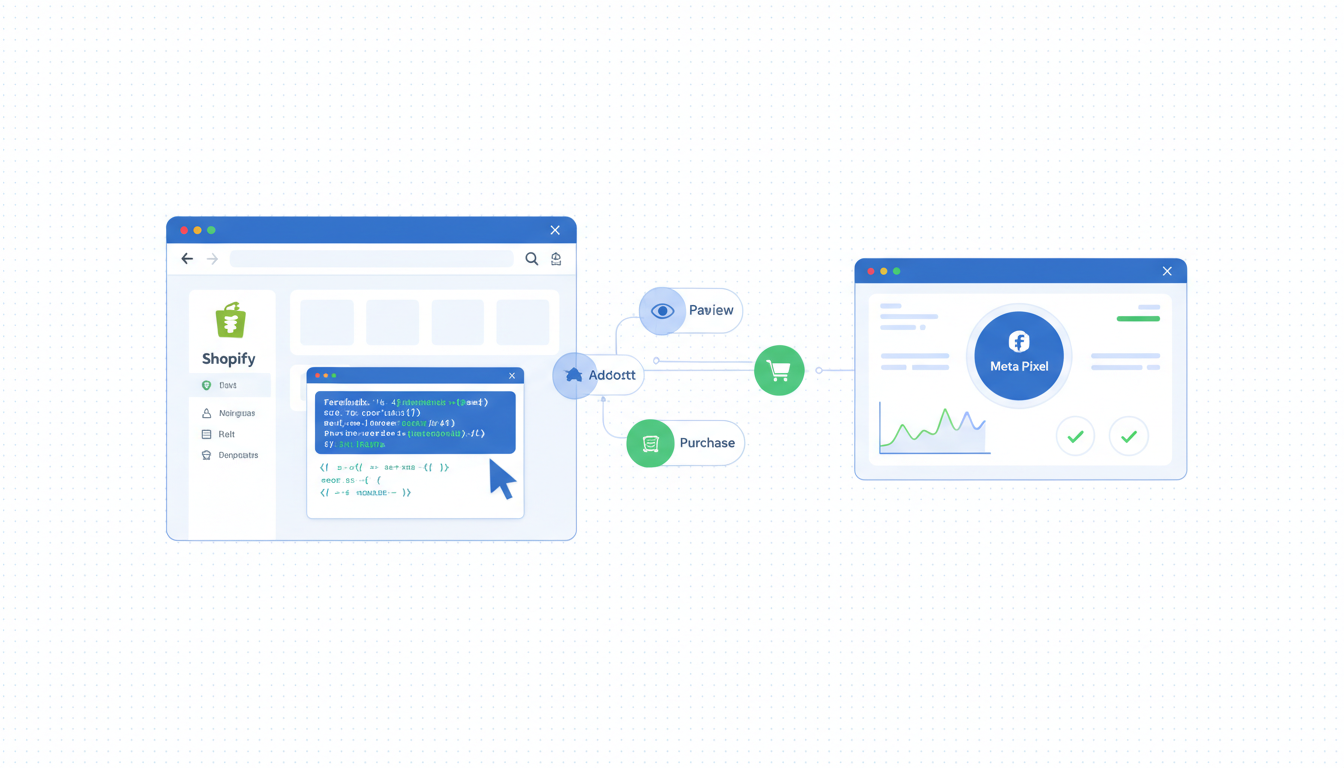
A broken Shopify Facebook Pixel quietly burns 25 to 40% of Meta ad budget on the wrong audiences, and most operators only find out when ROAS collapses after a budget push. In 2026 the install path is settled: the Shopify Facebook and Instagram app installs both the browser pixel and CAPI as one stack, with one Pixel ID, and that is the only configuration Meta supports cleanly today. The trap is the second pixel that always sneaks in from an old GTM container, a 2022 theme snippet, a checkout extension, or a random app nobody audited. Two pixels firing at once double-count every event, the algorithm learns from a ghost, and reported ROAS reads 60% higher than reality. Fix the install, kill every stray, run a 5-minute audit monthly. This guide walks the full path so you stop guessing whether the pixel is actually live or actually correct.
- One Pixel ID per Shopify store. Always. No exceptions.
- Use the Shopify Facebook and Instagram app, not manual snippets.
- Audit GTM, theme, apps, and checkout for stray pixels every month.
- Validate in Events Manager before scaling spend past $5k a month.
What the Meta Pixel still does in 2026 after the CAPI era
The Shopify Facebook Pixel is the browser-side tracker that fires events from a customer's device to Meta when they land on a product page, add to cart, start checkout, or buy. It runs in JavaScript, in the customer's browser, against the customer's session. CAPI runs alongside it, server-to-server, and Meta dedups them using a shared event ID. People keep asking whether the pixel still matters now that CAPI exists. It does. Server-only setups cap out around EMQ 7.2 because they lose the browser fingerprint (cookie ID, user agent, client-side IP) that the pixel captures. Running both is not redundant. It is how Meta's match system was designed.
So if you are setting up Meta Pixel Shopify tracking in 2026, you are setting up two things at once: the browser pixel and the CAPI server stream, both feeding the same Pixel ID, deduped by event ID. The Shopify F&I app does this in one install if you let it. The mistake is treating the pixel as standalone, then bolting CAPI on later through Stape or a custom server. That path almost always produces two server streams and double-counts every Purchase. Best to set both up together, from one source, on day one.
What changed in 2026: browser pixels lost another 14% of match quality after Safari and Firefox tightened third-party cookie rules in Q4 2025. So the browser pixel alone is now a half-strength signal. CAPI fills the gap. Both feeding into one Pixel ID is the only configuration that holds up under iOS 18 and Chrome's incremental cookie restrictions. Meta's Meta Pixel overview in the Business Help Center is the official reference if you want to see the parameter list and event taxonomy.
The one-pixel-only rule and why stores break it
One Pixel ID per Shopify store. That is the rule Meta has held since 2020 and nobody at Shopify or Meta will publish a workaround, because there is not one. Multiple Pixel IDs firing on the same store break attribution, double-count purchases, split learning across two pools, and lock the algorithm out of effective optimization. Stores with two pixels run with reported ROAS 40 to 60% above reality and never figure out why scaling spend tanks revenue.
So why do stores break the rule? Almost never on purpose. The breakage pattern looks like this: store launched in 2021 with a Pixel ID hardcoded into theme.liquid. In 2022 a developer added a second Pixel ID inside a GTM container for a campaign test, never removed it. In 2023 the brand installed the Shopify F&I app, which created a third pixel under the new Business Manager. In 2024 a checkout extension app added its own pixel for "tracking enrichment." Now the store has four pixels firing on every Purchase event. Reported revenue in Ads Manager is roughly 4x real revenue. The brand thinks ASC is a miracle until they pull a finance reconciliation and the numbers do not add up by 70%.
The rule in one line: the only pixel allowed to fire is the one connected to the active Shopify F&I app install. Every other source (theme code, GTM tags, Shopify app extensions, checkout scripts) needs to be paused or deleted. This is non-negotiable, and it is the first thing we audit on every new client before we look at campaign structure.
Installing the pixel via the Shopify Facebook and Instagram app
A clean Facebook Pixel Shopify install starts with subtraction. Pause everything Meta-related before you install anything new. Otherwise the new install stacks on top of whatever was already there and you end up with two pixels by the end of step 1.
- In GTM, pause every tag that contains
fbq, "Meta", or "Facebook" in the name. Save a new container version so you can roll back in 30 seconds if needed. - In Shopify admin, open Online Store, then Themes, then Edit code. Open
layout/theme.liquidand search forfbq(. If you find afbq('init', ...)snippet, comment it out for now (do not delete yet, in case you need to roll back). Same check ontemplates/product.liquid,templates/cart.liquid, andtemplates/checkout.liquidif you have a checkout customization. - Audit installed apps. Open Settings, Apps and sales channels. Look for any app with "pixel," "tracking," "Meta," or "Facebook" in its name that is not the official Facebook and Instagram channel. Disable or uninstall.
- Now install the official Shopify Facebook and Instagram channel from the Shopify App Store. Connect to the Meta Business account that owns the Pixel ID you want to keep.
- In the channel settings, enable Customer data sharing at Maximum level. This is the single biggest EMQ lever, and Standard data sharing strips email and phone from the server payload, which costs 1.5 to 2 EMQ points.
- Confirm the Pixel ID matches the one you want to keep. If the channel created a new Pixel by accident, delete the new one and reconnect to the existing Pixel under "Settings, Customer data sharing, Pixel ID."
Step 5 is the one stores skip every time. Default is Standard, the toggle is hidden two clicks deep, and most operators install the channel and walk away. Open it. Set it to Maximum. That single setting moves EMQ from around 6.5 to 8.2 on most stores, no other changes needed. Shopify's Facebook and Instagram channel help docs walk through the install screens with current screenshots if you need them.
Manual pixel install: when and where it is still valid
Manual Shopify pixel code installs are mostly a 2020 era pattern, but there are still narrow cases where you need one. The two valid ones in 2026: a headless Shopify Hydrogen storefront where the Facebook and Instagram channel cannot inject the pixel into your custom frontend, and a Shopify Plus checkout extension where you need to add a custom event (like StartTrial for a subscription product) that the F&I app does not send by default.
For everything else, the manual install is the wrong path. Stores that hardcode fbq snippets into theme.liquid in 2026 are setting themselves up for the duplicate-pixel problem in section 5, because the next dev or app to add Meta tracking will not know the manual code is there. The F&I channel has no idea about your manual code either, so when it installs its own pixel, you instantly have two firing at once.
If you actually need a manual install (Hydrogen or a checkout extension event), the rule is: use the same Pixel ID as the F&I channel, fire only the events the channel does not cover, and add a comment block in the code that names the developer, date, and reason. Future you will thank past you when you audit the theme six months later and see "added 2026-04 by [name] for Hydrogen ViewContent injection, do not remove without checking F&I app coverage" instead of just an unexplained fbq snippet.
For 99% of standard Shopify stores (Liquid theme, no headless, no checkout extensions, no custom subscription products), the F&I app handles the four core events cleanly and you should not touch theme code at all. If a guide tells you to paste a Meta Pixel snippet into theme.liquid in 2026, stop reading the guide. It is from 2021 and the advice no longer applies.
The four places a second pixel sneaks in (GTM, theme, apps, checkout)
Stray pixels come from four predictable places. We audit roughly 40 Shopify stores a month and these are the four sources, ranked by how often we find each:
- Theme code (found in 60% of audits). Old
fbq('init', ...)snippet in theme.liquid from a 2021 or 2022 setup that nobody remembered to remove when the F&I channel was installed. Search the theme files forfbqand for the literal stringconnect.facebook.net. Both are tells. - GTM container (found in 45%). Orphan Meta Pixel tag that someone added for a one-off campaign test, never paused. Open the container, filter tags by "fbq" or "Meta," pause any that fire on All Pages or any Shopify URL pattern.
- Shopify apps (found in 30%). Tracking enrichment apps, conversion recovery apps, and some review apps install their own Meta Pixel under a separate Pixel ID for "data enhancement." Audit every installed app's settings page. If any app has a Pixel ID field, set it to the one Pixel ID you keep, or disable the pixel feature.
- Checkout extensions (found in 15%, but rising fast on Shopify Plus). Plus stores with custom checkout extensions sometimes inject pixel calls inside the extension JavaScript. Open Settings, Checkout, Customize. Check every extension for tracking code. This is the hardest of the four to find because checkout code is not visible in the standard theme editor.
The diagnostic that catches all four in one shot: install Meta Pixel Helper (the Chrome extension) and load three pages on your store: the homepage, a product page, and the cart. The extension shows every Pixel ID firing on the page. If you see one Pixel ID, you are clean. If you see two or more, you have at least one stray. Note the Pixel IDs, then trace each back to its source using the four-place checklist above.
The Meta Pixel Helper extension is free, unmaintained but still works in 2026, and is the single most useful audit tool for this. Run it monthly. Run it after any Shopify app install, any theme update, any developer change. If the pixel count ever goes from 1 to 2, find the source and fix it the same day. The longer two pixels fire, the more learning data Meta corrupts.
Pixel ID audit: the 5-minute check every operator should run monthly
The audit is short. Most operators never run it. Here is the sequence. Block 5 minutes on the first Monday of every month and just do it.
- Open your Shopify store's homepage in Chrome with Meta Pixel Helper installed. Confirm one Pixel ID. Note it.
- Open a product page. Confirm same Pixel ID, ViewContent event firing.
- Open the cart. Confirm same Pixel ID, no duplicate ViewContent (a common bug from theme code firing ViewContent on every page).
- In Meta Events Manager, open the Pixel, go to Diagnostics. Look for any error rows. The most common ones: "Missing event ID" (means dedup is broken between browser and CAPI), "Event sent twice" (means two pixels are firing), and "Low EMQ score" (means data sharing is on Standard instead of Maximum).
- In Events Manager, check the Overview tab and confirm EMQ is above 8.0. If it dropped from last month, something changed. Trace the change.
Five minutes. If anything fails, escalate. Two pixels firing for two weeks costs more in burned ad spend than the audit takes in a year. Best to put the audit on a recurring calendar invite labeled "Pixel audit, 5 min, do not skip" and treat it like a hardware check.
The most common diagnostic to ignore is "Missing customer information parameters." It is not actually broken, it just means Meta would like more match keys. Worth fixing if you can (enabling phone collection at checkout, passing external_id), but not urgent. The urgent ones are duplicate events and missing event IDs, which both point to a real configuration bug.
Pixel vs CAPI vs both: the settled answer for Shopify
This question still comes up weekly even though the answer has been settled for two years: do you run pixel only, CAPI only, or both? For Shopify, the answer is both, deduped by event ID, fed by the F&I app from one Pixel ID. There is no scenario in 2026 where a healthy Shopify store runs pixel-only or CAPI-only on purpose. The combinations that lose:
- Pixel only. EMQ caps around 6.5 because browser signal alone lost 14% of match quality after Q4 2025 cookie restrictions. Advantage+ Shopping cannot scale past about $5k a month spend without ROAS wobble. If you have not added CAPI yet, this is the highest-leverage tracking fix you can make this week.
- CAPI only. EMQ caps around 7.2 because you lose the browser fingerprint (cookie ID, user agent, client-side IP). Some operators turn off the browser pixel thinking it "simplifies" the stack. It does not. It just halves the signal Meta has to work with.
- Both, but with two Pixel IDs. Worst of all worlds. Double-counted events, split learning, broken dedup. We see this when a store installed CAPI through Stape in 2023 and then installed the F&I app in 2024 without disconnecting Stape. Both server streams fire to different Pixel IDs and the algorithm learns from neither.
The clean answer: F&I channel installs both browser pixel and CAPI under one Pixel ID, with shared event IDs handled automatically for the four core events (Purchase, AddToCart, ViewContent, InitiateCheckout). For custom events (Lead, StartTrial, post-purchase upsells) you build a second pipeline (direct CAPI call from a Shopify Function, or sGTM through Stape), pointed at the same Pixel ID, with manually managed event IDs. That is the only stack that holds up under 2026 conditions.
If you want the deeper walkthrough of CAPI specifically (event ID structure, EMQ targeting, Test Events validation), we wrote a separate guide on Meta CAPI setup on Shopify. The pixel guide is the foundation. The CAPI guide is the next step once the pixel is clean.
Frequently asked questions
Do I install the Meta Pixel manually on Shopify in 2026?
fbq snippets to theme.liquid on top of the channel install creates duplicate pixels. The two narrow cases where manual install is still valid: headless Hydrogen storefronts (the channel cannot inject into a custom frontend) and Shopify Plus checkout extensions that need custom events the channel does not send. For those cases, use the same Pixel ID as the channel, comment the code clearly, and audit it every month. For everything else, the F&I app is the only correct install path.How do I check if my Shopify Facebook Pixel is firing correctly?
What is the one Pixel ID rule and why does it matter?
Where do I find the Pixel ID in Shopify?
Why is my Meta Pixel Shopify event count higher than my real orders?
fbq snippet in theme.liquid from a 2021 or 2022 install that was never removed when the F&I channel was added. Second most common: an orphan Meta tag in GTM that fires on All Pages. Third: a Shopify app with its own pixel (review apps, tracking enrichment apps). Fix the duplication, then reconcile reported revenue against your actual Shopify finance report after one full week to confirm.Should I keep my old GTM Meta Pixel tag if I install the Facebook and Instagram channel?
fbq or loads connect.facebook.net. Save a new GTM container version with a clear note ("paused Meta tags 2026-04 after F&I channel install") so you can roll back if needed. Do not delete the tags for at least 30 days, in case you need to revert.The Shopify Facebook Pixel install is settled in 2026. One Pixel ID, F&I channel install, both pixel and CAPI from one stack, every other source paused or deleted. The trap is not the install itself, it is the second pixel that always sneaks in from theme code, GTM, apps, or checkout extensions, usually within six months of the original clean setup. Best to run the 5-minute audit monthly, treat the Pixel Helper count like a hardware check, and fix any duplicate the same day you spot it. If the pixel is clean and CAPI is feeding the same Pixel ID with shared event IDs, EMQ holds above 8.0 and Advantage+ Shopping scales without wobble. If something is off, it is almost always a stray pixel and the four-place checklist will surface it inside 10 minutes. Run the audit before you spend another dollar on creative testing. The creative is rarely the problem. The pixel is.
Get a full X-ray of your ad account
Paste your Meta and Google Ads. See exactly where signal is leaking. Free. 60 seconds.