Why GA4 shows no data on your Shopify store
 By Dror Aharon
·
CEO, COREPPC
·
Updated April 17, 2026
·
11 min read
By Dror Aharon
·
CEO, COREPPC
·
Updated April 17, 2026
·
11 min read
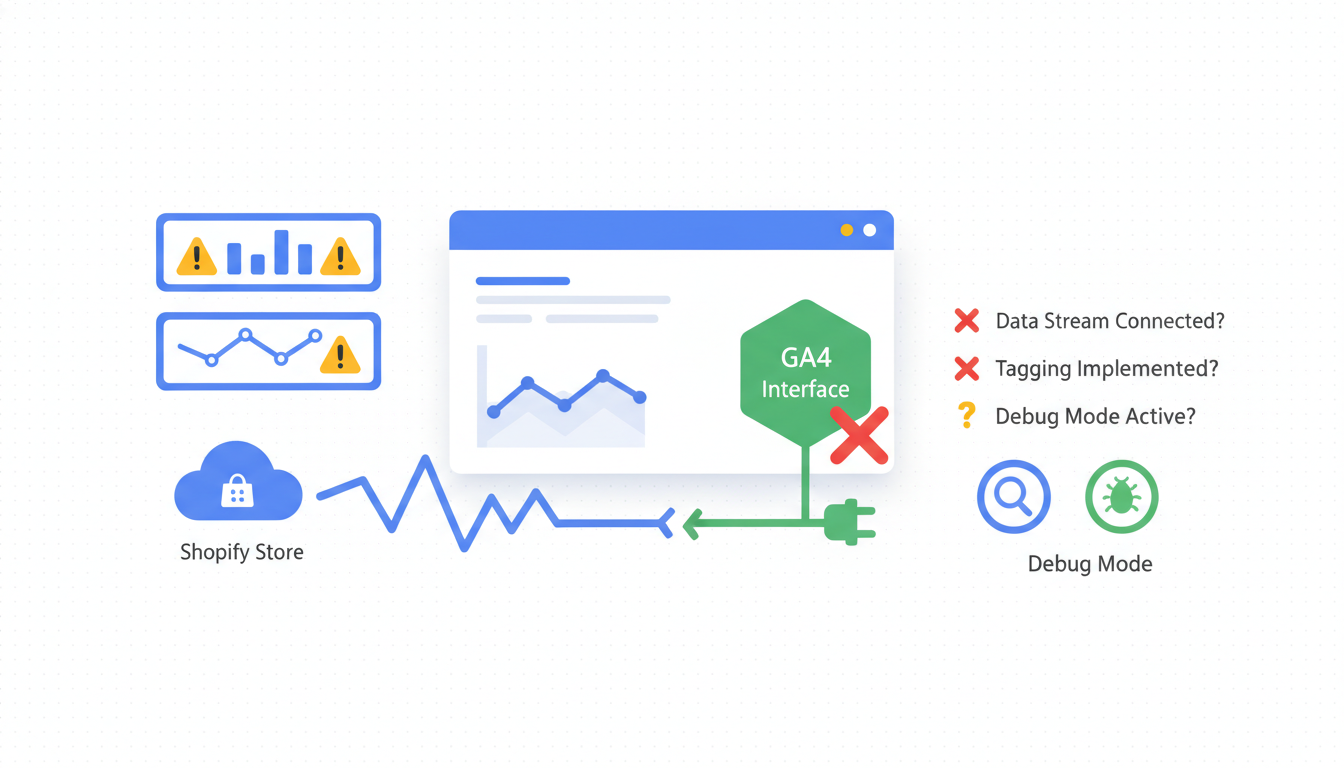
Shopify GA4 no data is one of those problems where the cause is almost never what the symptom looks like, and the fix depends entirely on which of four distinct patterns you are actually seeing. Reports empty for everyone. Realtime working but standard reports blank. Purchase events firing but product views missing. Everything looking fine in DebugView but nothing in reports for 48 hours. These are four different bugs with four different root causes, and most operators guess at the wrong one and waste a week. The sequence below walks through the six checks we run on every audit: Measurement ID on the theme, DebugView vs Realtime timing, enhanced ecommerce event coverage, cross-domain checkout subdomain traffic, ad blockers plus consent mode, and the GA4-side configuration traps that make it look like Shopify is broken when it is not. Run all six in order and the cause falls out inside 30 minutes.
- The 4 patterns of "no data" each have a different root cause.
- DebugView and Realtime are not the same report. Do not confuse them.
- Checkout subdomain traffic breaks GA4 without any error message.
- Ad blockers account for 15 to 25% of the gap, not 100%.
The 4 distinct patterns of "GA4 no data"
Shopify GA4 no data is a symptom, not a diagnosis. When a store owner says "GA4 has no data", they almost never mean what an analyst thinks they mean. Before touching any settings, figure out which of four patterns is actually showing up, because each one points to a different place in the stack.
Pattern 1: All reports are empty, including Realtime. No page_view events at all. Almost always means the Measurement ID on the theme is wrong, missing, or pointing at a different GA4 property. The snippet is either not installed, installed twice with conflicting IDs, or the Google and YouTube channel is disconnected. About 25% of the ga4 not showing shopify cases we audit.
Pattern 2: Realtime works, standard reports are empty. Events fire in Realtime when you open the store in a fresh browser, but the Acquisition, Engagement, and Monetization reports read zero for yesterday. Processing lag, data retention setting, or a property under 48 hours old. Not actually broken, just confusing. About 20% of cases.
Pattern 3: Some events present, others missing. page_view and purchase fire cleanly, but view_item, add_to_cart, or begin_checkout are missing. This is a ga4 events missing shopify pattern, and the cause is usually that the Google and YouTube channel handles the base install but ecommerce events are misconfigured, broken by a theme update, or silent-rejected by a consent banner. 35% of cases, the largest bucket.
Pattern 4: Everything fires in DebugView but reports stay blank for 72 hours. Almost always either an "Internal Traffic" filter silently excluding every event, or a data stream on a different property than the one the owner is watching. 20% of cases.
You cannot fix a shopify ga4 empty report without first deciding which pattern you have. Run the six checks below in order. Each one eliminates a pattern or pinpoints it.
Step 1: verify data stream Measurement ID on Shopify theme
Pattern 1 lives here. Confirm the Measurement ID the theme is firing against matches the GA4 property you are looking at. Takes 3 minutes and rules out 25% of cases instantly.
Open the store in Chrome. Right-click, View Page Source. Search for G- (uppercase G, dash). You should see a Measurement ID in the format G-XXXXXXXXXX at least once, inside a gtag snippet loaded in the head. Zero matches means the snippet is not installed. Two different IDs means a dual-install conflict.
Compare that ID to the GA4 property. In GA4, Admin, Data Streams, click the web stream, copy the Measurement ID. Byte-for-byte identical. One typo and you are watching a property with no events, while events flow into a property you can't access.
Common failure modes:
- Store owner connected a personal Google account two years ago, then the agency connected a business account. Two snippets, one firing into a dead property nobody can log into.
- The Google and YouTube channel is disconnected but the old snippet is still in the theme. Events fire into a property that was deleted six months ago.
- Measurement ID pasted with a trailing space or invisible character from a copy-paste. Looks right, GA4 rejects it silently.
Fix path: Shopify admin, Apps, Google and YouTube. Check connection status. If disconnected, reconnect with the right account. Confirm Measurement ID matches GA4 admin exactly. Save. Then check theme code for leftover gtag('config' snippets from old installs. Remove them. Preview the store, view page source again, confirm only one Measurement ID is present.
If Realtime starts showing events, you had Pattern 1 and you are done. If Realtime still shows nothing, move to step 2.
Step 2: DebugView vs Realtime vs standard reports lag
Pattern 2 lives here. GA4 has three separate places to see event data and most operators confuse them. Knowing which is which cuts 80% of the confusion out of a ga4 not showing shopify investigation.
Realtime shows events from the last 30 minutes, active sessions only. Updates every few seconds. Reports, Realtime.
DebugView shows events from devices with debug mode on, either through the "Google Analytics Debugger" Chrome extension or a ?debug_mode=true URL parameter. Most trustworthy live view because it shows every event with parameters and timing. Admin, DebugView.
Standard reports run on a 24 to 48 hour processing delay. Acquisition, Engagement, Monetization, Funnel. Yesterday's data won't be live. By design.
Three mistakes we see constantly:
- Owner checks standard reports at 9am the morning after install, sees zero, panics. Too early. Processing lag can run 48 hours on a new property.
- Owner sees events in Realtime, assumes fine, then reports stay zero 72 hours later. Something is actually broken, they just didn't have the right report open.
- Owner opens DebugView with no debug device connected, sees nothing, assumes GA4 is broken. Needs the Chrome Debugger extension first.
Right sequence: install the Debugger extension, open your store in Chrome with extension on, run a test purchase. Every event should appear in DebugView within 2 to 3 seconds with parameters visible. If DebugView shows events firing cleanly but standard reports stay empty 72 hours later, the problem is not Shopify, it is a GA4 configuration trap (step 6).
One more gotcha. If the property is under 48 hours old, standard reports will read zero regardless. Data retention also matters. Admin, Data Settings, Data Retention, default is 2 months event data. If set to "minimum", older reports have gaps that are not bugs, just retention.
Step 3: enhanced ecommerce events missing or partial
Pattern 3 lives here, and this is where most audits resolve. The Google and YouTube channel handles the base install but does not fire every event a Shopify store needs. When shopify ga4 empty shows up specifically in Monetization or Ecommerce reports, event coverage is the cause.
What the channel fires: page_view, view_item, add_to_cart, begin_checkout, add_payment_info, purchase, search. What it does not: view_item_list, select_item, remove_from_cart, view_promotion. Without those four, Funnel Exploration cannot build the collection-to-product-to-cart flow, so the chart shows a cliff at step one that is not real.
To check what's firing, Admin, Data Streams, click your stream, Events. You see every event with 7-day counts. If view_item is there but add_to_cart is missing, the theme's dataLayer push for cart adds is broken. If purchase fires with zero revenue, the value parameter is missing, a theme template bug.
Most common causes:
- Theme update changed the dataLayer pushes. Dawn 11+, Horizon, and most Shopify 2.0 themes push cleanly. Older or customized themes push with wrong parameter names.
- A Customer Events pixel in Shopify admin overriding defaults. Check Settings, Customer events for any manual "Google Analytics" pixel.
item_idformat doesn't match betweenview_itemandadd_to_cart. One uses numeric product ID, the other uses the Shopify GID string (gid://shopify/Product/12345). GA4 treats them as different items, funnel breaks silently.- Consent mode configured to reject analytics by default. Events fire, get dropped. Check Settings, Customer privacy.
Fix for partial coverage is usually GTM. Add custom tags for the four missing events, fire off the Shopify dataLayer, validate in DebugView. Google's recommended events reference has the exact parameter names. Match character for character or GA4 drops the event silently.
Step 4: GA4 cross-domain + Shopify checkout subdomain gotcha
This catches half the stores we audit and almost nobody talks about it. Shopify checkout runs on a different hostname than the storefront in most setups. Without cross-domain tracking configured, a user who lands from an ad and completes checkout splits into two GA4 users across two sessions. Purchases attribute to (direct) or (self-referral), and paid-channel ROAS reads 30 to 40% lower than real.
Shopify's possible checkout domains:
yourstore.com/checkouts/cn/xxx(new Checkout Extensibility, default on most plans)checkout.yourstore.com(older Plus setups)shop.app(Shop Pay one-click, sometimes fires for non-Shop-Pay users)pay.shopify.com(payment processor redirects)
Traffic that crosses any boundary loses session continuity unless GA4 treats them as internal.
Fix: Admin, Data Streams, your stream, Configure Tag Settings, List Unwanted Referrals. Add shop.app, pay.shopify.com, shopify.com, and your checkout subdomain if you have one. Save. GA4 ignores referrals from these and keeps the session going.
For cross-domain (not just subdomain), same menu, Configure your domains. Add every domain the user can flow across. GA4 handles the linker parameter automatically. No manual _gl work.
One Shopify gotcha. Checkout Extensibility (2024+) runs checkout inside an iframe on some themes. Analytics inside an iframe needs a Customer Events pixel in Shopify admin, not just the theme snippet. If your checkout domain is yourstore.com/checkouts/ but GA4 only tracks the storefront, you are losing begin_checkout and purchase events even though the URL looks like the same domain.
To check: in Realtime, run a test checkout. If page_view fires for product page and cart, then nothing during checkout, then purchase appears attributed to a different session, you have the iframe problem. Install the Customer Events GA4 pixel from Shopify's app store or write a Customer Events script to relay checkout events through the parent window.
Shopify's official Google Analytics integration documentation lists checkout domain mapping per plan. Worth checking, Shopify has changed this twice in 18 months.
Step 5: ad blocker reality and consent mode impact
This is where expectations get reset. No fix here, just an honest number, because a chunk of "no data" is not a bug, it is a real-world loss every Shopify store absorbs.
Ad blockers block 15 to 25% of GA4 events on a typical ecommerce audience. Desktop is worse than mobile (uBlock Origin, AdBlock Plus, Ghostery). Safari iOS adds ITP, which expires the _ga cookie after 7 days and makes returning users look new. Firefox Enhanced Tracking Protection blocks GA4 by default. Brave blocks it completely.
If Shopify shows 1000 orders and GA4 shows 820, you are in the normal range. Above 5% variance means something is broken. Under 5% is just client-side analytics reality in 2026.
What actually helps close the gap:
- Server-side tracking through GTM server container or Shopify's Customer Events pixel. Recovers roughly 60% of ad-blocker loss, bringing the 20% gap down to around 8%.
- Enhanced conversions via Consent Mode v2. Models lost conversions for Google Ads attribution. Does not put events back in GA4 reports.
- First-party cookie extension through server-side GTM. Keeps users identified across the ITP 7-day window.
What does not help: turning off consent mode (if the browser blocks at the network level, consent has nothing to do with it), installing a second analytics tool (it probably misses the same ones), or telling the team "GA4 is broken" in the weekly review. Shopify admin is the source of truth for orders and revenue.
Consent banners create "no data" patterns when misconfigured. Apps like GDPR Cookie, Consentmo, Pandectes ship with analytics blocked by default. If the banner's default is "reject", you get zero events from first-time visitors until they click accept, which most won't. Best to set the default to "implicit consent" where the region allows. In the EU that is not allowed, and legitimate opt-out loss can run 30% or more. Business reality to plan around, not a bug to fix.
Step 6: when the problem is GA4 configuration, not Shopify
Pattern 4 lives here. By this point you have ruled out the Shopify side. If events fire clean in DebugView but reports stay empty 72 hours later, the problem is inside GA4's own configuration. Four places to check.
Internal Traffic filters. Admin, Data Settings, Data Filters. If a filter is set to "Exclude" internal traffic, check the IPs. Common mistake: someone excluded a static office IP three years ago, the office moved, and now the filter excludes a random coffee shop sharing that IP. Status reads "Active" and silently drops events.
Data Retention. Admin, Data Settings, Data Retention. Default is 2 months event data, 14 months user data. If set to 2 months minimum, older data is gone. Catches people running year-over-year comparisons.
Wrong property. Sounds trivial, happens constantly. The store has three GA4 properties: 2022 (dead), 2023 (partially configured), 2024 (the real one). Agency is watching property 2. Shopify is sending to property 3. Cross-check the Measurement ID in the F&I app against every property. The right one is receiving events in DebugView.
Reporting Identity "Observed" instead of "Blended". Admin, Reporting Identity. Observed only counts users GA4 can identify via Google Signals or User ID. Stores with heavy anonymous traffic look like they have half the users they actually have. Set to Blended.
If none of the above explains it, create a fresh Exploration. Standard reports can take 72 hours to backfill, but Explorations pull the same data with less processing delay. If an Exploration shows yesterday's data but Acquisition shows zero, you had processing lag all along and it will self-resolve.
After fixing a Measurement ID typo or reconnecting the F&I app, give GA4 24 hours before declaring success. Check DebugView same afternoon, standard reports next morning. If both look right 24 hours in, the fix held. Google's GA4 troubleshooting reference covers processing lag in more depth.
Frequently asked questions
Why does my Shopify GA4 show no data even though I just installed it?
G- to confirm the ID matches GA4 admin.Why is GA4 not showing Shopify purchases but Realtime shows them?
Why are GA4 events missing on Shopify when the Google and YouTube channel says connected?
page_view is firing but view_item or add_to_cart is missing, the theme's dataLayer push is broken. Usually a theme update overwrote the pushes. Check templates/product.liquid and snippets/product-grid-item.liquid for missing dataLayer calls. Worth running a fresh install of the channel too, sometimes a reinstall refreshes the event mapping.Why is Shopify GA4 empty for just one country or device type?
How long should I wait before trusting GA4 data after a fresh Shopify install?
Can a Shopify theme update cause GA4 to stop showing data?
layout/theme.liquid or break the dataLayer pushes in templates/product.liquid. Paid themes like Prestige, Impulse, and Turbo are the worst offenders because they ship with their own analytics snippets that conflict with the Google channel's install. After any theme update, view page source on a product page, confirm the Measurement ID is still there and correct, then run a test purchase and watch DebugView. Best to make theme updates on a duplicate copy first, test GA4 end to end, then publish to live.Shopify ga4 no data is four different problems wearing the same costume, and the fix depends entirely on which pattern you have. The Measurement ID check rules out 25% of cases in 3 minutes. DebugView vs Realtime vs standard reports timing rules out another 20%. Enhanced ecommerce coverage is where most cases actually resolve, around 35%. Cross-domain checkout subdomain traffic catches half the stores we audit and almost nobody mentions it. Ad blockers account for 15 to 25% of any gap and there is no fix, just a realistic baseline. And about 20% of cases land on GA4 configuration traps that have nothing to do with Shopify. Run the six checks above in order and the cause falls out inside 30 minutes most of the time. Best to run the sequence before opening a support ticket with Google or assuming the store is broken, because in my experience the root cause is almost always inside one of these six places, and once you know which one, the fix takes an afternoon.
Get a full X-ray of your ad account
Paste your Meta and Google Ads. See exactly where signal is leaking. Free. 60 seconds.