Google Ads conversion tracking on Shopify: the 4 ways
 By Dror Aharon
·
CEO, COREPPC
·
Updated April 17, 2026
·
11 min read
By Dror Aharon
·
CEO, COREPPC
·
Updated April 17, 2026
·
11 min read
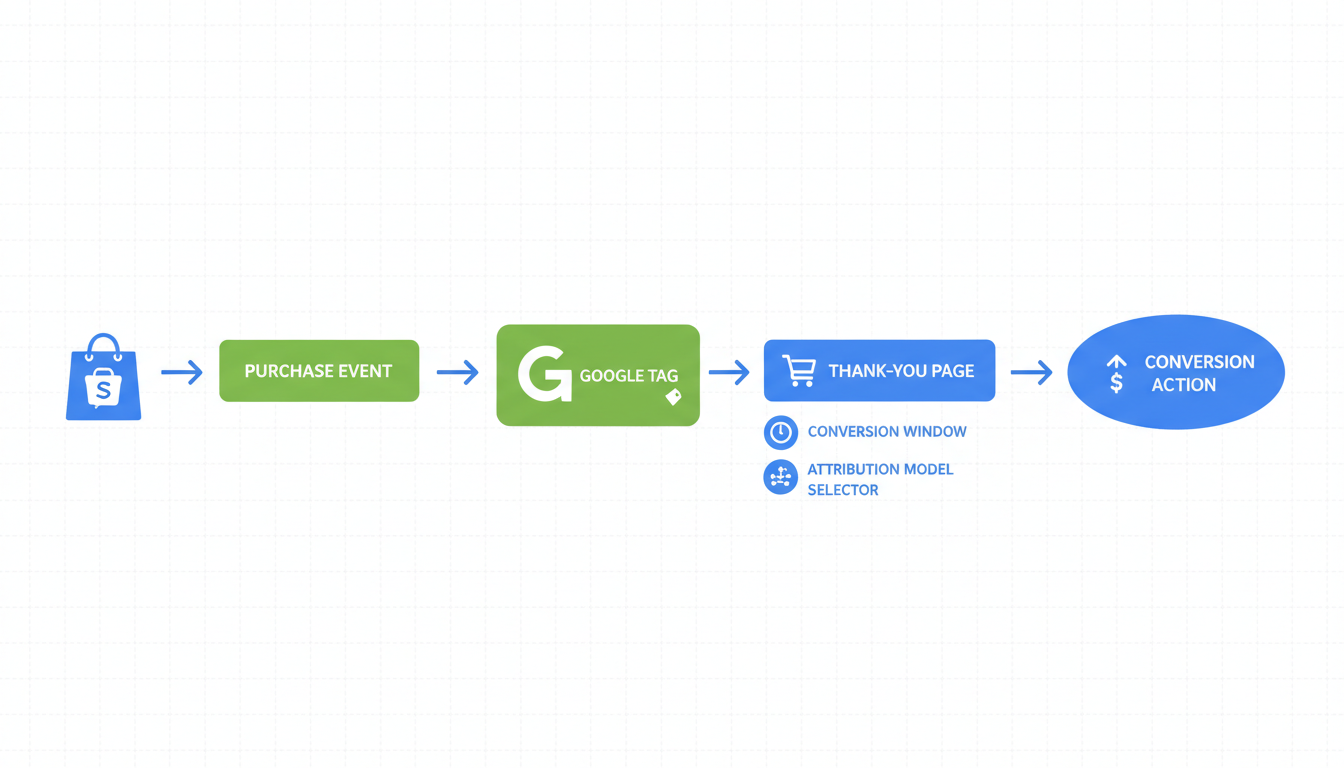
Shopify Google Ads conversion tracking is the single setup most scaling stores get half-right, and the half that is missing costs 20 to 40% of measurable ROAS by the time spend crosses $20k a month. There are four ways to run it in 2026: the Google & YouTube Shopify app (fastest, thinnest), Enhanced Conversions layered on top (the standard for stores up to $100k a month), GTM with a manual conversion tag (when the app cannot handle your funnel), and server-side via sGTM or a direct API call (the enterprise path). Most operators pick one, skip verification, and never realize the tag is either missing, firing twice, or routing to a GA4 property instead of Google Ads. Fix that and Smart Bidding finally gets signal it can trust. The audit takes 20 minutes. The fix takes an afternoon. The lift compounds for months.
- Google & YouTube Shopify app is the default and covers Purchase cleanly. Use it unless you have a reason not to.
- Enhanced Conversions is the enrichment layer that closes the 20% signal gap after Chrome Privacy Sandbox. Not optional above $15k a month spend.
- GTM is for stores running multiple ad platforms through one container or funnels the app cannot handle.
- Server-side (sGTM or direct API) is the enterprise path. Most stores do not need it below $100k a month.
What Google Ads conversion tracking on Shopify actually is
Shopify Google Ads conversion tracking is the pipe that tells Google which store visits ended in a Purchase, AddToCart, BeginCheckout, or ViewContent event, so Smart Bidding can optimize toward the goal you actually care about instead of guessing. The tag fires on the order status page, sends the conversion value and transaction ID to Google Ads, and Google attributes it back to the click that drove the session. Sounds simple. It is not. What changed in 2026 is that the basic cookie-based version of this pipe now loses 18 to 26% of signal on the top four ad surfaces after Chrome Privacy Sandbox rolled out in Q1, and Safari 17 plus Firefox strict mode stripped another 8% of cross-domain cookies on top of that. If you are still running the default 2022-era setup, Smart Bidding is reading roughly three quarters of the data it needs.
The short version: there is no longer one correct way to do this. The four paths below map to four different store profiles, budgets, and funnel shapes. The wrong path for your store is the one somebody installed three years ago and nobody has revisited since. Google's official conversion tracking help article covers the protocol itself. This guide is about which of the four paths to actually run on Shopify, and how to stop them from quietly breaking.
Brands in our audit sample run Target ROAS 3.1 to 4.4 on Performance Max when conversion tracking is clean and Enhanced Conversions is layered on top. Stores on vanilla 2022 tracking hit a ceiling around Target ROAS 2.3 and cannot figure out why the algorithm keeps scaling the wrong product sets. The difference is almost always the tracking layer, not the bids or the creative.
Method 1: Google & YouTube Shopify app (the default)
The Google & YouTube Shopify app is the path most stores should start with. Shopify built it with Google, it handles the conversion action creation inside Google Ads for you, it installs the Google tag on every page including the order status page, and it writes the Purchase conversion cleanly out of the box. For stores under $15k a month in Google Ads spend with a standard Shopify checkout, this is usually enough. Above that, you layer Enhanced Conversions on top (Method 2) and keep the app running as the base.
The install sequence that actually works:
- In Shopify admin, open Apps, then install Google & YouTube. If it is already installed, disconnect the existing Google Ads link and reconnect from scratch. Stale connections from 2022 are the most common source of duplicate tag firing we see.
- Grant access to the correct Google Ads account during the connect flow. Stores with MCC structures often link to the wrong sub-account, so the tag fires on an account that is not the one running the spend. Confirm the CID matches before clicking confirm.
- In the app settings, open the Conversion tracking tab. Toggle customer data sharing to Maximum. Standard sharing strips hashed email and phone before they leave Shopify, which caps Enhanced Conversions match rate at around 20% even if you enable it later.
- In Google Ads, open Tools then Conversions. Confirm the Purchase action created by Shopify is "Recording". "Unverified" on day 1 is normal. If it is still Unverified after 48 hours, the tag is either not firing or firing on the wrong page.
- Run one test purchase with a $0.50 coupon to confirm the tag fires end-to-end. Wait 24 hours. Check the conversion action status. Do not skip this.
The app covers Purchase well. It covers AddToCart and BeginCheckout acceptably but thinner than most operators realize, because the checkout context at earlier funnel stages has less user data to pass. ViewContent arrives even thinner. This is not a bug in the app, it is a limitation of the browser-only pipe. The Google Ads UI will show all four events as "Active" once they start firing, which is honestly misleading. Match rate on non-Purchase events sits around 30% while Purchase hits 55 to 65%. If that is good enough for your scale, stop here. If not, read Method 2.
Method 2: Enhanced Conversions layer on top
Enhanced Conversions is the enrichment layer that sits on top of whatever base tag you already have running. It takes hashed customer fields (email, phone, name, address) from the checkout and sends them to Google server-side, so conversions can be matched to signed-in users even when cookies are blocked. It is not a replacement for Method 1, it layers on top. This is the piece most operators skip because the Google Ads UI says "Active" on the Purchase action even when Enhanced Conversions is not actually firing.
The distinction matters. "Active" means the base conversion tag fired. It does not mean Enhanced Conversions data was received. The Enhanced Conversions card inside the conversion action shows a separate status and a match rate percentage. That is the number to watch. Under 40% means something is broken. Target is 55 to 70% for a store running Method 1 plus Method 2 together.
We have a full walkthrough at /enhanced-conversions-shopify/ that covers the three sub-methods for layering Enhanced Conversions (Google & YouTube app, Customer Events, GTM). The short version of when to use each:
- If you only run Google Ads and you already installed the Google & YouTube app, enable Enhanced Conversions inside the app settings. Two clicks. Covers Purchase only.
- To cover the other three events (AddToCart, BeginCheckout, ViewContent) with hashed user data, install Customer Events inside Shopify admin with a Google tag pixel. Customer Events is Shopify's server-side webhook layer, fires from Shopify infrastructure not the browser, so ad blockers cannot strip it.
- If you already run GTM for other platforms, enable Enhanced Conversions inside the Google Ads Conversion Tracking tag in GTM. Uses the User-provided data variable type. One container, all platforms.
The main trap with Enhanced Conversions is assuming the UI status is the truth. Always verify with Tag Assistant Companion in Chrome on a real test purchase, not by reading the Google Ads dashboard. Stores that skip verification find out three weeks later that the match rate has been 15% the whole time because the email field was being passed raw instead of SHA-256 hashed. Smart Bidding was optimizing on garbage data that whole window.
Method 3: GTM manual tag (when the app will not do)
Google Tag Manager is the path for stores that need more control than the Google & YouTube app gives them. Three signals you need GTM instead of the app: you run more than one ad platform through a single container (Google plus Microsoft plus Meta plus TikTok plus Pinterest), your funnel has custom events the app does not handle (Lead, StartTrial, subscription-specific events, post-purchase upsell), or your theme has been customized enough that the app's auto-install of the Google tag either does not fire or fires twice.
We have a full GTM walkthrough at /gtm-shopify-setup/. The short version of the google ads tag shopify setup inside GTM:
- Create a new Google Ads Conversion Tracking tag in GTM. Paste the Conversion ID (format
AW-XXXXXXXXX) and the Conversion Label from the Google Ads conversion action screen. - Under Advanced Settings, enable "Include user-provided data from your website" if you want Enhanced Conversions in the same tag. Most stores miss this toggle. It is off by default.
- Create a Custom Event trigger named
purchasethat fires when the dataLayer gets a purchase event push from the order status page. - Add a theme snippet to
checkout.liquid(Plus only) or the order status "Additional scripts" field (non-Plus) that pushes the purchase event with the transaction value, transaction ID, and hashed user data. - Preview in GTM debug mode, run a test purchase, confirm the tag fires and the User-provided data tab shows hashed fields.
- Publish. Verify in Google Ads diagnostics after 48 hours.
Two traps specific to GTM on Shopify. First, the "Include user-provided data" toggle lives inside the tag, not the container settings. Operators who migrated from a pre-2023 GTM setup often forget to flip it, so Enhanced Conversions shows "Recording" but match rate sits at 15%. Second, Shopify's non-Plus order status page does not support full theme code, only a limited "Additional scripts" field with a Shopify.checkout global. You cannot use a standard dataLayer.push without wrapping it in a check for the global. Plus stores get full checkout.liquid access and this is not an issue.
Running GTM does not mean disabling the Google & YouTube app. The app still handles the product feed sync, the Merchant Center connection, and the GMC diagnostics. What you disable is the app's conversion tag (inside the app's settings), so only GTM is firing conversions. One source of truth for the tag. Leaving both on sends every Purchase twice, which inflates reported conversions 80% above real.
Method 4: Server-side via sGTM or direct API
Server-side Google Ads conversion tracking is the enterprise path. Two sub-flavors: server-side GTM (sGTM), where you run a Google Tag Manager container on your own server (Cloud Run, App Engine, or a managed service like Stape), or a direct API call from a Shopify Function or custom app that posts conversions to Google Ads' Offline Conversions API. Both fire from your infrastructure, not the browser. Ad blockers cannot strip them. Cookie blocking does not touch them. IP masking does not affect them.
The reason this path matters is that the browser-based tag (Method 1 or 3) still loses signal when the user has an ad blocker installed, is on a privacy-hardened browser, or is on iOS 17 with Safari in lockdown mode. Browser pixel coverage in 2026 is roughly 75 to 80% on a typical Shopify store, depending on audience demographics. Server-side recovers the missing 20 to 25%.
When you actually need this:
- You are above $100k a month in Google Ads spend and every 5% of signal loss is real revenue.
- You have custom events the browser-based tag cannot fire cleanly (complex subscription flows, hybrid B2B checkouts, multi-domain funnels).
- You run a cross-domain setup (Shopify checkout on a subdomain, the main site on a different domain, CNAME migrations that broke cookie continuity).
- You are in a regulated category (health, finance, alcohol) where ad blocker install rates are 40%-plus among your audience.
Below $100k a month, the cost of setting up and maintaining sGTM (roughly $200 to $800 a month depending on volume and whether you use Stape or self-host) usually outweighs the incremental ROAS lift. We see stores in the $30k to $50k a month range try sGTM because a Twitter thread told them it was the answer, then spend three months debugging event dedup against their browser pixel. The browser pixel plus Enhanced Conversions covers 90% of what sGTM gives you at 0% of the complexity. We walk through the server-side decision in more detail at /shopify-server-side-tracking/.
If you do run sGTM, the one rule that saves every implementation: pick either browser-only, server-only, or both-with-event-ID-dedup. Running browser and server in parallel without a shared event ID double-counts every conversion. Reported ROAS looks 80% higher than real, Smart Bidding learns from phantom data, and the store runs this way for months before somebody opens the conversion diagnostics tab and sees the duplicate flag.
Decision tree: which method for which store
Four paths. Most stores need one, some need two layered, very few need three. The decision tree in practice:
- Under $15k a month spend, no custom events, standard Shopify checkout: Method 1 (Google & YouTube app) alone. Enhanced Conversions on Purchase inside the app is enough.
- $15k to $100k a month spend, standard checkout, Google Ads is the only ad platform: Method 1 plus Method 2 (Customer Events for the three non-Purchase events). This is the sweet spot for most growth-stage Shopify stores.
- Any spend, multiple ad platforms through one stack (Google plus Meta plus Microsoft plus TikTok plus Pinterest): Method 3 (GTM) with Enhanced Conversions enabled inside the Google Ads tag. Disable the Google & YouTube app's conversion tag so GTM is the only source.
- Any spend, custom funnel events the app cannot handle (Lead, StartTrial, complex subscriptions, post-purchase upsells): Method 3 (GTM) is the floor. If the custom event volume is above 500 a day and accuracy matters, layer Method 4 on top for the custom events only.
- $100k-plus a month spend, ad-blocker-heavy audience, cross-domain setup, or regulated category: Method 4 (server-side) for the four core events. This is the path where sGTM earns its keep.
Mixing methods without a plan is the failure mode. We audit stores running the Google & YouTube app, a GTM container with a legacy Google Ads tag from 2022, and a half-configured sGTM instance a freelancer installed last year, all firing at once. Every Purchase fires three times. Reported conversions look incredible. Real ROAS is half of what the dashboard shows. The fix is always the same: pick one primary method, disable the other two at the source, verify in Tag Assistant Companion, and wait 48 hours for Google's diagnostic to flip clean.
The 5 verification steps before trusting the data
Never trust a conversion tag just because Google Ads says "Recording". Recording means the base tag fired once. It does not mean it is firing on every order, it does not mean the value is right, and it does not mean Enhanced Conversions is attached. The verification sequence we run on every client before any new campaign launches:
- Install Tag Assistant Companion in Chrome. Open the store in an incognito window. Enable debug on the extension. Navigate to a product page, add to cart, go through checkout with a $0.50 coupon code.
- On the order status page, click the extension. You should see exactly one Google Ads conversion tag fire, with a green "User-provided data" label if Enhanced Conversions is enabled. Two tags firing means you have a duplicate somewhere (usually GTM plus the Google & YouTube app both active). Zero tags means the order status page is blocking scripts, which happens when a Shopify app block replaced the default layout.
- In Google Ads, go to Tools then Conversions. The Purchase action should flip to "Recording" within 24 hours and "Active" with Enhanced Conversions match rate populated within 48 hours. If it is still "Unverified" after 48 hours with real orders coming in, the tag is firing on the wrong page or on the wrong Google Ads account.
- Open the conversion action and click the Diagnostic button inside. This surfaces issues Google sees but does not volunteer: cross-domain breakage, missing user-provided fields, mismatched conversion values. Most operators have never clicked this button. It is the single most useful tracking check in the whole Google Ads UI.
- Run the test three times from three different devices (phone, tablet, laptop). Day 1 diagnostics are unreliable because Google has no historical events to cross-reference. The rolling 7-day match rate is what matters. Check back on day 3, day 5, and day 7 before you conclude anything is wrong.
One extra check that almost nobody runs: compare Google Ads' reported Purchase count for the last 7 days against Shopify admin's order count for the same window. If Google Ads shows 120 purchases and Shopify shows 80, you have double-counting somewhere (two tags firing). If Google Ads shows 50 and Shopify shows 80, you are losing conversions (a tag is not firing on some orders, usually because of a custom order status page). If they match within 5%, tracking is healthy. This check takes 90 seconds and catches 70% of broken setups. We document the full audit routine at /shopify-tracking-audit-checklist/ for operators who want the whole sequence.
Frequently asked questions
Which of the four methods should I pick if I am just starting on Shopify?
Can I run Method 1 and Method 3 at the same time?
Does Enhanced Conversions work with all four methods?
Why is my Google Ads conversion Shopify setup showing conversions but no revenue?
/checkout instead of the order status page. Move the trigger to fire on the order status URL or the Shopify.checkout object. Check the Tag Assistant Companion output on a test purchase to confirm the value field is populated before worrying about the Google Ads display.How does Shopify conversion tracking setup google handle subscription orders?
How long until Google Ads actually trusts my new conversion data?
Google Ads conversion tracking on Shopify is one of those setups where getting it 80% right still leaves 20% of budget burning on the wrong signal, and the 80-right version looks identical to the 100-right version on the Google Ads dashboard. The four methods above map to four store profiles. Most stores need Method 1 plus Method 2 together. A smaller set needs Method 3. A very small set needs Method 4. Pick one primary path, disable the others at the source, verify in Tag Assistant Companion before you push live, and wait the full 48-hour diagnostic window. That is when Smart Bidding finally gets signal it can trust, CPA stops drifting, and Performance Max stops dumping budget on low-intent auctions. Best to run the 20-minute audit in the verification section above before you touch anything else on the account. If two or more of the diagnostic checks come back dirty, fix those first, then revisit bid strategy. The bidding algorithm never was the problem, nine times out of ten the tracking was lying the entire time.
Get a full X-ray of your ad account
Paste your Meta and Google Ads. See exactly where signal is leaking. Free. 60 seconds.