Why Google Ads conversions are not tracking on Shopify
 By Dror Aharon
·
CEO, COREPPC
·
Updated April 17, 2026
·
11 min read
By Dror Aharon
·
CEO, COREPPC
·
Updated April 17, 2026
·
11 min read
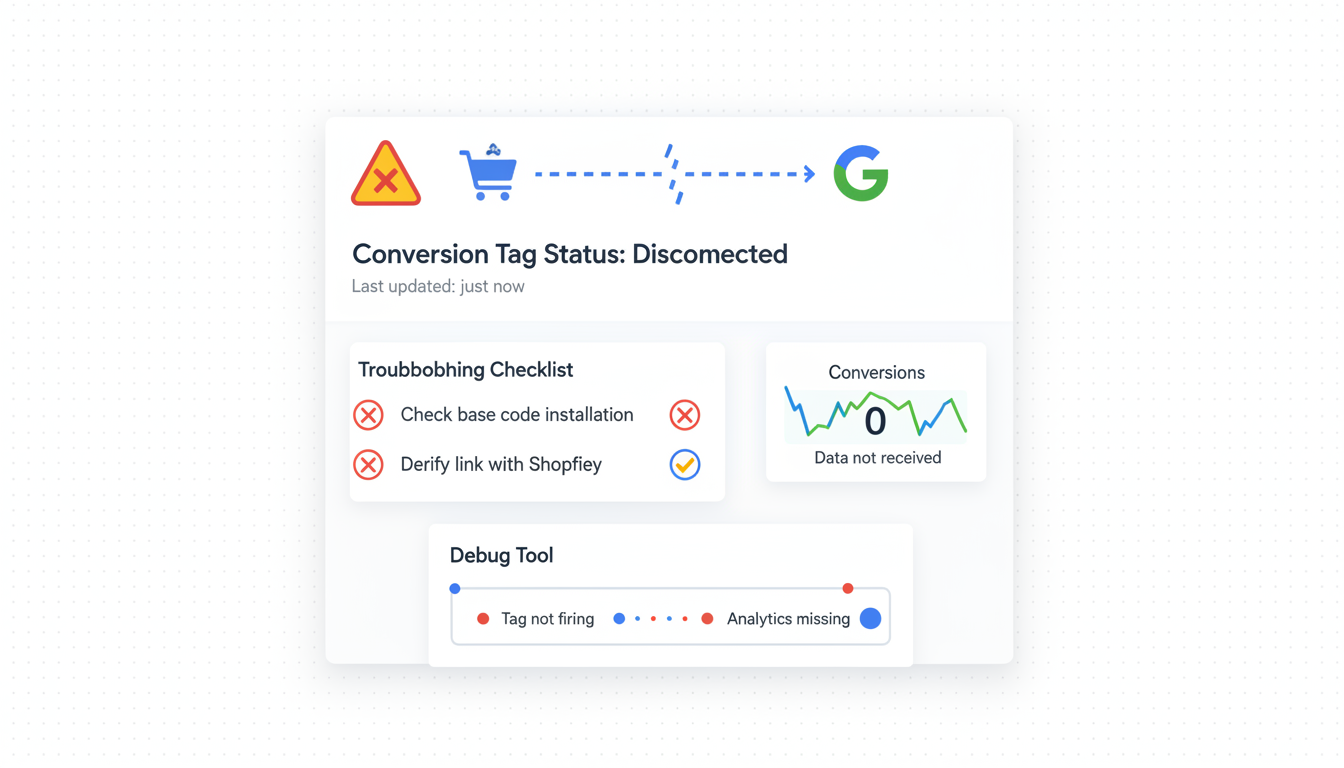
Shopify Google Ads not tracking is the tracking failure that quietly costs the most budget, because Google's UI keeps reporting "Active" on conversions that stopped firing days ago. When the Purchase tag stops reaching Google Ads, Smart Bidding stalls, tROAS drifts off target, and Performance Max keeps scaling budget on phantom signal. Most operators open Google Ads diagnostics, see "No recent conversions", and start guessing at the theme code, which is step 5 of 8 and catches maybe 15% of cases. The real diagnosis runs in order: Tag Assistant Companion, Google Ads conversion diagnostics, the Google and YouTube Shopify app status, Enhanced Conversions toggle, theme.liquid, Additional Scripts residue, GTM conflicts, and attribution window mismatch against GA4. Run the full sequence and you find the break every time, usually inside 25 minutes.
- Start with Tag Assistant Companion and Google Ads diagnostics, not with the theme code.
- The Google and YouTube Shopify app is the single source of truth for the conversion tag.
- Duplicate tags between GTM and the app cause 50% of "inflated conversions" cases we see.
- Validate the fix with a $0.50 live test purchase, then wait 48 hours before trusting it.
What "Google Ads not tracking on Shopify" usually actually means
Shopify Google Ads not tracking is the umbrella complaint, but the underlying bug falls into one of three buckets, and the fix is different for each. Bucket one: the conversion tag is not firing at all, so Google Ads shows zero conversions even though orders are landing in Shopify. Bucket two: the tag fires but the value is wrong or missing, so the Google Ads dashboard shows 80 conversions and $0 revenue, or 80 conversions with a revenue number that is 30% off from Shopify admin. Bucket three: the tag is firing and the value is correct, but it is firing twice, so Google Ads shows 160 conversions and Smart Bidding learns from inflated data for weeks before anybody notices the mismatch.
Most operators jump to "the tag is not firing" because that is the loudest failure mode, and miss the other two. The quiet failure modes are the expensive ones. A store running at double-counted conversions for 3 weeks trains Smart Bidding on fake ROAS, and when you eventually fix the dedup, CPA drifts up 30% for the next two weeks while the algorithm relearns. So the first job in any diagnosis is figuring out which bucket you are in. The 8-step sequence below does that automatically in the first two steps, which is why running the sequence in order matters more than most operators think.
We audit around 40 Shopify stores a month. When a store comes to us with "google ads conversions not showing shopify" in the intake form, or the variant "shopify conversion tracking broken google", the root cause lands inside one of these 8 buckets, every single time. Running the full sequence catches 9 out of 10 cases in 25 minutes. The 10th case is usually attribution window weirdness, which is step 8. Skip it and you spend a week rebuilding tags that were never the problem.
The 8-step diagnosis, in order
Here is the full sequence. Do not skip. Do not reorder. Each step rules out a family of causes if it comes up clean, and the early steps fix the most common bugs.
- Install Tag Assistant Companion in Chrome. Open the store in incognito, run the debugger, walk through a test checkout. The extension tells you inside 5 minutes whether the tag fires, how often, and what fields it carries.
- Open Google Ads conversion diagnostics. Tools, Conversions, click into the Purchase action, click Diagnostic. This surfaces the issues Google sees but never volunteers in the main UI.
- Check the Google and YouTube Shopify app connection status. Wrong pixel ID, stale OAuth token, or a disconnected link account is the single most common root cause we see.
- Verify Enhanced Conversions is actually enabled and receiving data. "Active" in the UI does not mean EC is firing. There is a separate match-rate card that most operators have never opened.
- Inspect
layout/theme.liquidfor leftovergtagor conversion snippets. Old code from a 2022 setup is the textbook cause of duplicate conversions. - Check "Additional Scripts" in Shopify checkout settings. This is where hardcoded Google Ads conversion snippets hide, and it is the field operators forget exists.
- Audit GTM for conflict tags or orphan Google Ads conversion tags. A paused tag counts as dead, a live duplicate tag counts as double-firing.
- Compare Google Ads attribution against GA4. If Google Ads says 50 conversions and GA4 says 80, you are losing half the signal. If Google Ads says 160 and GA4 says 80, you are double-counting.
That's the map. Now the detail on each step.
For the manual walkthrough below, a full audit takes 25 minutes and catches 9 out of 10 of the problems we see in production. If you run the sequence once and the break does not surface, something non-standard is going on (a cross-domain checkout, a subscription app firing its own events, a custom thank-you page) and you escalate to a deeper technical audit. That is maybe 1 in 40 cases.
Step 1 and 2: Google Tag Assistant + Google Ads conversion diagnostics
The first two steps rule out 40% of cases without touching any code. Install the tools, run the tests, write down what you see. No theme work yet.
Step 1: Tag Assistant Companion. Install the extension in Chrome. Open the store in an incognito window so no cached logins or cookies mask the test. Enable debug on the extension. Navigate to a product page, add to cart, run through checkout using a 99%-off coupon that drops the total to $0.50. On the order status page, click the extension icon.
What you want to see: exactly one Google Ads conversion tag fire, one gtag configuration load, a green "User-provided data" label if Enhanced Conversions is enabled, and a populated value field. The four patterns that mean something is broken:
- Zero tags fire: the Google tag never loaded, which usually means the F&I app is disconnected, the theme stripped the tag, or an app block replaced the order status page layout.
- Two Google Ads conversion tags fire: you have a duplicate. Usually GTM plus the Google and YouTube app both active. Every Purchase counts twice in Google Ads, every ROAS reads 80% higher than real.
- One tag fires but no User-provided data label: Enhanced Conversions is off, misconfigured, or the toggle was flipped back during a theme update.
- One tag fires, User-provided data label is green, but the
valuefield is empty or zero: the transaction value is not being passed, usually because the conversion action in Google Ads is set to "Use the same value for each conversion" instead of "Use different values".
Write down which pattern you see. This is the single most diagnostic data point in the whole audit.
Step 2: Google Ads conversion diagnostics. In Google Ads, open Tools, then Conversions. Find the Purchase conversion action. Click into it. Inside the conversion action, there is a Diagnostic button. Most operators have never clicked this button. Click it.
This panel surfaces issues Google sees but does not volunteer in the main UI: cross-domain breakage, missing user-provided fields, mismatched conversion values, tag not firing on the order status page, duplicate tags from two containers, and attribution mismatch. If Diagnostics flags anything, that is your first fix. Do not proceed to step 3 until the diagnostic is clear or you have acknowledged it.
Google's official conversion tracking setup documentation walks through the protocol itself in more depth. For debugging on Shopify specifically, the Diagnostic button is where the useful signal lives.
Step 3 and 4: Google and YouTube Shopify app status + Enhanced Conversions toggle
Steps 3 and 4 catch the Shopify-specific causes. This is where 45% of our audit cases end up resolving.
Step 3: Google and YouTube Shopify app. In Shopify admin, open Apps, then Google and YouTube. Three things to confirm:
- Connection status. Green "Connected" badge next to Google Ads. If it says "Reconnect" or shows a warning triangle, the OAuth token expired or the linked user lost permission in Google Ads. Reconnect, pick the right account, save.
- Account ID matches. The Google Ads account ID listed in the app (format
123-456-7890) must match the one you are actually watching in the Google Ads UI. The most common mistake we see: the store owner connected a personal ad account two years ago, then the agency connected a business account, and Shopify is still firing conversions to the personal one. The agency looks at their account, sees zero conversions, and starts debugging the tag when the tag is working fine, just pointing at the wrong CID. - Customer data sharing set to Maximum. Inside the app, under Conversion tracking settings. Standard data sharing strips hashed email and phone before they leave Shopify, which caps Enhanced Conversions match rate at around 20% even when the toggle is on. Maximum sends the full hashed fields. That is the lever.
If any of the three is off, fix it, then re-run step 1 (Tag Assistant) before moving on. Sometimes fixing the app connection is the whole fix and steps 4 through 8 are unnecessary.
Step 4: Enhanced Conversions toggle. Inside the same app, open the Conversion tracking tab. Find the Enhanced Conversions toggle. Confirm it is on.
Here is the trap. The Google Ads UI shows the conversion action as "Active" even when Enhanced Conversions is not actually receiving data. Active means the base tag fired. It does not mean Enhanced Conversions data arrived. Inside the Google Ads conversion action screen, scroll down to the Enhanced Conversions card. It has a separate status and a match rate percentage. Under 40% means something is broken. Target is 55 to 70% for a clean Shopify setup.
Common break patterns on the EC side:
- Toggle is on inside the Google and YouTube app but off inside Google Ads (or vice versa). Both need to be on. It is not a shared toggle.
- Data sharing is Standard, not Maximum (see step 3), so the hashed fields never leave Shopify and EC has nothing to match.
- The conversion action was created before 2024 and uses legacy settings that do not support EC. Delete and recreate the action. Takes 15 minutes.
- Customer email collection is disabled at checkout (rare, but happens on B2B stores with guest-only checkout). Without email at checkout, EC has no primary match key.
We cover the full Enhanced Conversions setup at /enhanced-conversions-shopify/ including the three sub-methods for layering it on top of different base tags.
Step 5 and 6: theme.liquid + Additional Scripts residue
Now into the Shopify-side code. Steps 5 and 6 catch another 25% of cases, the ones where old code from 2022 is silently double-firing the Purchase event.
Step 5: theme.liquid. Open layout/theme.liquid in the theme editor. Use Find to search for gtag(, then AW- (the Google Ads account ID prefix), then googleads. Any match is suspect.
What a leftover looks like:
<script async src="https://www.googletagmanager.com/gtag/js?id=AW-123456789"></script>
<script>
  window.dataLayer = window.dataLayer || [];
  function gtag(){dataLayer.push(arguments);}
  gtag('js', new Date());
  gtag('config', 'AW-123456789');
</script>
If the Google and YouTube app is handling tracking (which it should be, per step 3), this block is redundant and is almost certainly the cause of duplicate tag firing. Remove the entire block. Save the theme to a new copy first, test with a $0.50 purchase on the preview theme, then publish. Never edit a live production theme directly, because a typo breaks checkout and orders stop.
While you are in theme.liquid, also check for:
- A second Google Tag Manager snippet. GTM should appear exactly once, not twice.
- Any
<script>tag that referencesgoogleadservices.com/pagead/conversion. That is a hardcoded conversion ping from before the app existed. - A
data-aw-idattribute that contradicts the Google and YouTube app's account ID.
Step 6: Additional Scripts. In Shopify admin, go to Settings, Checkout, scroll down. On the right side there is a section for "Order status page" with a field labeled "Additional Scripts". Open it.
This is the single most-forgotten place on a Shopify store. Whatever was pasted here in 2021 is still there, even though nobody remembers adding it. Common offenders:
- A hardcoded Google Ads conversion snippet from before the Google and YouTube app existed, still firing on every order.
- A custom app's post-purchase script that was supposed to be removed when the app was uninstalled.
- A conversion linker pasted by an agency six months ago with a conversion ID that no longer exists in the account.
- A Liquid template with
{{ checkout.total_price }}that returns null on subscription orders, so the event fires with value 0 and Google Ads registers a conversion with no revenue.
Read every line. If you cannot identify what a block does, comment it out, not delete it, so you can put it back if something breaks. Save, then re-run Tag Assistant on a test purchase. The old script firing alongside the app is the textbook cause of the "duplicate conversions detected" diagnostic from step 2.
Step 7: GTM conflict or duplicate tag
Step 7 catches the "I thought we turned off GTM last year" cases, which show up more often than they should.
Open the GTM container for the store. Filter tags by "Google Ads" or "AW-" or "conversion". Look for:
- Any Google Ads Conversion Tracking tag that is not paused. If it fires on the thank-you page, it double-counts with the Google and YouTube app.
- A Google Ads Remarketing tag firing a conversion label by accident because someone repurposed it as a conversion trigger.
- A Conversion Linker tag firing on a domain that does not match the Shopify checkout domain. This looks harmless in GTM preview but kills attribution silently.
- A custom HTML tag containing
gtag('event', 'conversion', {'send_to': 'AW-123456789/abc', 'value': ...})that fires on a DOM event like "Purchase Complete" or a URL trigger.
Pause, do not delete, any tag that fires a conversion. Publish the container. Re-run Tag Assistant. If the duplicate stops, you found it. Wait 48 hours for Google Ads diagnostics to confirm the duplicate flag clears. Only then delete the paused tag, so it does not get un-paused by accident when somebody cleans up the workspace later.
Running GTM does not mean uninstalling the Google and YouTube app. The app still handles the product feed sync, Merchant Center connection, and GMC diagnostics. What you disable is one of the two conversion sources so only one is firing. The rule in one line: pick either the app or GTM as the conversion owner, not both. We cover the full decision tree for which to pick at /shopify-google-ads-conversion-tracking/.
The official Google Tag Manager web documentation has the full reference on tag firing conditions if you need to debug specific trigger logic. For our purposes, just pause anything Google Ads related in GTM unless you have a specific reason it needs to live there.
Step 8: attribution window mismatch vs GA4 disagreement
Step 8 is the one most operators never run, and it is how you catch attribution issues that steps 1 through 7 will miss.
Open Google Ads and GA4 side by side. Pick the last 7 days. Compare three numbers:
- Shopify admin total order count for the window (the truth).
- Google Ads "Conversions" for the window filtered to Purchase only.
- GA4
purchaseevent count for the window.
What you want: all three land within 5% of each other. Anything wider points to a specific failure mode:
- Google Ads shows 120, Shopify shows 80, GA4 shows 80. Google Ads is double-counting. Two conversion tags are firing. Go back to step 7.
- Google Ads shows 50, Shopify shows 80, GA4 shows 80. Google Ads is undercounting. The tag is not firing on all orders, usually because a custom order status page bypasses the app or a specific checkout flow (subscription, POS, draft order) is invisible to the tag.
- Google Ads shows 80, Shopify shows 80, GA4 shows 45. GA4 is broken, not Google Ads. Different fix, different skill. Most likely the Google Channel is pointing to the wrong GA4 property.
- All three match, but Google Ads revenue is 30% different from Shopify revenue. The tag fires correctly but the value is wrong. Usually a currency conversion issue (Shopify sends USD, the conversion action is configured for EUR) or a conversion action set to "Use the same value" instead of "Use different values".
Attribution windows also matter. Google Ads defaults to a 30-day click window and 1-day engaged-view window for Purchase. GA4 defaults to 30-day data-driven. If you compare a 7-day window in Google Ads to a 30-day window in GA4, the numbers will never match regardless of whether tracking is clean. Make sure the window is the same in both tools before drawing any conclusion.
One extra check worth running: filter Google Ads conversions by device. If mobile conversions are 70% of total Shopify orders but only 30% of Google Ads conversions, the tag is breaking on mobile specifically, usually because of a Safari privacy setting stripping cookies on the order status page. That is a sign to layer Enhanced Conversions or move to a server-side setup. We cover that path at /shopify-server-side-tracking/.
Frequently asked questions
Why is Shopify Google Ads not tracking even though the app says Connected?
Why are my Google Ads conversions not showing Shopify revenue?
/checkout instead of on the Shopify order status page itself. Move the trigger to fire on the order status URL pattern or on the Shopify.checkout global object. Tag Assistant shows you whether the value field is populated on the fire, which is faster than debugging in Google Ads.Can a Shopify theme update break the Google Ads tag?
layout/theme.liquid for any gtag or AW- snippets that reappeared after the update. Also check templates/product.liquid, templates/cart.liquid, and sections/header.liquid, which some themes edit on update. If you find one, remove it, push a fresh theme version. Best to make theme updates on a duplicate copy, test with Tag Assistant and a $0.50 test purchase, then publish. Never update a live theme directly.Why does Google Ads show conversions but GA4 does not?
Is it safe to run the Google and YouTube app and GTM at the same time?
How long until Google Ads trusts the fix after the tag starts firing cleanly?
Shopify Google Ads not tracking is one of those bugs that looks mysterious on the dashboard and then takes 25 minutes to diagnose once you run the sequence. Eight steps, in order, no skipping. The first two (Tag Assistant plus Google Ads diagnostics) rule out 40% of cases without touching code. Steps 3 and 4 catch another 45% inside the Google and YouTube app itself. Steps 5 through 8 handle theme, GTM, and attribution causes. Most operators run step 5 first, find nothing, then start rebuilding tags from scratch, which is why so many stores live with a google ads tag not firing shopify for weeks. Best to run the full sequence the first time. Smart Bidding cannot optimize on data it is not receiving, and shopify conversion tracking broken google for even 7 days costs more in wasted spend than a full audit does.
Get a full X-ray of your ad account
Paste your Meta and Google Ads. See exactly where signal is leaking. Free. 60 seconds.