Meta Pixel not working on Shopify: systematic diagnosis
 By Dror Aharon
·
CEO, COREPPC
·
Updated April 17, 2026
·
11 min read
By Dror Aharon
·
CEO, COREPPC
·
Updated April 17, 2026
·
11 min read
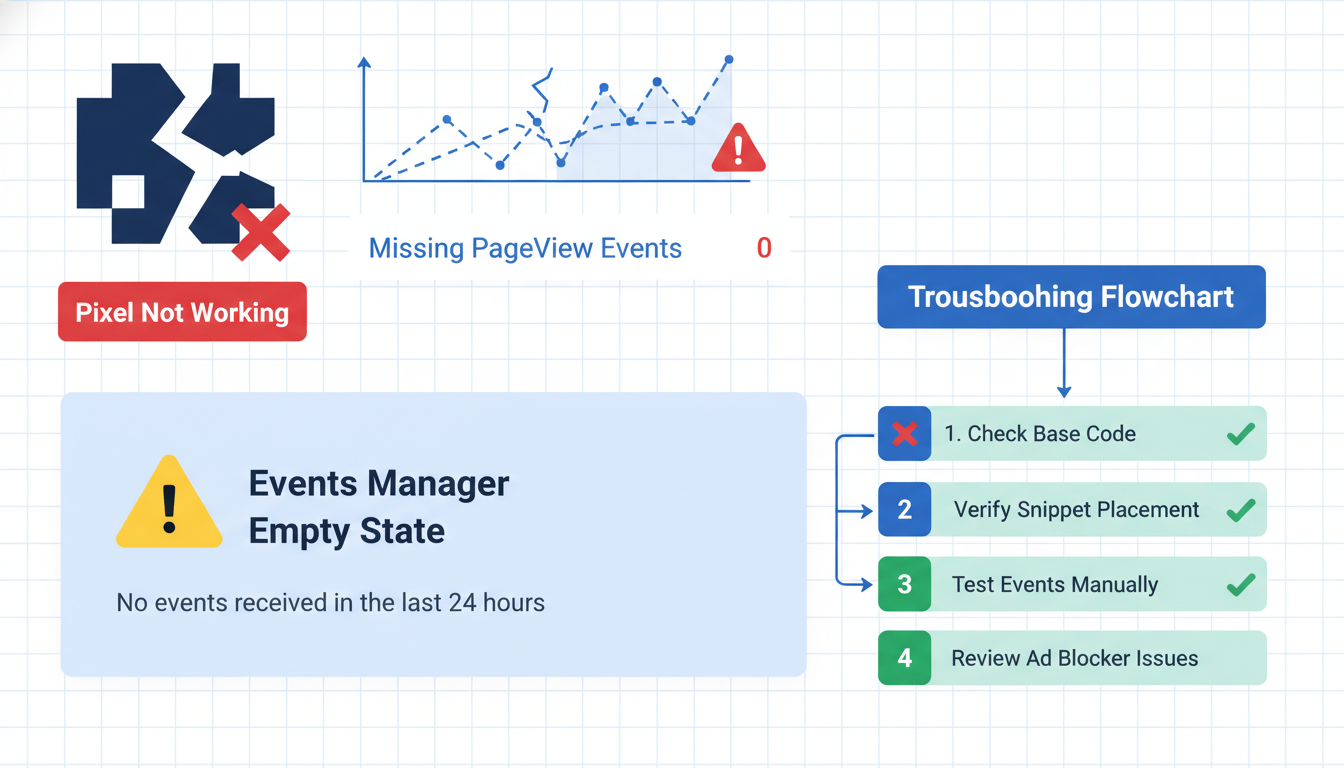
Shopify Meta Pixel not working is one of those problems that wastes a week of ad spend before anyone notices, because the symptoms are vague: events look low, ROAS reads soft, Events Manager shows partial data. Most operators poke at the F&I app, see a green Connected badge, and conclude it must be something else. The real diagnosis runs through 7 steps in a specific order, and skipping any one of them is how stores spend three days fixing the wrong thing. The sequence: Pixel Helper count, Events Manager diagnostics, F&I app status, Additional Scripts, theme.liquid, checkout.liquid, then ad blockers and iOS 14. Most cases resolve at step 3 or step 5. The full audit takes 25 minutes. The fix usually takes an afternoon. Real ROAS recovers inside 7 to 14 days once events flow clean again.
- Start with Pixel Helper, not theme code. The first 2 steps catch 50% of cases.
- Connection status in the F&I app is not the same as events flowing.
- Theme-level `fbq` snippets and Additional Scripts cause 40% of "broken pixel" tickets.
- Ad blockers and iOS 14 explain a 15 to 25% gap. Plan for it, do not chase it.
What "Meta Pixel not working" usually actually means
Shopify Meta Pixel not working is the catch-all phrase operators use when something feels off, and 9 times out of 10 the actual problem is one of four very different things wearing the same label. Sorting which one you have is half the battle, because the fix path is different for each.
The four patterns we see across our audit pipeline:
- No events at all. Events Manager shows zero PageView, zero ViewContent, zero Purchase. Pixel Helper extension shows "No pixel found." This is the rare case and almost always a disconnected F&I app or a wrong Pixel ID.
- Some events fire, others do not. PageView and ViewContent land cleanly. AddToCart and Purchase are missing or sporadic. This pattern points to checkout-stage issues (Additional Scripts, checkout.liquid, or a custom subscription flow).
- Events fire but with low quality. Volume looks roughly right but EMQ sits at 4 or 5, dedup rate is below 60%, and the algorithm cannot optimize. This is usually a match-keys problem (data sharing set to Standard instead of Maximum) or an
event_idmismatch. - Events look fine in Pixel Helper but Events Manager shows nothing. Browser pipe works, server pipe is dead, or vice versa. Or the Pixel ID in the F&I app does not match the one you are watching.
Most "facebook pixel not working shopify" support threads online lump all four into one symptom and give one fix, which is why so many operators spend a weekend on the wrong thing. The 7-step sequence below is built to surface which pattern you actually have inside the first 10 minutes, then point you at the right fix.
We audit around 40 Shopify stores a month since 2023. Roughly 30% come in with some flavor of "pixel not working" in the intake. The cause falls into one of these four buckets every single time. The order of the steps matters because each one rules out a whole family of causes if it comes up clean, which saves you from poking at theme code when the real problem was a stale OAuth token in the F&I app.
The 7-step diagnosis in the right order
Here is the full sequence. Do not skip. Do not reorder. Each step feeds the next, and most cases resolve before you reach step 5.
- Run Meta Pixel Helper on every key page. This tells you instantly whether the pixel exists and how many times it fires.
- Open Meta Events Manager diagnostics. Any flagged issue Meta has already detected shows up here in plain English.
- Check the Shopify Facebook and Instagram (F&I) app status. Connection state, Pixel ID match, data sharing level.
- Check Additional Scripts in Shopify checkout settings. Legacy code in the order status page is a top-3 cause.
- Inspect
layout/theme.liquid. Look for leftoverfbqsnippets, GTM containers, or competing scripts. - Inspect
templates/checkout.liquid(Shopify Plus only). Custom checkout code can override or silence the F&I app. - Check ad blockers and iOS 14 reality. Some "missing events" are not bugs, they are platform behavior.
That is the map. Each step rules out a whole family of causes. Run them in order, document what you see at each step, and the fix surfaces on its own.
The full pass takes 25 minutes the first time, 10 minutes once you have done it on a few stores. Most operators try to skip to step 5 or step 7 because that is where the "interesting" debugging lives. Half of those operators end up back at step 3 a week later because the F&I app was disconnected the whole time and nobody checked.
Step 1 and 2: Pixel Helper + Events Manager diagnostics
The first two steps rule out 50% of cases without touching any code. Both run in your browser and take 5 minutes combined.
Step 1: Meta Pixel Helper. Install the Meta Pixel Helper Chrome extension. It is free, official, and the single fastest way to see what is actually firing on your store. Open your store homepage in an incognito window with the extension active, then walk through the funnel:
- Homepage. Pixel Helper should show one Pixel ID, firing PageView once.
- Product page. One ViewContent fire.
- Cart. One AddToCart fire (if your theme fires it on cart view, not all themes do).
- Checkout start. One InitiateCheckout fire.
- Thank-you page (after a $0.50 test purchase with a coupon). One Purchase fire.
Three patterns matter here. If Pixel Helper shows "No pixel found" anywhere, the pipe is dead at that stage. If it shows two different Pixel IDs, you have duplicate-pixel territory (which is a separate problem, see our Shopify Meta Pixel duplicate events guide). If it shows the right Pixel ID firing the right events but Events Manager still shows nothing, your problem is server-side or your Pixel ID does not match the one you are watching in Events Manager.
Step 2: Events Manager diagnostics. Go to Meta Events Manager, pick your pixel, and click the Diagnostics tab in the left sidebar. This is the most underused feature in the whole platform. Meta runs automated checks on your pixel every day and surfaces issues here in plain English. Common diagnostics you will see:
- "Event Setup Tool code detected" (legacy install method, needs removal).
- "Missing required parameters" (usually
valueorcurrencynot passed on Purchase). - "Event deduplication not working" (browser and server fire without matching
event_id). - "PII detected in pixel events" (raw email or phone in the payload, not hashed).
- "Pixel not active" (no events received in last 7 days).
If Diagnostics shows anything, that is your first fix. The "Pixel not active" diagnostic is the loudest signal that the pipe is fully broken. If it shows up, jump straight to step 3 (F&I app) because the connection is almost certainly down. The other diagnostics are surgical fixes that get done after the bigger pipe issues are cleared.
Meta's official Events Manager diagnostics reference explains each message in more depth. Worth bookmarking.
Step 3 and 4: Shopify F&I app status + Additional Scripts
Steps 3 and 4 catch the Shopify-specific causes. About 50% of our audit cases resolve here.
Step 3: F&I app. In Shopify admin, open Apps, then Facebook and Instagram. Three things to confirm, in order:
- Connection status. Green "Connected" badge. If it says "Reconnect" or shows a warning triangle, the OAuth token expired. This happens every 60 to 90 days if nobody opens the app to refresh it. Reconnect, confirm it picks up the right pixel, save. About 1 in 3 "shopify pixel not firing" tickets we see is this exact thing.
- Pixel ID matches. The Pixel ID listed inside the F&I app must match the one you are actually watching in Events Manager. Most common failure: the store owner connected a personal ad account pixel two years ago, then the agency connected a business pixel, and Shopify is still sending to the personal one. Events Manager on the business pixel shows zero events because the pipe was never pointed at it. Fix: disconnect the F&I app entirely, reconnect using the correct Meta Business account, confirm the Pixel ID matches.
- Customer data sharing is Maximum. Settings inside the F&I app, under Data sharing preferences. Standard sends events but strips email and phone, which makes match quality look like nothing is working even when events are landing. Maximum sends the hashed match keys. Set to Maximum. This single toggle is worth 1.5 to 2 EMQ points on most stores.
If any of these three is off, fix it and re-run step 1 (Pixel Helper) before moving on. About half the time, fixing one of these three resolves the whole problem and you can stop here.
Step 4: Additional Scripts. In Shopify admin, go to Settings, then Checkout, then scroll to "Order status page". The "Additional Scripts" textarea at the bottom is the single most-forgotten place on a Shopify store. Whatever was pasted here in 2021 is still there, almost always.
Common offenders we find in this box:
- A hardcoded
fbq('track', 'Purchase', {...})block from a 2022 manual install before the F&I app existed. - A Google Ads conversion snippet that also re-fires Meta Purchase as a side effect.
- A custom app's post-purchase script that was supposed to be removed when the app was uninstalled, but never was.
- A sloppy Liquid template using
{{ checkout.total_price }}that returns null on subscription orders, so the Purchase event fires with value 0 and Meta drops it from the optimizer.
Read every line. If a block does something you cannot identify, comment it out (do not delete) so you can put it back if something breaks. Save the page, then run a $0.50 test purchase and watch Events Manager Test Events. The old script firing alongside the F&I app is the textbook cause of the "duplicate events" diagnostic from step 2, and removing it usually resolves the issue inside 5 minutes.
Step 5 and 6: theme.liquid + checkout.liquid inspection
Steps 5 and 6 catch the theme-level causes. Another 20% of cases resolve here, the ones where old pixel code was buried in a file nobody has opened in two years.
Step 5: theme.liquid. Open layout/theme.liquid in the theme editor. Use Find to search for fbq(. If it returns a match, you have leftover theme-level pixel code. This is the #1 cause of duplicate events we see, and the second most common cause of "pixel not working" symptoms when the leftover code is broken or pointing at a stale Pixel ID.
What a leftover looks like:
<script>
  !function(f,b,e,v,n,t,s){...}(window, document,'script',...);
  fbq('init', '1234567890');
  fbq('track', 'PageView');
</script>
Two ways this breaks the pixel. First, the leftover Pixel ID does not match your current one, so Pixel Helper shows two pixels firing and Events Manager shows half the volume on each. Second, the leftover script syntax was correct in 2022 but has since broken silently due to a theme update, so it throws a JavaScript error and stops every later script on the page from running, including the F&I app's pixel. Open browser DevTools, check the Console tab on the storefront, and look for any red errors mentioning fbq or facebook. Errors here usually point at the exact line.
The fix is deletion, not modification. Save the theme to a new copy first, commit the change there, test on the preview, then publish. Never edit a live theme directly on a production store. We have seen stores lose 24 hours of orders because a developer "just removed one line" and accidentally broke the cart template.
While you are in theme.liquid, also check for:
- A Google Tag Manager container snippet (should be present once, never twice).
- Any
<script>tag referencingfacebook.net/tr(that is the pixel script). - A
data-pixel-idattribute that contradicts the F&I app's Pixel ID.
Step 6: checkout.liquid (Shopify Plus only). If the store is on Shopify Plus, there is a separate checkout.liquid file controlling the checkout flow. Open it, search for fbq( again, and search for gtag( while you are there. Any pixel call here runs on top of the F&I app's server-side CAPI event, which creates either a double-fire (flagged as "duplicate events" in Diagnostics) or a silent error that suppresses the real Purchase event entirely.
Non-Plus stores do not have checkout.liquid and Shopify's native checkout cannot be edited at the code level, which means this step is a no-op. Skip to step 7.
If you do not have theme code access, ask the store owner to add a "Staff" user with "Themes" permission. Do not ask for full admin access, that is too much privilege for a tracking audit, and most store owners will not approve it.
Step 7: ad blocker + iOS 14 reality check
Step 7 is the one operators forget exists, and it explains why "shopify meta pixel not working" tickets sometimes have no fixable cause at all.
Ad blockers. Roughly 25 to 35% of the global desktop population runs uBlock Origin, AdBlock Plus, Brave Shields, or a Pi-hole at home. These tools block the Meta pixel script at the network layer. The pixel script never loads, no events fire, the user never appears in Events Manager. From the store's perspective it looks broken. From the user's perspective it is working as designed.
There is no fix. You cannot bypass an ad blocker without violating the user's trust and triggering Chrome warnings. What you can do is set the right baseline expectation. If you compare Events Manager pageview count to Shopify Analytics sessions, expect the pixel to capture 65 to 75% of sessions on a typical store. Anything in that range is normal. If the gap is larger (pixel captures less than 60%), you have a real problem and should restart at step 1.
iOS 14 and Apple's privacy changes. Since iOS 14.5 (2021) Apple has required apps to ask user permission before tracking, and Safari has been actively suppressing third-party cookies for longer than that. The result on Shopify stores: iOS Safari users generate fewer pixel events than Android Chrome users by 30 to 40%, and the events they do generate often arrive with degraded match keys. This is the entire reason CAPI exists. If your store skews iPhone-heavy (think DTC apparel, beauty, premium goods) the gap between Pixel and CAPI matters more, not less.
There are two things you can actually do about this:
- Confirm CAPI is enabled in the F&I app (step 3 already covered this). CAPI fires server-side, which means it bypasses Safari's third-party cookie restrictions and ad blockers entirely. EMQ stays high even when browser pixel volume is low.
- Configure 8 prioritized conversion events in Events Manager (the Aggregated Event Measurement settings). iOS 14 limits you to 8 tracked events per pixel. If Purchase is not in the top 8, iOS users will not contribute Purchase data to optimization, full stop.
Most operators discover the iOS 14 issue weeks after they have rebuilt the entire pixel setup, because nobody flagged it in the original install. Best to check Aggregated Event Measurement settings now, even if your current diagnosis points elsewhere. Meta's Aggregated Event Measurement reference covers the prioritization rules.
If steps 1 through 6 came up clean and you are still seeing low event volume, the answer is almost always a combination of ad blockers + iOS 14, not a bug. The fix is to stop chasing the gap and start trusting the deduped CAPI signal in Events Manager instead of raw browser pixel volume.
When pixel issues are actually CAPI issues in disguise
About 1 in 4 "Shopify Meta Pixel not working" tickets we open turn out to be a CAPI problem, not a pixel problem. The symptoms overlap enough that operators conflate the two. Worth knowing how to tell them apart so you do not spend a day fixing the wrong layer.
The pixel and CAPI run as parallel pipes. The browser pixel fires from the user's device and reports through their browser. CAPI fires from your store's backend and reports server-to-server. Both feed the same Events Manager and Meta dedups them using a shared event_id. When everything works, you see two rows per event in Test Events, both labeled with the same event_id, and a "Deduplicated" tag on the row.
How the symptoms differ:
- Pure pixel problem. Pixel Helper shows nothing or wrong data. Events Manager shows zero browser-side events. Server-side events may still land if CAPI is running.
- Pure CAPI problem. Pixel Helper shows clean fires. Events Manager shows browser events but no server events. EMQ is around 6 because CAPI's match keys (server-side IP, hashed email from Shopify) are missing.
- Both broken. Events Manager shows nothing at all from anywhere. The whole pipeline is dead. Almost always a disconnected F&I app or a wrong Pixel ID.
If your symptom is "low EMQ even though events are landing," it is a CAPI configuration issue. Check the F&I app's Customer data sharing setting (must be Maximum) and confirm CAPI is explicitly toggled on (it is a separate toggle from browser pixel inside the F&I app). For a deeper walkthrough of CAPI-specific setup, see our Meta CAPI setup on Shopify guide.
If your symptom is "Purchase event missing entirely," that is a different problem with its own playbook. See our Shopify Purchase event not firing guide for the 9-step Purchase-specific diagnosis.
The 7-step sequence on this page covers all pixel events (PageView, ViewContent, AddToCart, InitiateCheckout, Purchase). The Purchase-specific page goes deeper on the thank-you page mechanics, which are uniquely different from every other page on a Shopify store. If your only failing event is Purchase, start there. If multiple events are failing, start here and run the 7 steps in order.
Frequently asked questions
Why is my Shopify Meta Pixel not working even though Pixel Helper shows it firing?
test_event_code parameter active. Third, your Meta Business account does not have permission to view the pixel, so events are flowing into a pixel ID you cannot see. Confirm Pixel ID match first, then check the Test Events tab to see if events are sitting in the test queue, then check pixel ownership permissions.Can a Shopify theme update break the Meta pixel?
layout/theme.liquid during major version updates, especially if the developer included Meta pixel scaffolding as a default. Free themes do this less often but can still break the pixel by changing how the data layer is structured, which then breaks any custom GTM tags reading from it. After every theme update, run the 7-step diagnosis again. Best practice: make theme updates on a duplicate copy, run a $0.50 test purchase against the copy, confirm the pixel still fires cleanly in both Pixel Helper and Events Manager, then publish.How do I tell if it is a browser pixel problem or a CAPI problem?
event_id is missing or formatted differently between the two paths. Each pattern points at a specific fix path. Do not skip this diagnostic, it cuts diagnosis time in half.What is the fastest way to fix Meta Pixel not working on Shopify?
How long should I wait after fixing the pixel before trusting the data?
Is "shopify pixel not firing" always a Shopify problem or could it be Meta?
Shopify Meta Pixel not working is one of those problems that looks scary at first and turns out to be one of four well-known patterns once you run the diagnosis in order. Pixel Helper and Events Manager diagnostics catch half the cases inside 5 minutes. The F&I app status check catches another 35%. Theme code and Additional Scripts catch most of what remains. Ad blockers and iOS 14 explain the rest, and the answer there is usually "stop chasing the gap, trust the CAPI signal." Most stores live with broken pixel events for weeks because nobody runs steps 1 and 2 first, then they spend three days in theme code looking for a problem that lived in the F&I app the whole time. Best to run the full 7-step sequence even if you think you know which step will surface the cause. Half the stores we audit have two causes stacked, not one, and only finding the first one means the symptoms come back a week later from the second source. Fix clean the first time.
Get a full X-ray of your ad account
Paste your Meta and Google Ads. See exactly where signal is leaking. Free. 60 seconds.