Shopify pixel double counting: how to find and fix it
 By Dror Aharon
·
CEO, COREPPC
·
Updated April 17, 2026
·
11 min read
By Dror Aharon
·
CEO, COREPPC
·
Updated April 17, 2026
·
11 min read
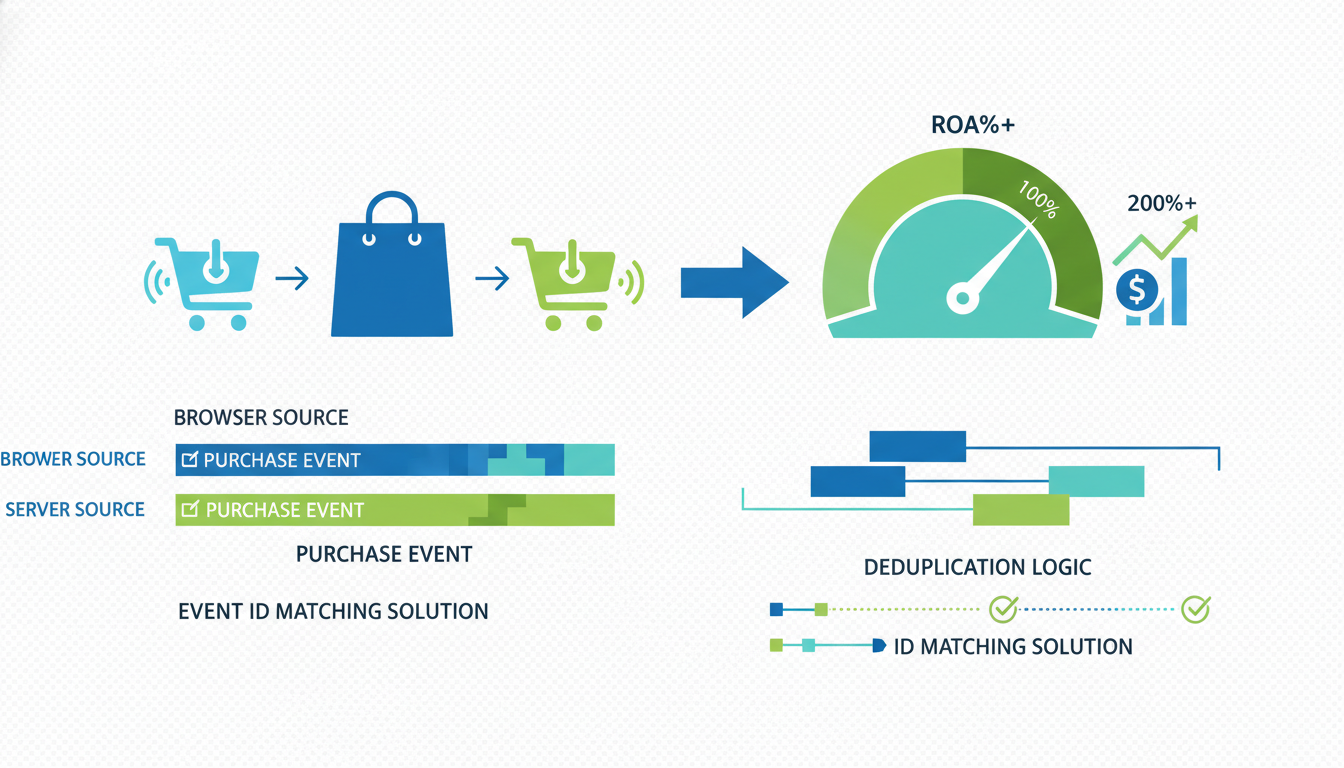
Shopify pixel double counting is when your reported Purchase count reads roughly 2x your actual orders, and the cause is almost never exotic. It is a second pixel firing somewhere nobody remembered to clean up. Most operators see inflated ROAS, pat themselves on the back, and burn another three weeks before the bank account stops matching the dashboard. The fix is subtraction, not optimization. Count the pixels, find the extra one, delete it. Five steps in order, 30 minutes of diagnosis, an afternoon to fix. This is a different problem from duplicate events caused by a missing event_id. That one is a deduplication failure between browser and server pipes firing through the same pixel. This one is a literal second pixel installed on the store. The signal is different, the fix is different, and mixing them up costs you another week of ad spend lost.
- Two pixel IDs firing means the count is doubling, not deduping.
- Check GTM first, then `theme.liquid`, then Additional Scripts, then apps.
- Shopify's F&I app is almost never the one you want to remove.
- After the fix, reported ROAS drops 40 to 60%. Real ROAS climbs over 7 to 14 days.
Double counting vs duplicate events: the difference that matters
Shopify pixel double counting and Shopify duplicate events sound like the same problem, and that is exactly why stores spend three days fixing the wrong thing. The symptoms overlap, the diagnostics overlap, but the root cause is different and the fix is different.
Duplicate events is a deduplication failure. You have one pixel firing through both browser and server paths (the F&I app does this for Purchase, AddToCart, ViewContent, InitiateCheckout). Both paths are supposed to send the event, and Meta is supposed to match them using a shared event_id and count it once. When event_id is missing or formatted differently, dedup fails and Meta counts both. One pixel, two pipes, failed dedup. Covered in our Shopify Meta Pixel duplicate events guide.
Double counting is different. You have two pixels. Both fire independently. Neither one knows the other exists. From Meta's end these are two separate pixels reporting two separate purchases, so no dedup mechanism applies. The count doubles because, mathematically, two pixels both seeing the same order means two counts.
Why this matters for the fix: duplicate events gets solved by setting event_id correctly on both sides. Double counting gets solved by finding the second pixel and killing it. Running the event_id fix on a double-counting problem does nothing, because no dedup relationship exists between two unrelated pixels. So step one is always diagnosis. If two Pixel IDs are firing, you have double counting. If one Pixel ID fires twice, you have duplicate events. Same symptom on the ROAS line, very different fix. Roughly 6 out of 10 Shopify tracking defects we find in audits are a second pixel, not a dedup failure, because second pixels are easy to accidentally install and nobody flags them.
How to tell your pixel is double counting (3 signals)
Three signals, in rough order of how fast they surface. Two or three stacked and it is almost certainly double counting.
Signal 1: Pixel Helper shows two different Pixel IDs on the same page. This is the cleanest signal. Install the Meta Pixel Helper Chrome extension, open your store in an incognito window, and look at what it lists. If Pixel Helper shows Pixel ID 123... and Pixel ID 987... both firing on your homepage, you have two pixels. Done. The only remaining question is which one to keep and which to remove.
Signal 2: Meta reported ROAS is roughly 2x your Shopify revenue. This shows up in the weekly review, usually three weeks after the second pixel got installed. Meta says you did $40,000. Shopify says $20,000. Shopify is right. A clean 2.0 ratio is the signature of a second pixel firing on every order. Duplicate events (dedup failure) usually shows a messier ratio like 1.4 or 1.7, because only some event paths lose their match.
Signal 3: Events Manager shows a pixel you did not know existed. Open Events Manager, look at the pixels list for your Business account. More than one pixel receiving traffic from your store's domain means the extra one is your second pixel. Check "last active" timestamps. A pixel that has been collecting events for 18 months is your culprit. Most operators never open this view and never notice the shadow pixel sitting there.
One signal alone can mislead. Two signals stacked is confirmation.
The 5 places a second pixel sneaks in
Every second pixel we have ever found on a Shopify store was living in one of these five places. The diagnosis is just a matter of checking each in order.
- Google Tag Manager, most common. A Meta Pixel tag was set up in GTM for a 2023 campaign, never got paused when the F&I app was installed in 2024, and has been firing on every page load since. Roughly 40% of cases.
theme.liquid, second most common. A freelance developer pasted a manualfbq('init', ...)block into the<head>, usually in 2022, before the F&I app existed. The block never got removed. Around 30%.- Additional Scripts in Shopify Checkout settings. The "Order status page > Additional Scripts" textarea is the forgotten corner of every Shopify admin. 15%, higher on stores with custom post-purchase offers.
- Shopify Plus
checkout.liquid. Plus-only. Custom checkout code carrying a Purchase pixel that fires on top of the F&I app's server-side pipe. 10%, but always the most expensive because the double-fire is on Purchase specifically. - Third-party apps shipping their own pixel. Upsell, reviews, subscriptions, landing-page builders, "better attribution" analytics apps. 5%, but hardest to find because apps are black boxes.
Start with GTM, not the theme, because GTM is faster to audit and covers 40% of cases.
Step 1-2: Pixel Helper count + GTM audit
The first two steps catch most cases and take 10 minutes combined.
Step 1: Count pixels with Pixel Helper. Open your store in an incognito window with the extension active. Click the icon on the homepage, a product page, the cart, the checkout, and the thank-you page after a $0.50 test purchase. Write down every Pixel ID at each stage. One Pixel ID, firing each event once, is clean. Two Pixel IDs on any single page confirms double counting.
If Pixel Helper shows two IDs, confirm which is the F&I app pixel (open the F&I app, check the Pixel ID listed) and which is the stranger. The stranger is the one to kill. The F&I app pixel is the one to keep, unless you have a specific reason to move off it.
Step 2: GTM audit. Open your GTM container, go to Tags, filter by "Meta" or "Facebook" or fbq. Every match is a suspect:
- Meta Pixel tags from the official GTM template.
- Custom HTML tags containing
fbq(in the code. - CAPI tags firing from GTM server-side.
- Any tag named "Facebook" or "Pixel" that you cannot identify.
Pause first, test, then delete. A paused tag can be restored from an old container version in 30 seconds if you discover it was doing something important. After pausing, preview the container, walk through the full checkout flow, and confirm no Meta tags fire. Save a new container version with a clear note.
Run Pixel Helper again. One Pixel ID now, diagnosis is done. Two IDs still fire, continue.
Step 3-4: theme.liquid + Additional Scripts
If GTM came up clean or partially clean, the next sources are theme-level pixel code and Additional Scripts. About 40% of cases land here if GTM was not the cause.
Step 3: Inspect layout/theme.liquid. In Shopify admin, Edit Code, open layout/theme.liquid, and search for fbq(. Any match is a problem. A typical leftover looks like this:
<script>
  !function(f,b,e,v,n,t,s){if(f.fbq)return;...}(window,document,'script',...);
  fbq('init', '9876543210');
  fbq('track', 'PageView');
</script>
If the fbq('init', ...) ID does not match your F&I app's Pixel ID, that is your second pixel. Check templates/product.liquid and templates/cart.liquid too. Older manual installs sometimes spread the orphan across multiple templates.
The fix is deletion. Duplicate the theme first (Themes, three-dot menu, Duplicate). Edit the duplicate, remove the entire <script> block, preview with Pixel Helper, and only then publish as live. Never edit a live theme directly. We have seen stores lose 24 hours of orders because somebody removed a pixel block and accidentally broke a {% if %} tag wrapping it.
Step 4: Additional Scripts. Shopify admin, Settings, Checkout, scroll to "Order status page" and check the "Additional Scripts" textarea. This box is the most overlooked source of double-counted Purchase events on non-Plus stores. Whatever was pasted in 2022 is still there.
What you will find:
- A hardcoded
fbq('track', 'Purchase', {...})from a manual install predating the F&I app. - A custom post-purchase upsell script left behind when the app was uninstalled.
- A "conversion enhancement" script from an analytics tool that silently fires Meta Purchase.
- A sloppy Liquid template firing Purchase with
value: 0on subscription orders, which Meta still counts.
Read every line. If a block does something you cannot identify, comment it out (<!-- -->) so you can restore it. Save, run a $0.50 test purchase, watch Events Manager Test Events. If Purchase now fires once, you found it.
Shopify Plus has checkout.liquid as a separate code file. Same rules: search for fbq(, strip any Purchase pixel call on a duplicate theme, test, publish. Plus stores are more likely to have checkout.liquid problems than Additional Scripts problems, because Plus developers lean on checkout.liquid for everything.
Step 5: Shopify apps carrying pixels you forgot about
This is the slowest step and the one people skip. About 5% of cases live here, but if steps 1 through 4 came up clean and two Pixel IDs still fire, the source is an app.
Apps that commonly carry their own Meta pixel, based on what we find in audits:
- Upsell apps (ReConvert, Zipify OneClickUpsell, CartHook, AfterSell). Post-purchase upsell pages often fire their own Purchase pixel, especially if the upsell is a second order on a different checkout flow.
- Landing page builders (PageFly, Shogun, GemPages). Pages built here can include pixel logic baked into the template, separate from Shopify's native tracking.
- Analytics and attribution apps (Triple Whale, Northbeam, Lifetimely). Some install a "side-car" pixel running in parallel with your main one.
- Subscription apps (Recharge, Bold, Skio). Some fire their own Purchase events on subscription conversion.
- Review apps (Judge.me, Loox, Okendo). Less common, but some fire ViewContent when their widget loads.
The audit method. Shopify admin, Settings, Customer Events. This page lists every source registered with Shopify's Customer Events API. Ideally you see one source: "Facebook & Instagram." Any other source is a suspect. Click into each, check what events it fires, confirm whether it is intentional.
Caveat. Customer Events only shows pixels registered through the proper API. Apps that inject pixel code directly into the page will not appear. For those, use Pixel Helper on pages that render the app's content.
Once you find the app, the fix is usually a toggle in settings. If the app has no toggle, contact support. If they cannot disable it, uninstall the app, clean the theme (step 3), and consider whether you need the app at all.
Fixing vs leaving one: the decision rule
Once you find the second pixel, the fix is usually obvious: kill the one that was not supposed to be there. But sometimes the question is more nuanced. Which of the two pixels should survive?
The rule, in one line: keep the pixel attached to the Meta Business account that owns the ad account running ads against this store. Kill everything else.
Three scenarios:
- Second pixel is unused and belongs to you. Remove it. No consequence.
- Second pixel belongs to a different Business Manager and has been collecting events for a long time. Do not rush. First, export any Custom Audiences you want to keep (they have to be rebuilt against the surviving pixel). Second, confirm no active campaigns are running against it. Third, remove it from the store.
- Second pixel is intentional and you want to keep both. Rare. Usually comes up when one brand operates two product lines under two ad accounts. This is not actually a "double counting" problem, it is a "two legitimate pixels" problem, and the fix is event filtering so each pixel only receives events for its own product line.
Should you leave the second pixel firing while you fix something else first? No. Every day the second pixel runs, Meta's algorithm learns on inflated signal. A week of double-counted data takes Meta about 10 to 14 days to unlearn. Best to fix the same day you find it.
After the fix, expect reported ROAS to drop 40 to 60% in the first week. Normal. The dashboard is finally telling the truth. Real ROAS (the bank account number) stays the same or climbs, because the algorithm can now optimize on clean signal. Most operators panic around day 3. Hold steady. By day 10 to 14, real revenue has moved and you can see it in Shopify. If revenue also drops, something else broke (usually an event stopped firing entirely after cleanup), and you need to rerun Pixel Helper.
Track three things for the first month: Pixel Helper count per stage (one ID, one fire per event), Events Manager dedup rate (above 75%), and the ratio of Meta revenue to Shopify revenue (close to 1.0, anything above 1.3 means a new duplicate crept in).
Frequently asked questions
How can I tell if my Shopify pixel is double counting versus duplicate events?
event_id is missing or mismatched. The fix path is completely different for each. Double counting gets fixed by finding and removing the second pixel. Duplicate events gets fixed by setting event_id correctly on both browser and CAPI sides. Running the event_id fix on a double-counting problem does nothing, because no dedup relationship exists between two unrelated pixels.Why does my Meta reported ROAS read exactly 2x my Shopify revenue?
event_id match. If your ratio is close to 2.0, run Pixel Helper first and count the Pixel IDs. Two IDs confirms the cause in 30 seconds, and the rest of the diagnosis is finding where the second pixel lives.Will Shopify's Customer Events API catch a second pixel installed in the theme?
fbq('init', ...) block pasted directly into theme.liquid bypasses Customer Events entirely, because the pixel loads from the raw HTML and never touches Shopify's pixel framework. Same for Additional Scripts and checkout.liquid. So Customer Events is a useful audit source for apps, but it cannot see theme-level pixel code. If your double counting source is one of these three locations, Customer Events shows one source only (F&I app) and Pixel Helper still shows two Pixel IDs, which is the signal to inspect theme code directly.What happens to my Meta audiences after I remove the second pixel?
Can two Shopify apps share the same Meta pixel without double counting?
Is it possible to fix double counting without losing any Meta learning?
Shopify pixel double counting is the tracking defect that costs the most and takes the least time to fix, once you know what to look for. The cause is always a second pixel, living in one of five places, counting every order twice. The fix is subtraction: find it, remove it. Run the five-step diagnosis in order. Pixel Helper count and GTM audit catch 70% of cases in 10 minutes. Move to theme code and Additional Scripts if the first two come up clean. Audit installed apps last. After the fix, expect reported ROAS to drop 40 to 60% for a week while Meta relearns, then real ROAS recovers and usually climbs over the following 7 to 14 days. Most stores we audit have been double counting for 6 months before anyone noticed, so the compounding cost is real. Best to fix the same day you find it. Half the stores have two sources stacked, so run the full sequence even if you find a match early. Fix clean the first time.
Get a full X-ray of your ad account
Paste your Meta and Google Ads. See exactly where signal is leaking. Free. 60 seconds.