Shopify Launchpad for BFCM and flash sales
 By Dror Aharon
·
CEO, COREPPC
·
Updated April 17, 2026
·
11 min read
By Dror Aharon
·
CEO, COREPPC
·
Updated April 17, 2026
·
11 min read
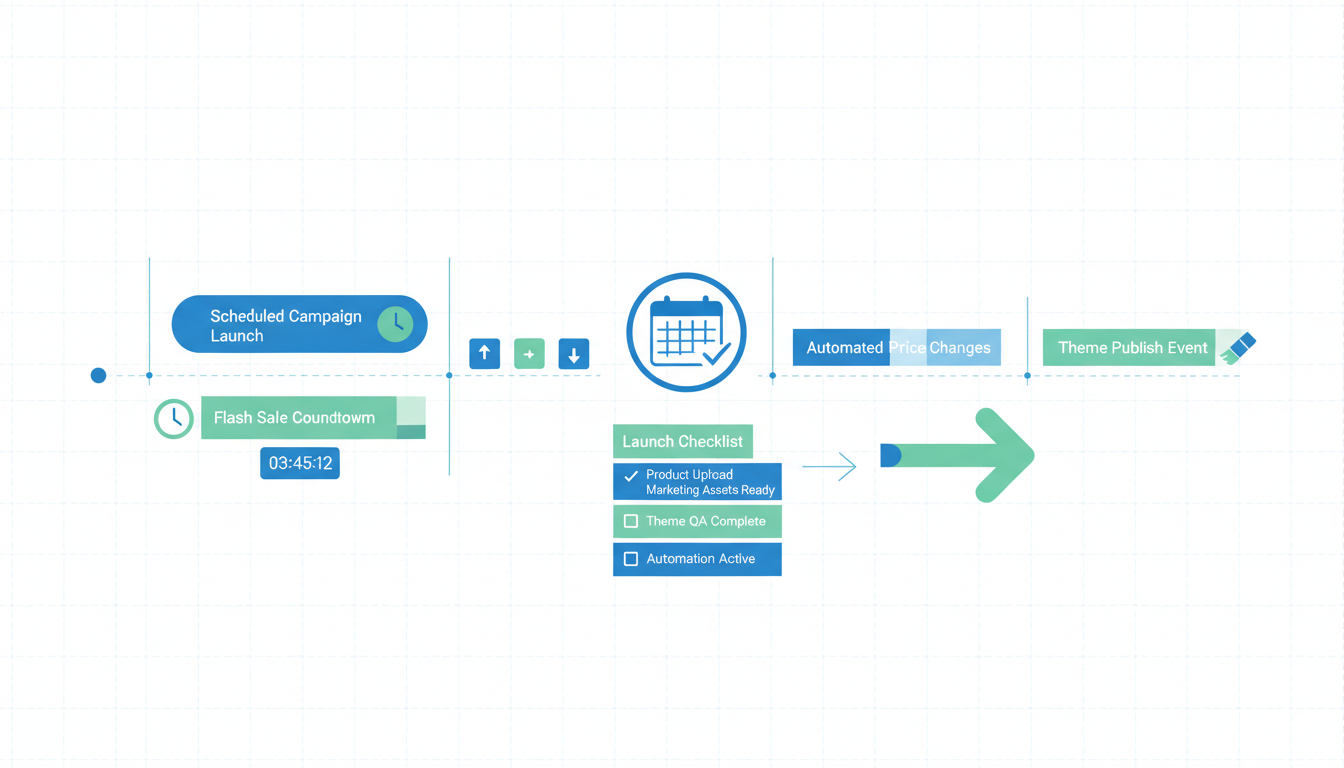
Shopify Plus Launchpad is free with your Plus contract and most Plus merchants either ignore it or misuse it on BFCM, which is exactly why their sale day stumbles out of the gate. Launchpad is a scheduled-events engine for product publishing, discount activation, theme swaps, and Flow trigger changes, all timed to the minute. Used right, it replaces the frantic human scramble at midnight (that always produces one wrong price, one live product that should not be live yet, and one Slack panic) with a dry-run-tested schedule that runs itself. Used wrong, it fires theme swaps while checkout traffic is peaking and takes the whole sale down for 90 seconds at the worst possible moment. This guide is the 10-step BFCM setup, the four events Launchpad actually handles well, and the three failure modes we see every November in stores that forgot to test the schedule.
- Launchpad is free on Plus, scheduled events fire within 60 seconds of the target time.
- Always run the schedule in a sandbox 24 hours before the real event.
- Theme swaps are the single biggest failure mode on sale day.
- Staff notifications matter more than you think. Silent fires confuse ops teams.
What Launchpad actually automates on Shopify Plus
Launchpad Shopify is the built-in event scheduler inside Plus, and it has been around since 2018, which means most of the "what is Launchpad" content online is 3 or 4 years stale. The tool itself is simple. You create an event, you set a start time and an end time, and you pick one or more actions to run at each boundary. The actions that matter in 2026 are product publishing, discount activation, theme publishing, and Shopify Flow trigger changes. There are a few legacy options still sitting in the UI (script changes, for the deprecated Script Editor) that you should ignore. Scripts are dead on Plus in 2026, and Launchpad still lists them because nobody at Shopify has gotten around to cleaning up the UI.
The best way to think about Launchpad is as a cron job with a nice interface and four specific levers. It is not a full workflow engine. It is not a replacement for Flow. It is the thing that flips specific switches at specific times, which is exactly what a flash sale or a BFCM schedule needs. Most of the stores we audit try to force Launchpad into jobs it was not built for, like sending customer emails at a scheduled time (Flow does that) or throttling inventory (you need a custom Function for that). Used inside its actual scope, Launchpad is the single most underused tool on Plus.
The thing to know before you build your first event: Launchpad fires on its own clock, which runs in UTC and converts to your store's timezone at display time. It is accurate to within about 60 seconds. Close enough for almost every use case, except the ones where you need millisecond precision, and those use cases are rare. If you are running a 9:00 AM launch and the event fires at 9:00:42 AM, nobody notices. If you are scheduling a theme swap during a peak traffic minute, that 42 seconds can matter. Plan accordingly.
The 4 events Launchpad handles best: BFCM, flash sales, product drops, pricing tests
Four use cases are where Launchpad actually earns its place in the Plus stack. Everything else is a stretch or a mistake.
- BFCM schedules. The flagship use case, and the one the feature was built for. A single Launchpad event can activate the site-wide discount, publish the holiday theme, switch the homepage featured products, and turn on a Flow trigger that sends a Slack ping to the ops team. All at exactly the time you pick. Then a second event turns everything off at the end of the sale window. No midnight scramble.
- Shopify Plus flash sales. 24-hour, 48-hour, or weekend-length sale windows. Same pattern as BFCM but smaller scope, usually a single category discount and a banner theme swap. Launchpad is good here because flash sales live and die on the first 30 minutes of traffic, and a late start costs real money.
- Product drops and limited releases. Publish a previously hidden product at a specific time, activate a pre-order discount, switch the homepage to feature the drop. Works well for sneaker-style drops, capsule collections, or holiday exclusives. The product publishing action is the lever here. You hide the product in admin, schedule the publish time, and it goes live on the minute.
- Pricing tests. Less obvious use case, but genuinely useful. Schedule a price change on a specific product for a 48-hour window, then revert. You see how conversion, AOV, and margin move at the new price without permanently committing. Almost nobody uses Launchpad this way and it is honestly one of the cleanest A/B testing approaches you can run without a dedicated pricing tool.
What Launchpad does not handle well: anything that needs customer-level logic (use Flow), anything that needs real-time inventory decisions (use Functions), or anything that needs to run more than twice per event (use a custom scheduled job). The four use cases above are the sweet spot. Stick to them.
Setting up a BFCM schedule: the 10-step walkthrough
Here is the exact sequence we run for every Plus client on BFCM. Run it against a sandbox store at least 24 hours before the real event. The number of things you discover in the dry run is the number of things you will not discover at 3 AM on Black Friday.
- Build the discount codes or automatic discounts first. Launchpad activates existing discounts, it does not create them. Set up "BF25" and "CM40" (or whatever your sale codes are) in Discounts, set them to scheduled-but-inactive, and confirm they are the exact codes Launchpad will flip on.
- Duplicate the live theme and build the BFCM variant. New hero, new homepage sections, new banner, BFCM-specific copy. Do not touch the live theme. Save the variant as "BFCM 2026" in your theme library.
- Create the hidden product collection for the sale. If you are running a sitewide discount, skip this. If you are running a category-specific sale (say, "everything outerwear 40% off"), build the "BFCM Outerwear" collection and keep it hidden until launch.
- Build the first Launchpad event: the start of the sale. Admin, Launchpad, Create Event. Set the start time to your exact launch time. Attach the discount activation, theme publish (to the BFCM variant), and any product publishing actions.
- Build the second Launchpad event: the end of the sale. Same interface, same approach. Set the end time to 11:59 PM on the final sale day. Attach the discount deactivation, theme publish (back to the regular theme), and any product unpublishing.
- Add the Flow trigger to both events. The Flow trigger fires a custom event you define in Flow, which can then send a Slack message to your ops team, an email to your CX lead, or whatever internal ping you want when the sale flips.
- Run the sandbox dry run. In a development store or Plus sandbox, replicate the entire schedule and set the times to 10 minutes from now. Watch it fire. Verify every action happened. Walk the site as a customer. Check the prices, check the theme, check that the collection is live.
- Fix whatever the dry run surfaced. It will surface something. Usually it is a discount code that was typed wrong, a theme variant that had an old banner cached, or a product that was not tagged correctly for the collection rule. Fix in admin, then re-run the dry run.
- Schedule a 24-hour pre-launch Slack reminder. Not in Launchpad itself, but in Flow or a manual calendar block. 24 hours before sale start, a real human double-checks the Launchpad events and confirms the schedule is still correct. Nothing catches "somebody paused the discount yesterday for testing and forgot to reactivate it" except a human check.
- Do not touch anything in the last 4 hours before sale start. No theme edits, no collection changes, no discount tweaks. The schedule is locked in. Changes this close to launch are how you create the "but it worked in the dry run" nightmare at 12:01 AM.
Step 7 is the one most stores skip, and it is the one that matters most. A dry run in a sandbox costs 30 minutes. Finding out at 12:03 AM on Black Friday that your theme swap did not fire costs you the first hour of peak traffic, which is usually 15 to 25% of the whole sale's revenue. Worth the 30 minutes.
Product publish and unpublish automation
Scheduled product publishing is the Launchpad action that does not need a fancy use case to justify itself. It is a clean fix for one of the most common Plus ops headaches: "this product should go live at 9 AM on Friday but someone has to remember to push the publish button." Usually that someone has three other things happening that morning and forgets until 9:47 AM, at which point the email campaign has already gone out with a dead link.
Launchpad handles this in the product publishing action. You hide the product in admin (status: draft, or visibility restricted to hidden), create a Launchpad event with a start time, and attach the product publishing action to the event. The product flips to active at the scheduled time. Done.
Two things to watch:
- Inventory sync. If your product data syncs from an ERP or a wholesale source, confirm the sync has run before the Launchpad publish time. Nothing worse than publishing a product with zero inventory because the 6 AM sync failed and nobody noticed. Best to run a manual sync an hour before the scheduled publish, just to be safe.
- Collection rules. If the product should appear in specific collections, those collections need to have automatic rules that will pick up the product when it goes live. Manual collections will not update automatically. We see this catch stores out on drop launches, where the product publishes on time but the homepage featured collection still shows the old lineup because nobody added the new product to the manual list.
For unpublishing, the logic is identical in reverse. Schedule the end event, attach the unpublish action, and the product flips back to hidden at the target time. Useful for limited releases where you genuinely want the product gone from the site at a specific time, not just sold out. Sold-out products still show on the site with a "sold out" badge unless you unpublish them. Launchpad lets you clean that up automatically at the end of a drop.
Theme swap automation for branded seasonal campaigns
Theme publishing through Launchpad is the action with the highest reward and the highest risk. Used right, it swaps your homepage, navigation, hero, and all seasonal messaging to the BFCM variant at the exact moment the sale starts. Used wrong, it takes the site down for 60 to 90 seconds during the theme switch, which on a high-traffic sale launch is expensive.
The mechanics: Launchpad tells Shopify to publish a specific theme, which promotes it from an unpublished theme to the live theme. There is a brief window where the theme is switching and pages served during that window can get inconsistent assets (old CSS with new HTML, or vice versa). In practice this window is short. On a quiet hour it is nearly invisible. On a peak-traffic minute it can produce visible glitches for 30 to 60 seconds.
What we recommend to clients:
- Schedule the theme swap 15 minutes before the sale officially starts. Announce the sale for 9:00 AM. Schedule the theme publish for 8:45 AM. By the time customers arrive at 9:00, the new theme has been live for 15 minutes and any cache invalidation has settled.
- Do not schedule a theme swap during your store's peak traffic hour. If Black Friday peak is 10 AM to 12 PM, do not swap themes at 11 AM. Ever. Stack that swap before peak or after.
- Test the theme variant against the live checkout. Theme-level customizations sometimes break checkout flows in subtle ways, especially if the BFCM variant has a modified cart drawer or a custom checkout link. Run a real test transaction on the variant before it goes live.
- Keep a rollback event ready. If the theme swap produces a bug you did not catch in QA, a second Launchpad event (or just a manual theme publish) rolls back in under a minute. Have the rollback plan written down before sale day, not during the incident.
The rule we tell every Plus client: theme swaps are safe if you schedule them during a low-traffic window and unsafe if you schedule them during a high-traffic window. The sale announcement time is almost always the worst time to run the swap. Move it 15 minutes earlier and the problem disappears.
Discount automation and staff notifications
Discount activation through Launchpad is the cleanest action of the four, because discounts turn on or off with no customer-facing visual change. Set up the discount as scheduled-but-inactive in the Discounts admin, attach it to a Launchpad event, and it activates at the target time. End event deactivates it.
The two gotchas:
- Discount combinations. If you are running multiple overlapping discounts (a sitewide 25% off, a category 40% off, a free shipping threshold), be explicit about which ones stack. The Discounts UI lets you set combinability rules. Get them right before the Launchpad event, not during the sale. Most discount bugs on BFCM are combinability bugs, not Launchpad bugs.
- Automatic discounts vs discount codes. Automatic discounts apply in cart without a code. Discount codes need a code entry. BFCM sales that go sitewide usually want automatic discounts so customers do not need to remember a code. Flash sales and email campaigns usually want codes so you can track attribution. Pick one, be clear which one Launchpad is flipping.
The staff notification piece is the Flow trigger action inside Launchpad, and it is the one most stores forget. When the sale starts, your ops team needs to know. Not via the site going suddenly 25% off and hoping somebody in Slack noticed. An explicit ping.
The pattern:
- Build a custom trigger in Flow called "Launchpad event fired" or similar.
- Set the trigger to send a Slack message to your ops channel with the event name, the time, and a link to the live site.
- Attach the trigger to both your start and end Launchpad events.
- When the sale fires, the ops team gets an explicit Slack ping saying "BFCM Start event fired at 12:00:03 AM, check live site now."
This sounds small. It is not small. The difference between "the sale started and somebody noticed 8 minutes in when a customer support ticket came in" and "the sale started and ops confirmed everything within 60 seconds" is what separates a clean launch from a messy one. Build the ping.
The 3 common failure modes on sale day
In every BFCM we have run with Plus clients since 2023, we see the same three failure modes. Not because Launchpad is broken, but because humans are humans.
- The untested schedule. Somebody built the Launchpad events on Tuesday, did not dry-run them in a sandbox, and assumed they would fire correctly on Friday. They do fire. But one of the actions has a wrong setting (the discount code is slightly misspelled, the theme variant points to an old draft, the collection rule does not match the tagged products) and the sale launches with one broken leg. Dry-run testing in a sandbox 24 hours before the real event catches 90% of these. Skipping it is how you end up debugging a live sale at 12:07 AM.
- The late change. Somebody edits the discount, the theme, or the product inventory in the 2 hours before sale start "just to fix one small thing." The change breaks an assumption the Launchpad schedule relied on. The 4-hour-before-launch freeze rule exists specifically to prevent this. It works if everyone on the team respects it. It fails the first time someone decides their emergency edit is more important than the freeze.
- The theme swap at peak. Somebody scheduled the theme swap for 9:00 AM because that is also the sale start time, without thinking about the traffic pattern. 9:00 AM is when the email campaign lands and traffic spikes. The theme swap fires during the spike, cache invalidation hits a cold CDN, the first 90 seconds of peak traffic gets inconsistent assets, and the conversion rate on those first 90 seconds drops by 40%. Move the theme swap to 8:45 AM and the problem goes away. Stores that do not move it discover this the hard way and usually blame Launchpad. It was not Launchpad. It was the scheduling decision.
Best to run all three of these as checkpoints in your BFCM plan. If your schedule has a theme swap at peak traffic, move it. If your team has not done a dry run in a sandbox, do one. If somebody on the team is planning a "quick fix" 90 minutes before sale start, tell them no. These three disciplines are the difference between a sale day that runs itself and one that eats the first hour of revenue.
BFCM Shopify automation in general lives or dies on discipline more than tooling. Launchpad is the tool. The discipline is yours. The stores that nail BFCM every year have a tight schedule, a tested dry run, a named owner for each event, and a rule against last-minute edits. The tooling is the easy part. For teams that want to go deeper on post-BFCM recovery and scaling, see the official Launchpad documentation for the latest action types and UI walkthrough, and the Shopify Flow docs for the trigger patterns that pair with Launchpad events. Most of what we have covered here is the operator layer on top of those docs, which Shopify does not publish.
Frequently asked questions
Is Shopify Launchpad free with Plus?
How accurate are Launchpad event times?
Can Launchpad handle flash sales that run for less than 24 hours?
Does Launchpad work with automatic discounts or only discount codes?
What happens if a Launchpad event fails to fire?
Should I use Launchpad or Shopify Flow for BFCM automation?
Shopify Plus Launchpad is one of the free Plus features that quietly separates stores that run BFCM well from stores that spend the first hour of every sale putting out fires. The tool is simple. The discipline around it is where the wins come from. Build the events, dry-run the schedule in a sandbox 24 hours ahead, respect the 4-hour pre-launch freeze, and move your theme swap out of peak traffic. Do those four things and the schedule runs itself. Skip any of them and you find out why we see the same three failure modes every November. Best to walk through the 10-step BFCM checklist in section 3 against your actual sale plan this quarter, not next week, because the discount builds and theme variants take longer than anyone estimates. The stores that win BFCM in 2026 are the ones whose schedules are locked in by mid-October. The ones that scramble in mid-November are the ones whose sale day is a Slack war room. Different outcomes, same Launchpad tool. The difference is the prep.
Get a full X-ray of your ad account
Paste your Meta and Google Ads. See exactly where signal is leaking. Free. 60 seconds.