Shopify tracking audit: 11-point checklist
 By Dror Aharon
·
CEO, COREPPC
·
Updated April 17, 2026
·
11 min read
By Dror Aharon
·
CEO, COREPPC
·
Updated April 17, 2026
·
11 min read
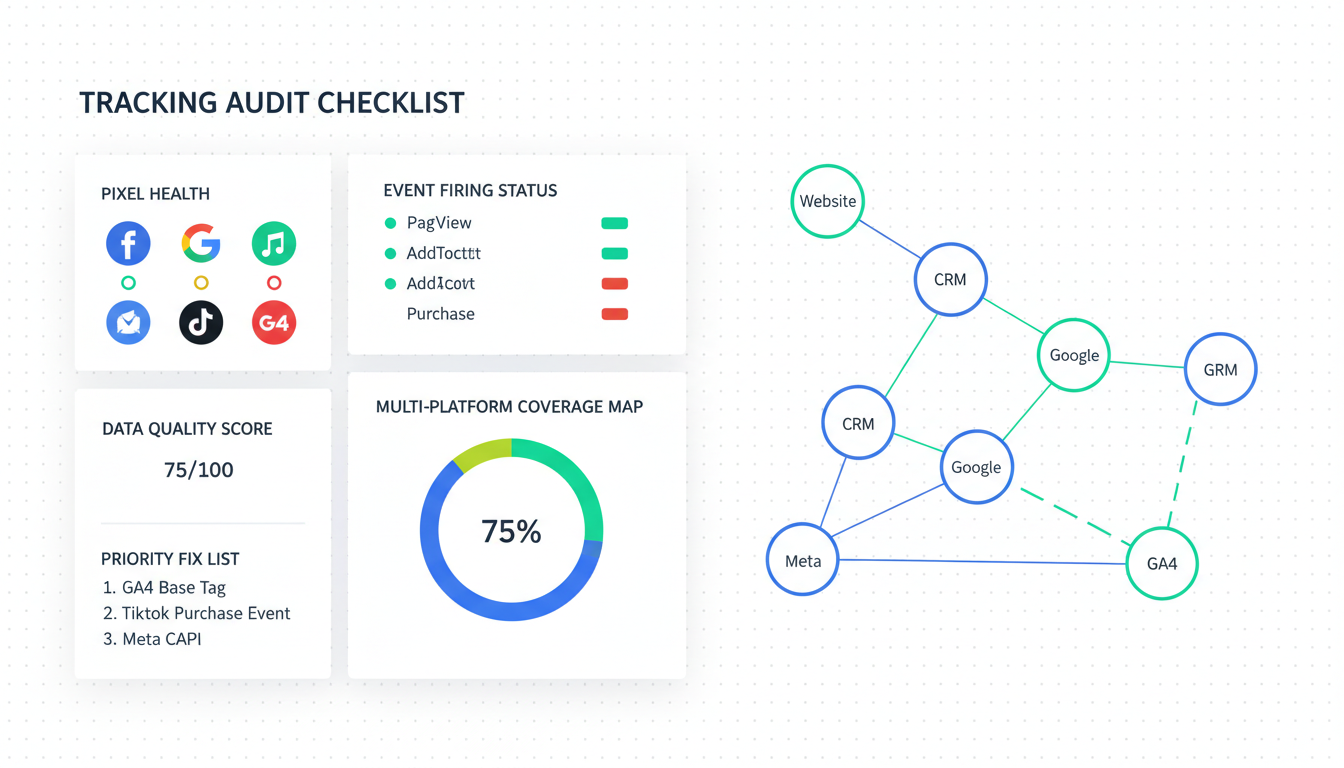
A Shopify tracking audit is the 20-minute process that tells you whether Meta and Google are actually seeing your sales, or whether they are getting a story the algorithm will punish you for. We audit around 40 Shopify stores a month, and nine out of ten fail at least three of the eleven checks below. The damage is never one big thing. It is small stuff stacked on top of each other. Two pixels firing at once, an event ID that does not match, a GA4 server-side tag quietly routing Meta events the wrong way, a consent banner that never actually fires. The checklist below is what we run before touching a single ad. Walk through it yourself, or skip to the bottom and grab the automated version. Either way, do not touch budget until the audit is clean. The creative was almost never the problem.
- Every browser pixel has a matching server event, deduped by `event_id`.
- GA4, Google Ads, and Meta each have one source of truth, not two.
- Consent mode and the cookie banner are actually wired to the tag manager.
- Blended ROAS and platform-reported ROAS sit within 20% of each other.
What a Shopify tracking audit actually covers
A Shopify tracking audit is not a screenshot of Tag Assistant and a list of "looks good" notes. It is the process of proving, event by event, that the numbers on Meta and Google Ads match the numbers in Shopify, and that the gap between them is explainable. If you cannot explain the gap, the audit is not done.
The honest version covers three layers. First, the browser layer: what fires in the visitor's browser, which pixels are loaded, which are duplicates, and whether the theme is sneaking in a fbq or gtag snippet from a 2022 setup. Second, the server layer: what gets sent from Shopify's backend to Meta CAPI, GA4, and Google Ads Enhanced Conversions, and whether each event carries the match keys and event ID it needs. Third, the attribution layer: whether the numbers on each platform reconcile to Shopify's order table, and whether consent banners actually fire in the right order instead of blocking tags after the pixel has already loaded.
Most Shopify tracking checklist guides online stop at layer one. The other two are where the money leaks. If you skip them, you did not run an audit. You ran a smoke test.
The 11-point checklist (overview)
Here is the whole thing in one view. Each point links to its own section below with the exact check, the tool you need, and what "clean" looks like. Run it in order. Do not jump around.
- Count of Meta browser pixels firing on the site. Should be exactly one.
- Meta CAPI status and which app or gateway is sending server events.
event_iddedup between the Meta browser pixel and CAPI.- GA4 measurement ID, one stream, one source of truth.
- Google Ads Enhanced Conversions turned on and receiving hashed match keys.
- Google Ads conversion tag firing once per conversion, matching the GA4 count.
- GTM orphan tags: old, paused, or duplicated tags nobody removed.
- Theme-level snippets in
theme.liquid,product.liquid, andcart.liquid. - Consent mode v2 signals reaching Google and Meta correctly.
- Cookie banner wiring: does it actually block tags before consent, or just pretend.
- Blended ROAS from Shopify vs platform-reported ROAS, variance under 20%.
Points 1 to 3 live in the Meta layer. Points 4 to 6 are the Google layer. Points 7 and 8 are the tag manager and theme layer. Points 9 and 10 are consent. Point 11 is the final reconcile, and it is the one most audits skip because it is the hardest. Skipping it is why stores run broken for years.
Before you start, you need three browser tools open and a test order ready to run. Install the official Meta Pixel Helper, Google Tag Assistant, and GA4 DebugView from your GA4 property. Put a coupon code in Shopify that drops a real product to $0.50. You will run the coupon through checkout three times during the audit. Do not skip the test order. The audit does not work without it.
Points 1-3: pixel count + CAPI status + event_id dedup
The Meta layer is where most of the damage lives, because the fix is invisible from the Shopify side. You only see it in Events Manager diagnostics, which most operators have never opened.
Point 1. Browser pixel count. Open Meta Pixel Helper on your product page. You want exactly one pixel ID firing, with one PageView event. If you see two pixel IDs, one of them is almost always left over from an old GTM container or a paused app that did not fully uninstall. Check GTM first. Pause every Meta tag. Reload the page. If the pixel still fires, it is in the theme. Open layout/theme.liquid and search for fbq(. Remove any init snippet you find. Then open the Shopify Facebook and Instagram app and confirm its pixel ID matches what Pixel Helper shows.
Point 2. CAPI status. In Events Manager, open the Overview tab for your pixel. Look at the last 7 days of events. Every core event (Purchase, AddToCart, InitiateCheckout, ViewContent) should show a "Browser" row and a "Server" row. If you only see Browser rows, CAPI is off. If you see Server rows but the source is "GA4" instead of the Shopify app or a direct CAPI call, that is the failure mode where server events are routed through GA4's measurement protocol and lose 60% of their match signal. Fix it by turning off whatever is sending server events through GA4 and enabling CAPI directly in the Shopify F&I app. See our full Meta CAPI setup guide for the exact configuration.
Point 3. Event ID dedup. Run your test order. Open Events Manager, go to Test Events, and grab the test code. In the Test Events tab you should see two rows for Purchase: one Browser, one Server. Look at the event_id field on each row. Same string, same case, same format. If the dedup note is missing, the IDs do not match and Meta is double-counting every purchase. The fix is almost always that the server side is sending the Shopify order number (1001) and the browser is sending a prefixed version (order_1001). Pick one format and align both sides. Run the test again.
Points 4-6: GA4 + Enhanced Conversions + Google Ads tag
The Google layer is cleaner than Meta because Google forces you to declare streams explicitly. But it still breaks in the same three ways.
Point 4. GA4 measurement ID, one stream. Open GA4 DebugView while loading your site. You should see one G-XXXXXXX ID firing, with a clean page_view event. If you see two, one is almost always a leftover Universal Analytics artifact or an old GTM tag nobody paused when you switched to the native Shopify integration. Pause the duplicate. If you cannot tell which is yours, check GA4 property settings and trust that one.
Point 5. Enhanced Conversions. In Google Ads, open Tools, Conversions, pick your Purchase action. Scroll to Enhanced Conversions. Status should be "Recording" and source should be "From the tag" or "From Google tag." If it says "Not detected" or "Needs setup," you are leaving 10 to 15% of attributed conversions on the table because Google cannot match logged-in Shopify customers to Google accounts. Fix it by turning on "Send user-provided data" in Google Ads, then confirm the Google and YouTube channel is sending email and phone from checkout. Check back in 48 hours.
Point 6. Google Ads conversion tag. Run your test order with Tag Assistant open. On the thank-you page you should see one conversion hit fire, once, with the correct value. If you see two, GTM and the Google and YouTube channel are both firing. Pick one. The Google and YouTube channel is almost always the right one to keep because it handles Enhanced Conversions natively. Pause the GTM tag, re-run the test, and the reported revenue in Google Ads should match Shopify for that order within a few hours.
Points 7-8: GTM orphans + theme.liquid audits
This is the boring part of the Shopify pixel audit and the part that catches the most bugs. Nine out of ten duplicate-firing issues trace back to a tag nobody removed when the setup changed in 2023, or a snippet a freelancer dropped into the theme two setups ago.
Point 7. GTM orphan tags. Open Google Tag Manager, go to Tags, sort by "Last edited." Look for anything nobody touched in the last six months. For each orphan, ask two questions. Is it paused or live? If live, is it firing on pages it should not? Common orphans: a Meta pixel tag from before you installed the F&I app, a GA4 config tag from before the native Shopify integration, a Google Ads conversion tag from before Enhanced Conversions, a custom HTML tag with a fbq or gtag call somebody added for a one-off test and forgot about. Pause all of them. Publish. Rerun points 1 and 6 to confirm the duplicates are gone.
Point 8. Theme-level snippets. In Shopify admin, open Online Store, Themes, Edit code. Open layout/theme.liquid and search for fbq(, gtag(, and dataLayer.push(. You are looking for hard-coded init snippets that should not be there. The F&I app, Google and YouTube channel, and native GA4 integration all handle these for you. If you find a fbq('init', ...) or gtag('config', ...) in the theme, it is fighting with the app integration and almost certainly creating duplicate events. Remove it. Repeat on templates/product.liquid, templates/cart.liquid, and sections/header.liquid. Commit on a duplicate theme first in case a snippet turns out to be load-bearing for something you forgot.
Points 9-10: consent mode + cookie banner wiring
Consent is the point where most Shopify stores get a clean technical setup and then break it at the compliance layer. The banner looks correct. The user sees the choices. But the tags are still firing before consent is granted, or the signals are not reaching Google and Meta in the format they need.
Point 9. Consent mode v2 signals. In GA4 DebugView, load a page from a private window so you hit the banner fresh. Before you click anything, check the DebugView event stream. You should see a consent_update event with ad_storage: denied, analytics_storage: denied, and the two new v2 flags (ad_user_data: denied, ad_personalization: denied). Click "Accept all." You should see a second consent_update with everything flipped to granted. If you do not see these events, consent mode is not actually hooked up and Google is treating every visitor as unknown-consent, which degrades conversion modeling. Fix depends on your banner vendor. Most of the common ones (Cookiebot, OneTrust, Shopify's native banner) have a consent mode v2 toggle that needs to be turned on explicitly.
Point 10. Cookie banner wiring. This is the one that catches almost everyone. Open a private window. Do not accept the banner. Open Meta Pixel Helper and Tag Assistant. Browse the site for 30 seconds. Look at what fired before you clicked accept. In a properly wired setup: zero pixel events, zero Google Ads conversion events, and GA4 only fires consent-denied "cookieless" pings. In the broken setup we see most often: the Meta pixel fires PageView anyway, the GA4 tag fires with real cookies, and Google Ads conversion tags queue up ready to fire the moment a conversion happens. The banner is pure theater. Fix is to set the firing triggers on all marketing tags to require the consent state, not just require a click on "accept." Most GTM setups miss this because they wire the banner to a custom event instead of the consent API.
Point 11: blended ROAS vs platform ROAS variance
This is the hardest check, and the one that separates a real Shopify tracking setup check from a screenshot tour. It is also the single most useful number you can compute about your account, because it tells you whether everything above actually mattered.
Pull last month's total Shopify revenue. Then pull total ad spend across Meta and Google for the same period. Blended ROAS is revenue divided by spend. Write it down. Now open Meta Ads Manager and Google Ads and pull reported revenue and reported spend for the same window. Add the two platform revenue numbers together, divide by the sum of spend. That is platform-reported ROAS.
Platform ROAS is always higher than blended, because each platform claims overlapping credit (a visitor who clicked a Meta ad and then a Google ad gets counted twice). The question is how much higher. A healthy account sits between 110% and 140% of blended. A broken account shows 180% or 250%, which means the platforms are claiming conversions that did not happen at that scale. Either a duplicate-firing problem is inflating both platforms, or your attribution windows are double-counting so heavily that budget decisions are basically random.
If your variance is above 40%, stop. Do not raise budget. Do not test new creative. Go back to points 1, 3, 6, and 7 and find the duplicate source. It is always there. Fix it, wait a week for the platforms to re-stabilize, then rerun point 11. When the gap closes to under 20%, you are actually running a tracked Shopify store and the numbers on your dashboards finally mean something.
Frequently asked questions
How often should I run a Shopify tracking audit?
Can I audit my Shopify tracking without a developer?
What is the fastest point to fix if my audit fails multiple checks?
Does Shopify's native tracking handle all eleven points?
How do I know if my consent banner is actually blocking tags?
consent flags set to denied. Those are normal. Full page_view events with a client_id cookie before consent is granted are the problem.What does a "passing" Shopify tracking audit look like in numbers?
A Shopify tracking audit is not the exciting part of running a store. It is the boring, unglamorous work that makes every other decision actually mean something. You cannot fix creative if the tracking is lying. You cannot scale budget if the ROAS reconcile is off by 40%. Best to run the 11 points above end to end before you touch anything else on the account. Twenty minutes if the store is clean, most of an afternoon if it is not. Either way it is cheaper than a month of wasted spend. If you want the automated version (the same checks run on your store and emailed back as a scored report) grab the free audit from the sidebar.
Get a full X-ray of your ad account
Paste your Meta and Google Ads. See exactly where signal is leaking. Free. 60 seconds.